
Get the Rithmic credentials and assigned System from your account provider. Open its supported Rithmic interface, select that System and the documented Gateway, then log in. Review any required agreements and confirm the expected account. Successful login is only the first check; it does not establish trading permission, live-data entitlement or tested order execution.
Educational software guidance. Trading involves risk. Read the financial and information disclaimers.
Prepare the correct information
| Item | Where to get it |
|---|---|
| Trading username and password | Provider's secure account area or account-issued instructions |
| System | The instructions for that specific Rithmic login |
| Gateway | Provider's supported connection instructions |
| Interface and connection arrangement | Platform guide for your provider and version |
Do not publish a screenshot containing a password or full account identifier. A funded/evaluation label alone is not a reliable System selector.
Sign in and check the result
- Open the provider's recommended interface. Use the desktop download guide if the intended workflow requires desktop RTrader Pro.
- Enter the trading credentials, checking for accidental spaces.
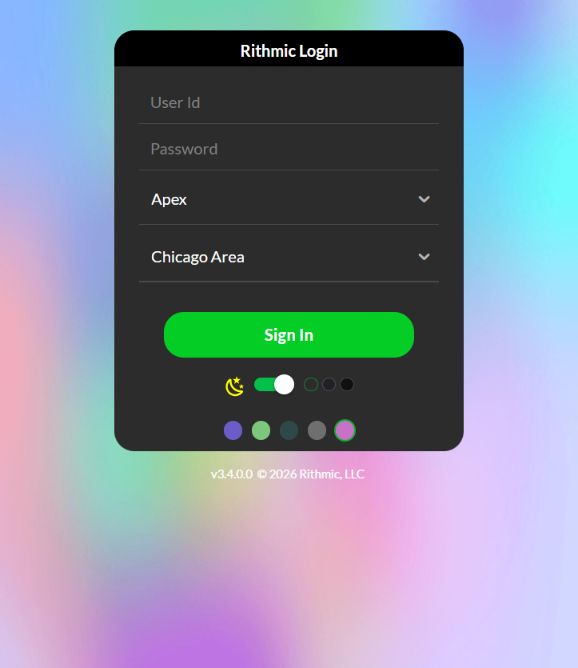
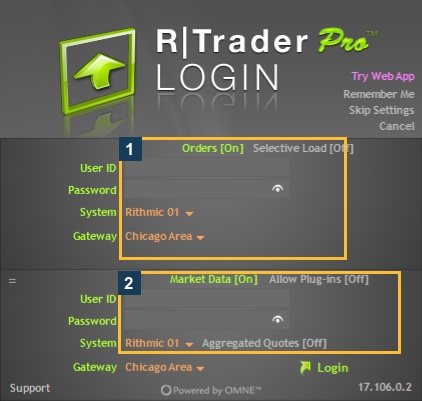
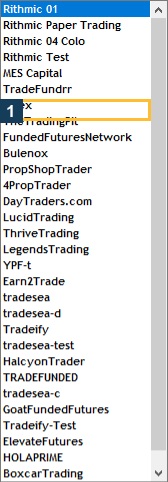
- Select the issued System and an appropriate supported Gateway. The session captured for this library used Apex / Chicago Area; that is not a default for other providers.
- Log in once and preserve any exact error message. Use the login error guide if rejected.
- Review the required agreement route. Answer subscriber classification questions accurately rather than choosing a status solely because it is cheaper.
- Confirm the expected account and connection. Check market data and the intended trading route separately.
Apex's official setup guide identifies its credentials in the welcome email or Rithmic Account area and specifies the Apex System. Use that guide for Apex-specific desktop settings; do not transfer them to another firm.
What was checked here
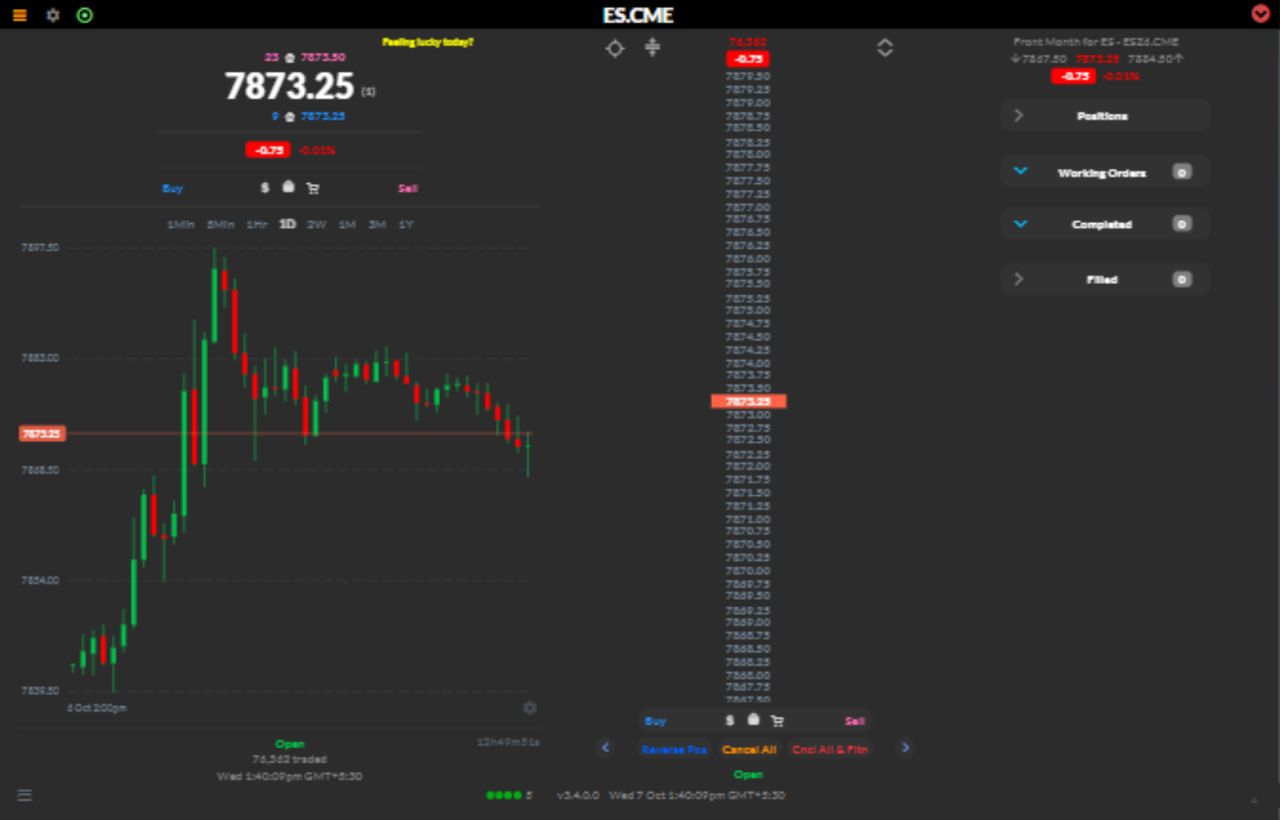
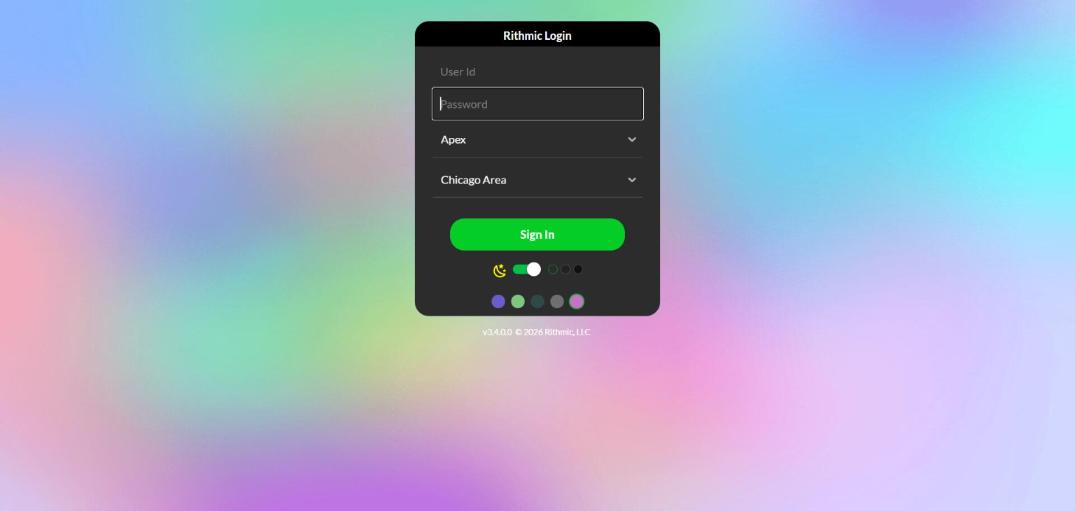
An authenticated web session was opened and its System/Gateway, help, agreement-status and instrument controls were observed. No account was created, agreement accepted or order submitted. The login screenshots have empty credential fields. They are layout references rather than proof of a new-account onboarding sequence.
Captured reference images
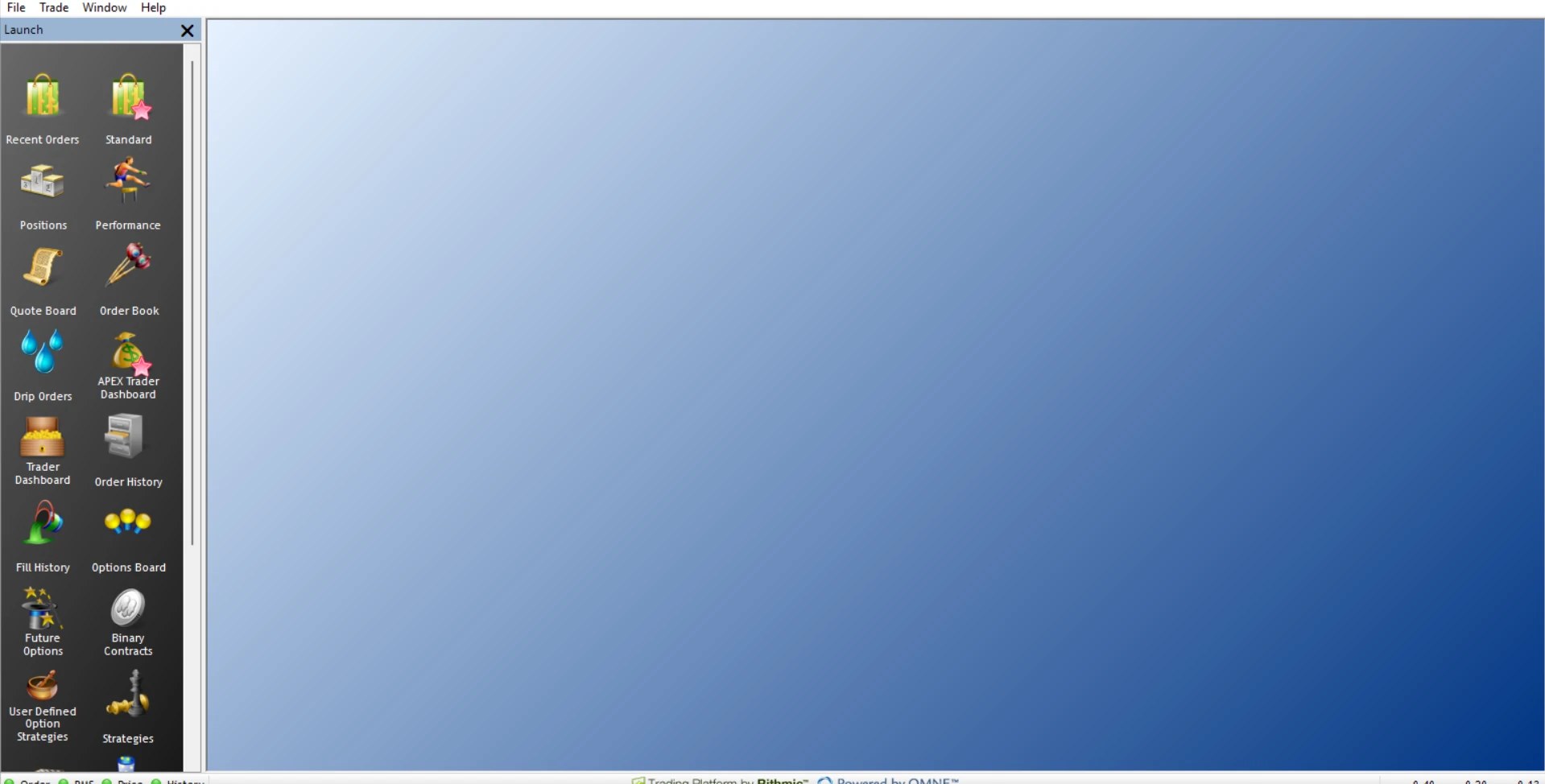
The captions distinguish observed web screens from vendor documentation and imported desktop references. The native desktop and web references below document their stated controls and authenticated states; neither is an execution test.
Confirm the native account and agreements
Open File → Trader Dashboard and match the expected account privately. Then open File → Agreements & Documents and File → Market Data Entitlements. These panels were opened on the logged-in VPS on 7 October 2026. Agreement status, account visibility and data subscription are separate checks.


Native desktop references from this VPS
The later Windows inspection captured an unused login form with empty credentials and its actual System menu. The authenticated Apex / Chicago Area window was then rechecked with green service indicators. This was an existing login, not first-time account creation or agreement signing.
If you need a practice environment, check a provider-supported Rithmic demo; do not assume evaluation and demo System settings are interchangeable.
Before storing or sharing connection details, protect your Rithmic login and account information.
Common questions
Is my website password the correct Rithmic password?
Use the credentials explicitly issued for Rithmic. Do not assume another login is interchangeable.
Can I select Rithmic 01 because my account is funded?
Use the System assigned to the specific login. Funding labels do not establish the connection environment.
Does no agreement popup mean something is broken?
Not necessarily. Existing records may already be complete, or the provider may use another supported route. Check status before repeating setup.
Am I ready to trade after login?
Login alone does not verify the account's limits, data permissions, order route or exit handling. Complete the setup checklist.