
Rithmic advertises a one-time 14-day paper-trading trial with live market data. Start from its official signup link, read the current terms, complete the required forms and use the issued desktop connection details. The public trial is not a funded account and does not include every interface or API.
Educational software guidance. Trading involves risk. Read the financial and information disclaimers.
Start at the official trial route
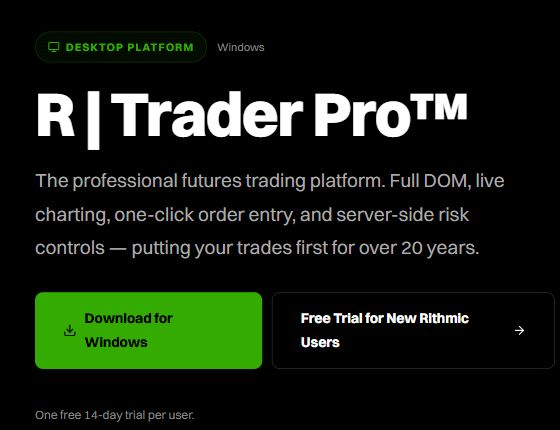
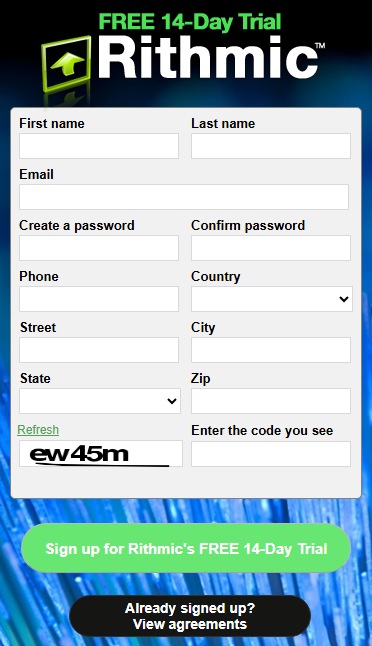
- Open Rithmic's desktop product page and select Free Trial for New Rithmic Users, or follow the official trial signup.
- Enter your own details and read the terms and subscriber questions. Do not choose Non-Professional solely to obtain a lower rate.
- Keep the activation instructions. Use the exact User ID, password and System issued for this trial, rather than another firm's credentials.
- Open the supported desktop platform and complete any remaining agreement requirements.
- Confirm the paper account, services and intended contract before testing a workflow. Check that the account is a simulation; the application name alone does not establish this.
No new trial was registered for this library. The authenticated Apex session shown elsewhere belongs to a provider-issued account and is not evidence of the public trial signup result.
Know the trial limits before choosing it
Rithmic's current FAQ, checked 7 October 2026, says the trial lasts 14 days, requires no credit card and expires automatically. It does not offer repeated free trials. It also says the web/mobile apps are unavailable to demo users, and R | Protocol API is unavailable for paper demos that include live market data.
An application requiring Protocol access can therefore have different account requirements from desktop RTrader Pro. A developer test environment and a retail live-data trial are not interchangeable.
If the trial does not connect
Check the activation instructions, exact case of the User ID, System, password and required agreements. Check current maintenance notices if the issue is time-dependent. Ask Rithmic support about the issued trial status if those details match. Do not create successive identities or email addresses to evade the trial limit.
After expiry
Rithmic directs users who want continued service to its sales team for a paid subscription. Obtain current pricing and interface entitlement before paying. A subscription to another trading platform may have separate billing. Trial fills cannot establish what a live account would execute, or prove a strategy profitable.
Screenshot references
Common questions
Is a prop-firm evaluation the same as this trial?
No. A firm-issued evaluation has its own account, billing and trading rules even if it uses simulated execution.
Can I use the trial in Rithmic mobile?
Rithmic’s current public documentation excludes its web/mobile interfaces from demo access.
Can I test a Protocol-based webhook service with it?
Do not assume so. Rithmic excludes Protocol access from the live-market-data paper demo; confirm the receiving service’s account requirements.
Will the trial automatically charge me?
Rithmic says its own 14-day trial needs no credit card and expires automatically. Check separate vendor subscriptions independently.