
Use the System assigned to your Rithmic login, then a Gateway supported for that System and workflow. System identifies the connection environment; Gateway identifies an entry point. Do not choose a System from the words “funded,” “demo” or “live” alone. Menu entries vary by interface and version, and an entry does not prove that your account can use it.
Educational software guidance. Trading involves risk. Read the financial and information disclaimers.
Find the two fields in desktop RTrader Pro
The inspected desktop version, 17.106.0.2, has System and Gateway in both the Orders and Market Data login sections. The credentials are empty in this reference. Box 1 marks Orders; box 2 marks Market Data.
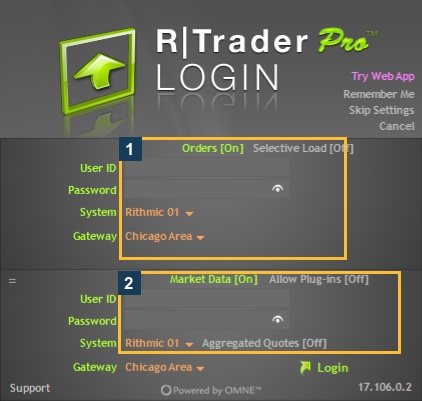
- Obtain the current Rithmic login and connection instructions from your broker or funding provider.
- Find its exact System label in the intended interface.
- Confirm the supported Gateway rather than copying another trader's setting.
- Check whether the application uses a direct connection or a local RTrader plugin. Its server label may combine several connection details.
- After an appropriate connection attempt, verify the expected account and services. Keep an existing working connection intact while investigating alternatives.
What the native System menu showed
The unused login form exposed 31 System labels in the native control on 7 October 2026. Examples included Rithmic 01, Rithmic Paper Trading, Apex, Bulenox, LucidTrading and Earn2Trade. The screenshot below shows a partial visible list; the outline marks Apex.
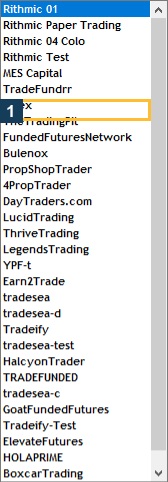
These labels are an observation of this installed build. They do not establish current signup availability, account-stage eligibility, firm permission for automation or copier access. No login was attempted on the unused form.
What the Gateway menu showed for Rithmic 01
With Rithmic 01 selected in the unused form, the control exposed these 18 labels:
| Native label | Native label | Native label |
|---|---|---|
| Aurora Area | Chicago Area | Colo 75 |
| Colo 75 Summary | Europe | Frankfurt |
| Mumbai | Singapore | Tokyo |
| Hong Kong | Sydney | US East |
| US West | MDP3 Summary | Seoul |
| Sao Paolo | Cape Town | NYC Area |
Sao Paolo is the literal spelling in that menu. Do not silently substitute a different string in configuration instructions. The list is scoped to the observed Rithmic 01 form; it is not an Apex gateway list or an API hostname list.
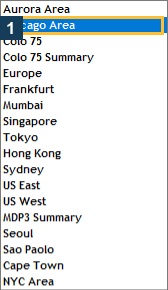
Names containing Summary or Colo are not interchangeable with every regional choice. Ask the provider which entry is appropriate before using an unfamiliar option. This capture measured no latency and tested no alternative gateway.
Use provider-specific instructions
Apex's setup guide names its System. EdgeClear's connection details distinguish connection information for its environment. Quantower's guide uses its own server selector. These examples explain why a single table assigning a universal System to every “funded account” is unreliable.
If a required label is missing, record the application version and current menu, then ask the provider to confirm the supported build and connection. Do not try every System with your password.
Common questions
Are System and Gateway the same thing?
No. Use both parts of the issued connection details. A matching Gateway cannot correct a login assigned to a different System.
Does a closer geographic name guarantee a faster connection?
No. Geography is only one consideration. Follow the supported choices, then compare performance in the intended workflow without interrupting active trading. See gateway selection.
Why does my other platform use a different server label?
Connectors can combine environment and location into one option or use different wording. Match that platform's guide rather than translating a label by guesswork.
Can I use these labels as API server addresses?
No. A desktop menu label is not a network hostname or a complete API endpoint. Obtain the API connection specification for the supported application.