
Record the exact error, check the Rithmic credentials and System issued by your provider, then identify whether login, market data or account access failed. If another platform is connected, check its direct or plugin route before opening another data session. A successful RTrader Pro login narrows the investigation; it does not prove that every account can trade or that another application is configured correctly.
Educational software guidance. Trading involves risk. Read the financial and information disclaimers.
Start with the symptom you actually see
| Symptom | First useful check | What it does not prove |
|---|---|---|
| Login rejected | Issued credentials, selected System, account status | That Rithmic has a general outage |
| Login stalls or times out | Dated provider notices, application log, network reachability | Whether the failure is local or at the service |
| Login succeeds, no quotes | Data-session route, exchange entitlement, exact contract | That the trading route failed |
| Quotes update, account missing | Provider provisioning and the application's account selector | That a chart's data login grants trading access |
| Second app disconnects the first | Simultaneous-session entitlement and connector support | That enabling one checkbox fixes every platform |
| Order rejected | Exact rejection and account/risk permissions | That changing a password will fix the order |
If positions or working orders already exist, first establish which connected interface or provider trade desk can confirm their state. A disconnected display is not evidence that an order was canceled. Avoid repeated submissions while you cannot verify the account.
1. Preserve the error before changing anything
Write down the application and version, the error text, when it occurred including timezone, and the selected System and Gateway. Save relevant log lines. Note whether the problem began after an update, a new account, a password change or opening another platform.
Keep passwords, API tokens and full private account identifiers out of shared screenshots. Give account details only through the provider's official support channel when needed.
2. Check the issued login and System
Your broker or funding provider supplies the Rithmic login. Its website login may be different. Compare the User ID, password and System with the current details it issued; check for accidental spaces and case differences.
The captured native login has separate Orders and Market Data sections. Box 1 contains the order-login controls; box 2 contains data-login controls and Allow Plug-ins. This empty form shows Rithmic 01. It is a reference for finding controls, not the setting prescribed for your account.
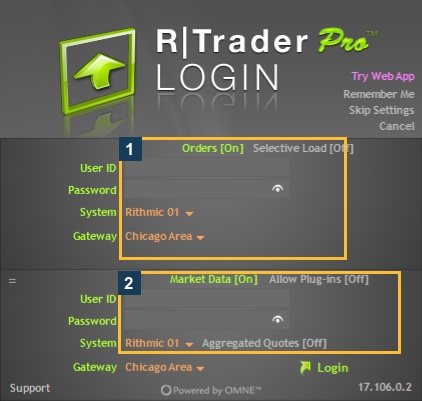
For example, Apex's setup guide specifies its own System and describes a data-session choice for that workflow. Do not apply an Apex setting to every provider. The System and Gateway guide explains the difference.
3. Separate authentication from data and trading
When it is appropriate to test a login, use the provider's supported RTrader Pro setup. Preserve an existing working connection before opening a second one. If RTrader Pro connects, inspect the expected account, connection indicators and intended instrument separately.

These indicators were green in an Apex / Chicago Area desktop session on 7 October 2026. They are a useful connection reference. They do not establish your individual account permissions, quote freshness or a successful fill.
For missing quotes, check exchange-data access, any incomplete agreement status and the exact contract. FCM means futures commission merchant; IB means introducing broker. An error asking you to contact the FCM/IB may require the account provider to check permissions.
4. Identify the other application's connection route
Before closing programs, identify whether they manage any local stops, brackets or order actions. Then use the vendor's instructions for the route you intend:
| Platform situation | Matching guidance |
|---|---|
| Quantower through RTrader Pro | Its documented Use RTrader route requires the plugin host and matching connection details |
| Quantower direct | Its vendor guide describes direct-session restrictions; check what else uses that login |
| Sierra Chart | Follow its documented Rithmic service and same-account limitations; a generic RTrader plugin recipe is insufficient |
| Another application | Confirm support in that version's connection guide before changing settings |
Quantower's troubleshooting guide describes agreement, credential, plugin-host and direct-session causes. Sierra Chart support documents a same-account limitation in its connector. Those are scoped instructions, not a universal session count.
5. Check maintenance and the network without guessing
Read current notices from Rithmic and your provider, matching the date, System and affected service. A historical forum outage is not proof of today's status. See how to check an outage.
If no matching incident is confirmed, check whether other network services work and whether the application log shows a license, data or trading connection error. A working website does not test every endpoint a trading app uses. Have the appropriate administrator review firewall or VPN restrictions. Use a narrowly scoped app exception when justified; Microsoft explains the risk of firewall exceptions. Turning protection off is not the default troubleshooting step.
Do not delete caches, reinstall software or change gateways as a first response. These actions can remove useful evidence or interrupt a working route. Follow a vendor-specific instruction only when it matches the recorded problem.
6. Send a useful support report
Include the error and timestamp, software version, System/Gateway, which service failed, whether the account appears, and whether another platform is connected. List the checks already completed. Ask the provider to confirm account activation, exchange entitlement, allowed sessions and any relevant incident. Do not send your password.
PickMyTrade is not a general repair for a failed Rithmic login. If you are diagnosing an automation workflow, investigate the alert, bridge connection and broker response as separate stages in the TradingView connection guide.
Common questions
RTrader Pro works but another platform fails. Is my account definitely fine?
The successful login is useful evidence for that session. The second platform can still have a different route, permission, version or data-session problem. Confirm the expected account and service instead of declaring every permission verified.
Should I enable plugin mode on every platform?
No. Use it only where the current connector supports that workflow. The plugin guide separates compatibility from provider session entitlement.
Can an outage remove my position?
A connection failure alone does not establish the account's state. Confirm positions and working orders through a connected interface or the provider. Check where any order-management logic runs before relying on it during a disconnect.
Does logging in again fix a disabled copier?
Not necessarily. The inspected native copier reported that copying was not enabled for the user. Provider entitlement is separate from login; see copier troubleshooting.