
List the applications using the login and identify their market-data and trading routes. Check the provider's allowed sessions for each service. A supported RTrader Pro plugin can share a data connection in some workflows, but it does not remove every session limit or make every connector compatible. Do not repeatedly force logins while another program may manage orders.
Educational software guidance. Trading involves risk. Read the financial and information disclaimers.
Understand what a session means here
A session is a connection used by a service. Prices, orders and historical data do not necessarily share one limit. Opening two windows inside one application is also different from starting a second independent connection on another computer.
| Setup | What to confirm |
|---|---|
| Two direct clients | Provider-authorized simultaneous connections and which services each uses |
| RTrader host plus plugin client | Plugin support in both apps, matching login/System, and separate trading-session limits |
| Same login on desktop and VPS | Actual enabled entitlement; local plugin sharing is not automatically remote sharing |
| Different logins | Each login's issued settings and the platform's multi-connection support |
| Sierra Chart plus another same-account app | Sierra Chart's connector-specific restrictions |
EdgeClear's Bookmap guide illustrates a configuration with one data connection and several order connections. Treat its numbers as that guide's example, not your login's universal entitlement.
Diagnose a conflict safely
- Preserve the exact message, timestamp and which application disconnected.
- Inventory connections on all relevant computers, including background software and permitted cloud services.
- Identify which application currently manages orders or protective logic. Do not use Task Manager to terminate it simply to clear a session.
- Compare the intended direct/plugin route with the vendor's guide and provider entitlement.
- When interruption is appropriate, follow the supported disconnect sequence and test one route at a time.
- If the conflict persists, give the provider the route inventory and ask which data/order sessions are enabled. Avoid guessing a release delay.
Where plugin mode is relevant
Quantower documents Use RTrader for its plugin workflow. It requires the local host and matching connection details. The inspected native login provides an Allow Plug-ins control in the Market Data section, outlined inside box 2 below; it is Off in this empty reference form.
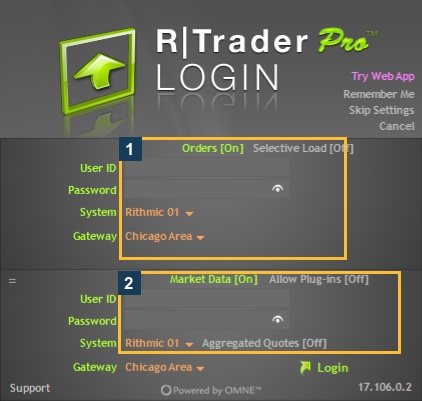
A visible control does not prove a successful two-platform session. Check plugin setup and limits before changing a running workflow.
Sierra Chart is a connector-specific exception
In the Apex same-account support case, Sierra Chart support identifies a limitation that prevents treating a generic RTrader plugin recipe as the solution. Follow its own Rithmic service guide and provider instructions. “Supports Rithmic” is not equivalent to “supports this plugin arrangement.”
Common questions
Does Rithmic always allow only one connection?
Do not generalize a single count to every service and provider. Check which data and trading connections are enabled for the actual login.
Can plugin mode remove all extra data fees?
Do not assume that. Vendor descriptions of sharing a data connection do not establish your classification, billing or provider entitlement.
Will changing gateways clear the session conflict?
Not necessarily. A Gateway is an entry point; it does not itself establish an increased allowed session count.
Can I use the web app as a local plugin host?
The inspected web controls do not establish that. Use a documented desktop host for a supported local-plugin workflow.