
For a platform that supports the RTrader Pro plugin, start desktop RTrader Pro, enable Allow Plugins before login, then select the matching plugin connection in the other application. Keep RTrader Pro running. Plugin compatibility and data-session entitlement are separate from simply supporting a Rithmic connection.
Educational software guidance. Trading involves risk. Read the financial and information disclaimers.
Check compatibility first
| Question | Why it matters |
|---|---|
| Does this platform/version offer an RTrader plugin? | A direct Rithmic connector is not proof of plugin support |
| Are both apps on the supported host? | A local plugin is not automatically a bridge to another PC or cloud service |
| What sessions has the provider enabled? | Market-data and order connections can have different limits |
| What depends on either application? | Closing software can interrupt its locally managed workflow |
EdgeClear's Bookmap guide distinguishes market-data and order-session limits. Do not claim that every plugin application shares one universal session or that fees are always avoided.
Set up a supported plugin connection
- Read the connection guide for your platform and version. Identify its plugin option before changing the current setup.
- Start desktop RTrader Pro with the account's assigned System and Gateway.
- Turn on Allow Plugins before login, as described by Rithmic.
- Connect RTrader Pro. Keep it running throughout the plugin session.
- In the other application, choose its RTrader/plugin connection option rather than an independent direct data login. Quantower's connection guide documents its own configuration.
- Check both connection statuses and the expected account/symbol. Verify the separate order route before relying on it.
Do not copy settings such as Aggregated Quotes or Market Data On/Off from an unrelated firm's screenshot. Those values must fit your intended data route and provider entitlement.
Sierra Chart is an important exception
Sierra Chart support states that its Rithmic interface cannot share the same account connection with another application in the scenario it addresses. See the 27 May 2026 support response. Use the Sierra Chart guide, not a generic plugin recipe.
If the second platform does not connect
Check that the plugin host is connected, the second application selected the plugin route, and both use the intended account/System. If connecting the second app disconnects the first, record which connection failed and ask the provider about its session limits. Do not repeatedly restart every application while orders may depend on them.
Captured reference images
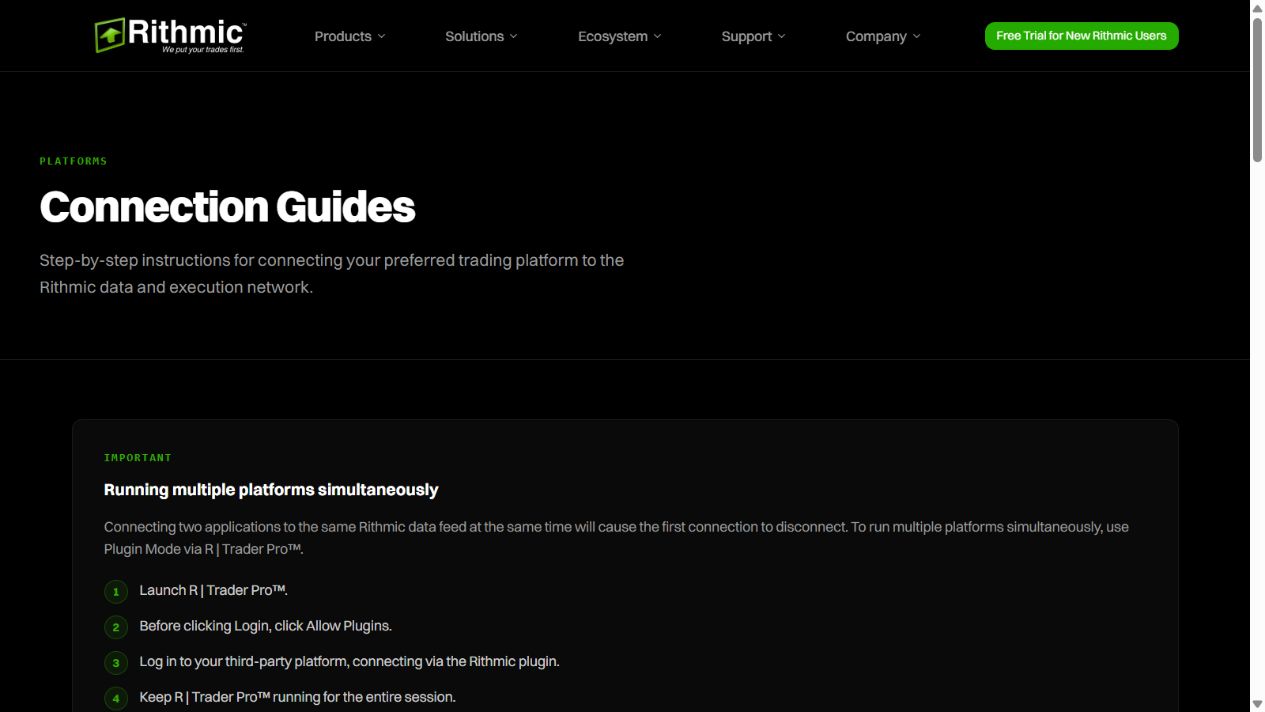
The captions distinguish observed web screens from vendor documentation and imported desktop references. None proves a successful order or the unobserved desktop workflow.
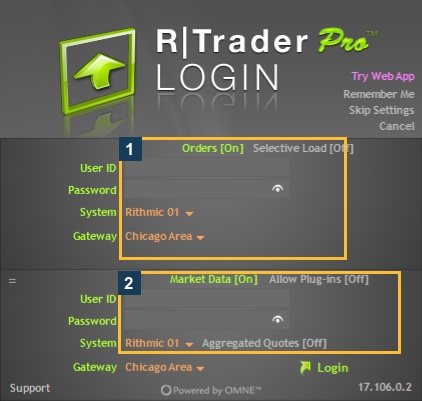
Native desktop control location
In the empty Windows login form inspected here, box 2 marks Market Data and Allow Plug-ins [Off]. Orders is separate in box 1. The exact native label is Allow Plug-ins in this build. This proves the control location, not an enabled host/client session.
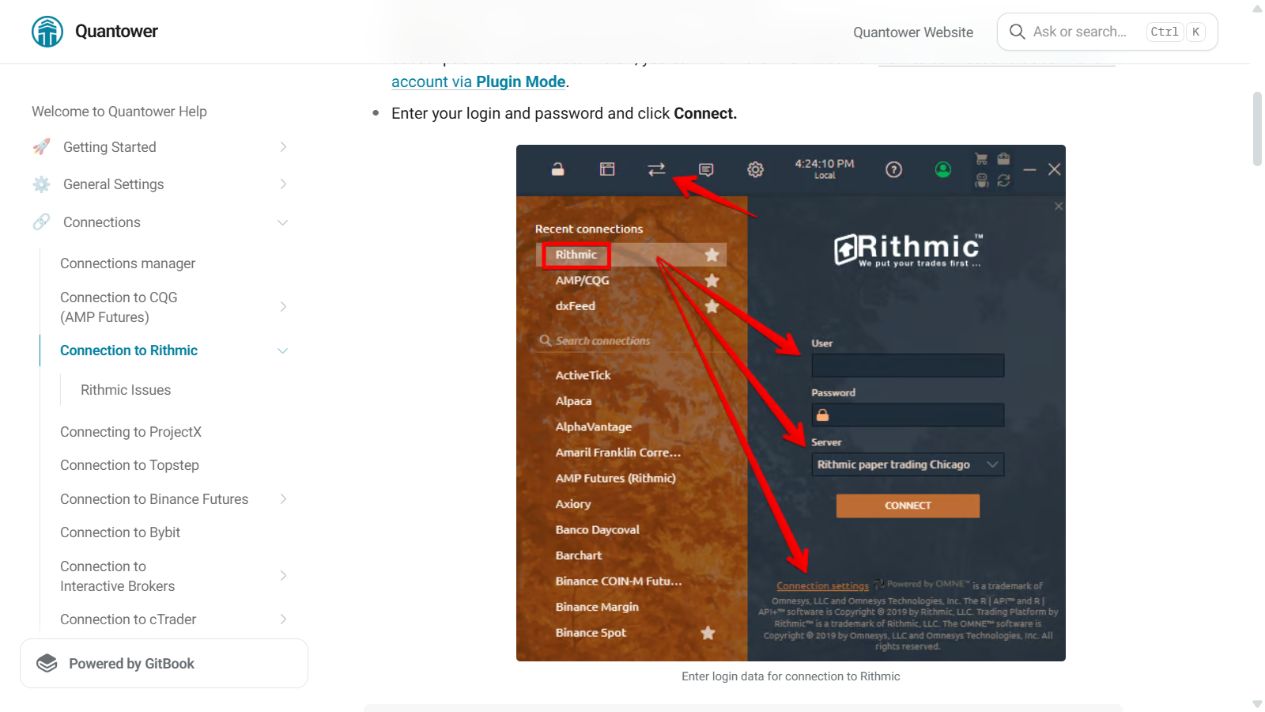
The local host was not reconfigured and no second trading platform was connected. The documented client control below provides the matching Quantower reference; it is attributed vendor documentation, not a second authenticated session.
Match the client-side setting
In Quantower, open the Rithmic connection settings and use its Use RTrader option for this documented route. The host and client must use the same intended credentials/System. A provider-specific NinjaTrader connector has separate eligibility requirements; see its dedicated guide rather than copying Quantower controls.
Common questions
Can I use the web app as the desktop plugin host?
The web controls captured here do not establish that capability. Follow the desktop plugin documentation for this workflow.
Does Plugin Mode guarantee identical positions in every window?
No. Inspect connection status and refresh/account scope before relying on a display. A second window is not a guarantee of synchronized order management.
Does Plugin Mode remove every session limit?
No. It does not prove your provider's permitted session count, billing treatment or support for another platform.
Is this the same as a cloud automation connection?
No. A cloud service's Rithmic route has its own requirements. Do not infer how it coexists with local applications from this local-plugin guide.