
Open File, then Trade Copier in R Trader Pro desktop. First check whether copy trading is enabled for your login. If the application says it is not enabled, ask the account provider about eligibility and activation. A successful trading login does not establish permission to use the copier.
Educational software guidance. Trading involves risk. Read the financial and information disclaimers.
Check access before configuring accounts
- Confirm the correct provider System and account login.
- Open File, then Trade Copier.
- Read any access message before selecting accounts.
- If access is restricted, keep the message and version for a private provider support request. Do not try to solve it by changing risk limits or repeatedly reinstalling the application.
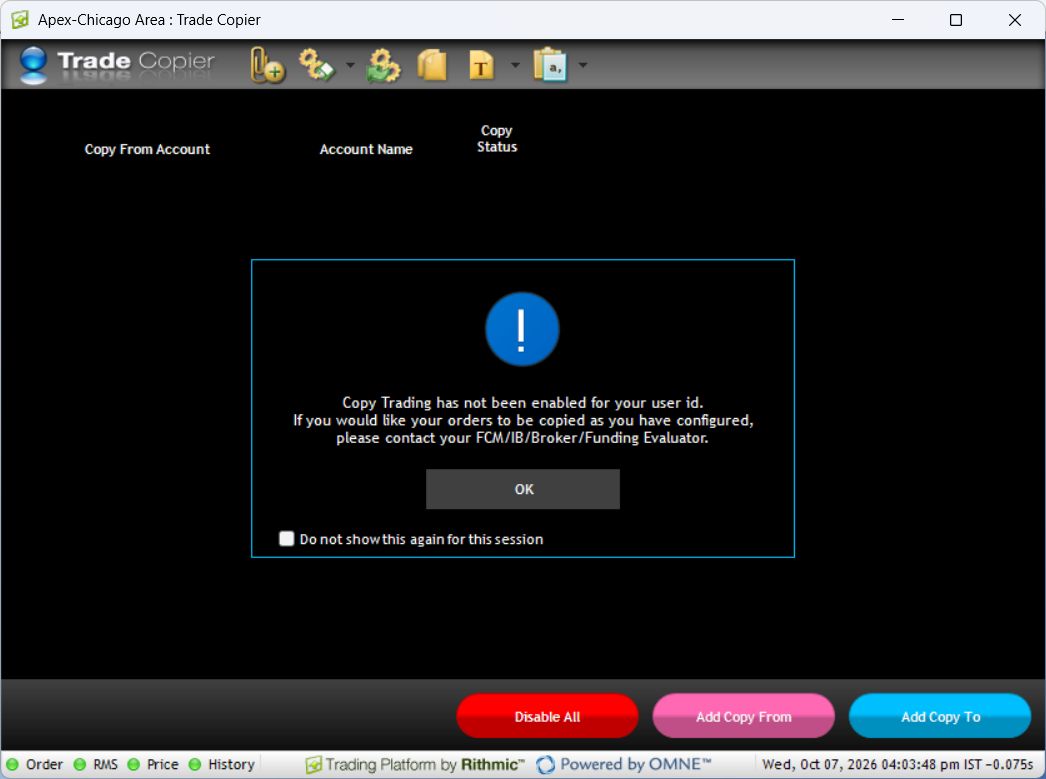
The inspected window also showed Add Copy From, Add Copy To, Copy Status and Disable All. No account pair was configured and no copying was enabled in this review.
Configure only after the provider confirms eligibility
Lucid's provider guide describes selecting a leader with Add Copy From, adding followers with Add Copy To, setting Quantity Multiple, and enabling the configured relationship. Those instructions describe Lucid's documented workflow; they do not establish permission or matching behavior for every provider.
The illustrated sequence is:
- Choose Add Copy From and select the intended source account.
- Choose Add Copy To and select the intended receiving accounts.
- Review the size setting and each relationship's status before enabling it.
- Enable only the relationships permitted for your login and intended workflow.
Before activation, confirm each account identifier, ownership permission, eligible products and maximum intended quantity. Establish which application originates orders and whether another copier or alert route can send the same instruction. A connected account can still reject an order.
Validate the relationship before relying on it
Use a provider-approved simulation to record expected source and destination quantities. Include an entry, its partial fills if supported, a modification, cancellation, exit and reconnect case. Record what happens when a follower rejects a request. Checking only that accounts appear in a list does not establish these outcomes.
Keep positions and working orders visible for every account. Disabling a copying relationship is not proof that existing positions are closed. Review the copier settings guide before changing a multiplier or an active relationship.
Native copying and TradingView automation
A native copier and a service that sends TradingView alerts to multiple accounts are different order paths. Review the current PickMyTrade Rithmic setup documentation for supported connections. Provider permission and account compatibility must be checked separately; the availability of a connection does not grant copying rights.
Provider guides and evidence limits
Lucid's illustrated copier guide shows the account-selection dialogs on pages 3–4 and the size/status controls on page 5. This is a provider-issued reference for the native Rithmic interface, not a screenshot of this enabled login.
Rithmic's release notes for 17.61 state that copying requires administrator permission. Check File → User Profile and ask the account provider about the displayed entitlement. Historical release notes establish the permission model; they do not certify every current account.
DayTraders' guide instructs users to disable the affected relationship before adjusting its settings. Check that provider's terms only if it is your provider; its add-on price is not a universal Rithmic fee.
The inspected login was not enabled for native copying. This article is a documented setup or diagnostic guide; it does not claim that copied orders, partial fills, rounding, cancellations or reconnect recovery were tested. Obtain account-specific confirmation before using behavior that the cited guide does not specify.
Common questions
Why can I log in but not use Trade Copier?
The inspected login authenticated successfully but the copier displayed an access restriction. Ask the provider whether the feature is available for that user and account type.
Will copying continue if I close the application?
Hosting and disconnect behavior were not tested here. Obtain the provider's current specification and validate it in an approved simulation before relying on unattended operation.
Can I copy across providers or different logins?
This session did not establish that capability. Confirm supported account relationships and each provider's rules rather than assuming that two Rithmic accounts can be paired.
Does Disable All close positions?
Do not treat it as a flatten command. Inspect each account's actual orders and positions, and use the provider's documented controls for the action intended.