
Use the broker position and executions to reconcile the difference. A strategy’s planned position can diverge after a rejection, partial fill, manual trade, or disconnect. Do not fix the display by blindly sending another trade.
Educational software guidance. Trading involves risk. Read the financial and information disclaimers.
Step by step
- 1 Pause new strategy entries while keeping oversight of existing orders.
- 2 Record the exact account, contract, and broker position in TWS.
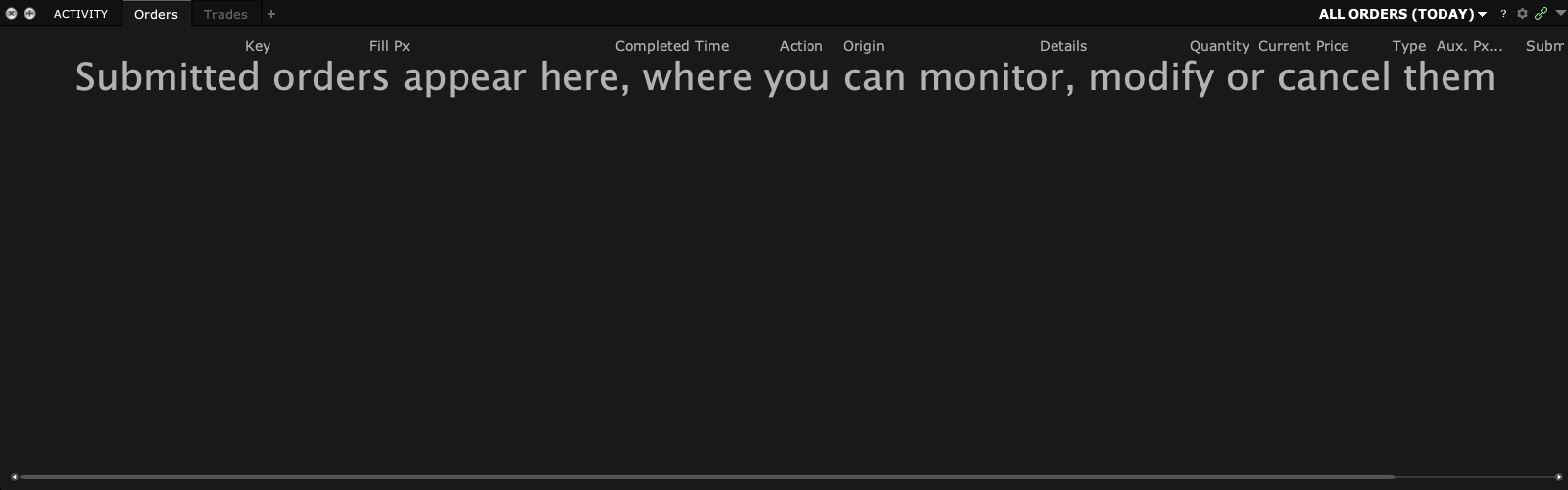
- 3 Compare executions and open orders since the last point of agreement.
- 4 Check the app’s received alerts, accepted orders, rejections, and partial fills.
- 5 Use the app’s supported state check process and check both views before resuming.
A practical example
A strategy thinks it bought ten shares, but only four filled at the broker. If the app then plans an exit for ten, the plan and the real position are out of step. Start with the broker’s fills and open remainder. Find the point where the two views stopped agreeing. Do not send a new trade merely to make one screen match the other without knowing which state is correct.
Screen reference
Mistake to avoid
Common questions
Can a manual trade cause a mismatch?
Yes, especially if the app does not manage or track it.
Should I close everything automatically?
First identify the cause and intended position; do not use a blanket trade as a display repair.