
Check the full futures contract month that the app will trade. A chart may switch to a new month while your position stays in the old one. Check the mapping for new entries and the contract for old exits as two separate tasks.
Educational software guidance. Trading involves risk. Read the financial and information disclaimers.
Step by step
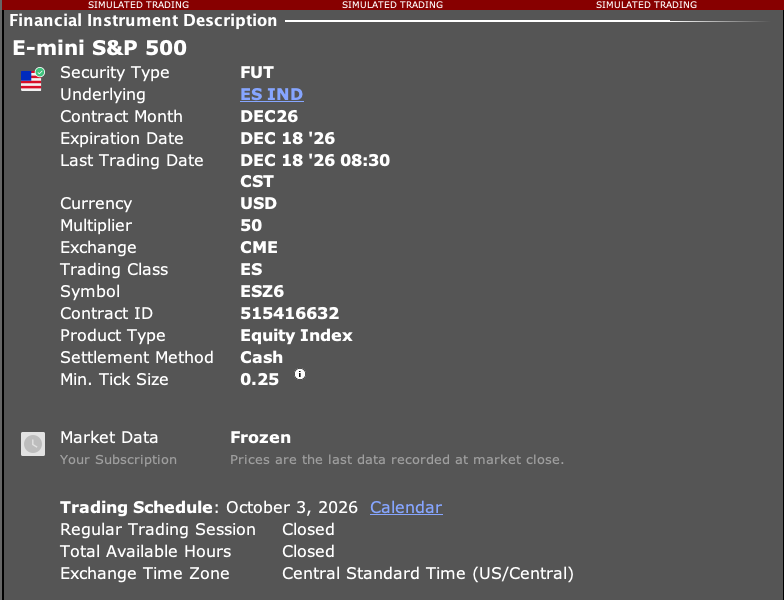
- 1 Open the intended future’s Description in TWS and note its expiry.
- 2 Read the TradingView chart’s full symbol and whether it is continuous.
- 3 Check which executable contract PickMyTrade’s mapping now resolves.
- 4 Update the supported mapping if it points to an old or unintended expiry.
- 5 Review existing positions and exits separately before activating the new entry mapping.
A practical example
You used one futures month last week and now want the next one. Your old position can still be in the first month even if the chart has switched. Check the position’s full contract before sending an exit. Then check the entry mapping for the next signal. These are two separate jobs. A new map tells the app where a new trade should go; it does not move an old trade to another month. Keep a short list of the old and new contracts until the old position and its exits are fully accounted for.
Screen reference
Mistake to avoid
Common questions
Can I trade a chart’s display name directly?
Use a supported mapping to a tradable contract, not an assumption based on the chart label.
Should exits use the new expiry after rollover?
They must address the position they are intended to close.