Orders and exits

TWS says Submitted but the order has not filled

Quick answer

Submitted is an order state, not a fill receipt. Check the order’s limit price, market session, and remaining size. Use the Trades view and position change to confirm execution.

Educational software guidance. Trading involves risk. Read the financial and information disclaimers.

Step by step

  1. 1 Find the order in Activity → Orders and read its complete status.
  2. 2 Compare its limit price with the current bid and ask for the same contract.
  3. 3 Check time in force, outside-hours eligibility, and any activation condition.
  4. 4 Inspect filled and remaining size, then check the Trades tab.
  5. 5 If you change the order, confirm the change before assuming its terms changed.

A practical example

Suppose a buy limit is below the current ask. The order can be working while waiting for a price that meets its limit. Sending it a second time does not make the first one fill faster. It may just leave two working orders. Read the broker’s order state and the fill list. Keep an order that exists separate from a trade that has happened.

Illustrative scenario, not a record of a trade placed during this review.

Screen reference

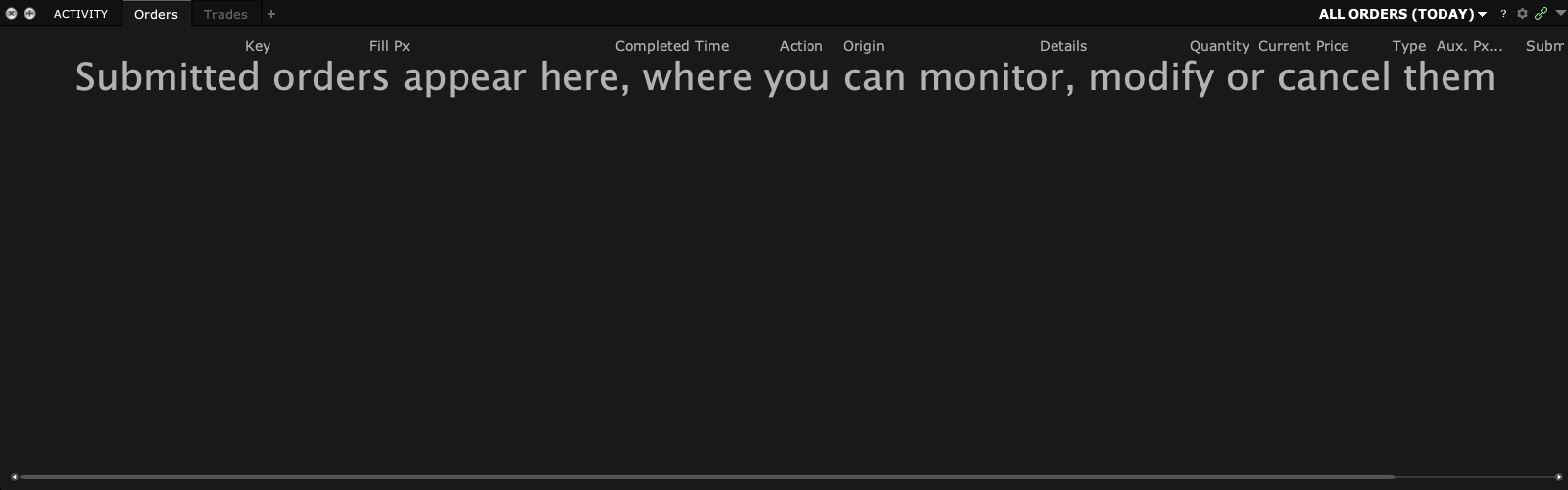
Empty TWS Activity Orders panel and Trades tab
Use Orders to inspect order state and Trades to inspect executions. This empty paper view shows the location; it does not reproduce a rejection or prove a fill. Captured in TWS paper mode on 3 October 2026. Open the image for full size.
How to confirm the result A fill should appear in the broker’s executions with the expected size and contract.

Mistake to avoid

Do not send a second order just because the first has not filled. It may still be working.

Common questions

Does Submitted guarantee a fill?

No. It does not mean execution has occurred.

Can a limit order wait indefinitely?

It can remain unfilled while its conditions are unmet, subject to its duration and broker rules.

Financial and information disclaimers

Financial disclaimer

These guides explain software. They are for education, not financial, investment, tax, or legal advice. No example is a suggestion to buy or sell a product or use a trading strategy. Trading can lose money, including all funds you put at risk. With margin, futures, short sales, or some options, losses can exceed your starting funds. Automation can fail, send duplicate orders, or act late. Stops do not guarantee a fill or a price. Review your orders and positions, and seek advice from a qualified professional for your own needs. Paper trades, examples, and past results do not predict live results or promise a profit.

Information disclaimer

This is general help based on the sources and check date shown on the page. Screens, settings, fees, data access, and product support can change or differ by app version, account, country, and broker. The content may contain errors or become out of date; accuracy, completeness, and continuous service are not guaranteed. Check current broker and app instructions before acting. Screenshots show where controls are; they do not prove that an order test passed. This guide does not replace broker terms or risk notices. References to IBKR and TradingView identify their products and do not imply their endorsement of this guide.

IBKR risk disclosures · IBKR paper-trading limits · SEC guidance on automated investment tools

PickMyTrade help · Independent guidance for Trader Workstation and the desktop integration. TWS images show paper trading. Other applications are named in the image captions. Settings and availability can vary by version and account.

Automate TradingView alerts to Interactive Brokers

See the IBKR integration