
A virtual FX position is a tracking view. It may not be your cash balance in that currency. TWS can include this view in API portfolio updates. Check which field the app uses before you treat a line on screen as cash you hold or a trade you must close.
Educational software guidance. Trading involves risk. Read the financial and information disclaimers.
Step by step
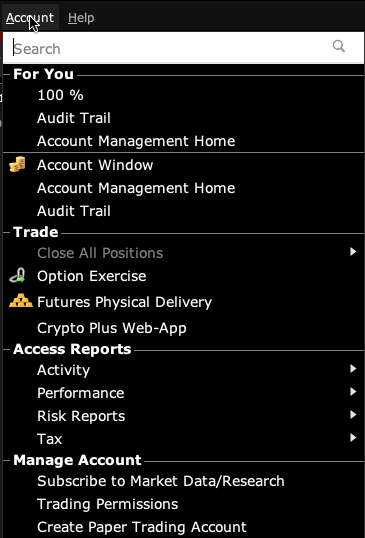
- 1 Locate the currency values in TWS and note whether they are cash balances or virtual FX positions.
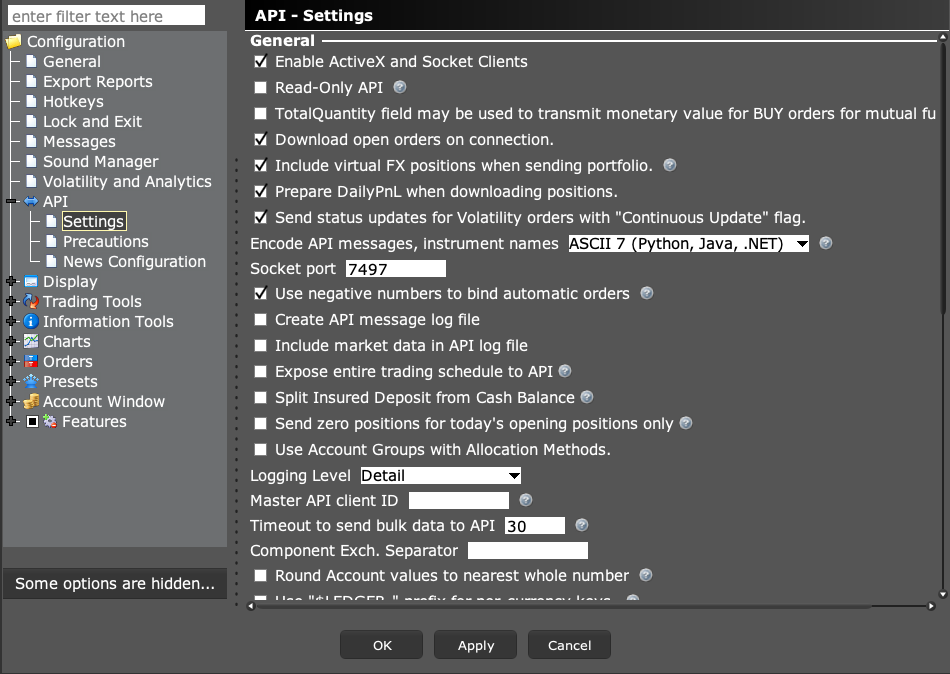
- 2 Open API → Settings and check Include virtual FX positions when sending portfolio.
- 3 Compare the external app’s field names and documentation with that setting.
- 4 Use actual account balances when checking currency holdings.
- 5 Ask support to clarify a field before treating a virtual position as an instruction to trade.
A practical example
You changed cash from one currency to another and later see a pair in the virtual FX view. Do not assume that line is a second cash balance that must be closed. Read the actual currency balances in the account view. The virtual view tracks a different idea. If an app shows both, ask which field it uses for its decisions. Hiding a tracking line does not sell currency, and a currency trade should not be used just to tidy a display you do not yet understand.
Screen reference
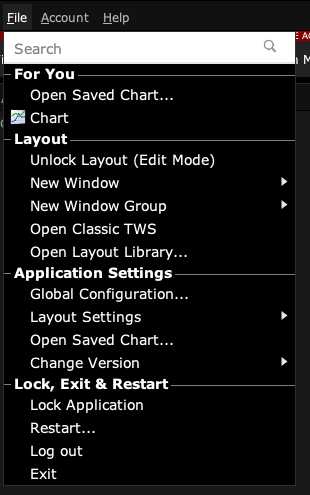
Start in Mosaic with File → Global Configuration. Then choose the panel named in the steps.

Mistake to avoid
Common questions
Can changing the API display option convert currency?
No. It affects reported details, not a currency execution.
Why does another app show an extra FX line?
Check whether it includes virtual FX portfolio entries.