
Confirm Rithmic connection eligibility with NinjaTrader and your account provider first. Rithmic's platform page says new Rithmic connections are no longer being onboarded while existing users can continue. Apex still publishes a connection guide. These sources do not establish that every new Apex or NinjaTrader account is eligible.
Educational software guidance. Trading involves risk. Read the financial and information disclaimers.
Resolve the eligibility question first
Compare the Rithmic NinjaTrader page with your provider's current instructions. Ask support whether your specific NinjaTrader login, account and version have the required connection option. Keep the answer with your setup notes.
Do not buy software, select a different provider, or reinstall it solely because an old tutorial shows a Rithmic menu item.
For an eligible existing setup
The Apex NinjaTrader guide describes enabling Multi-provider in Tools, then Settings, then General (wording in the current Apex guide; older instructions say Options), restarting, and opening Connections, then Configure. It uses My Rithmic for NinjaTrader Brokerage. Apply these instructions only where the connection is supported for your account.
- Record your NinjaTrader version and the provider's instructions.
- Locate the provider-issued Rithmic credentials and System. Do not substitute website credentials or choose a server only because the account is called funded.
- Complete required agreements through the provider's documented route.
- Configure the available connection using the provider guide. If the required option is absent, resolve eligibility with support rather than choosing a similarly named connector.
- Connect and verify the intended account and symbol. Check the log for authentication, data and trading errors separately.
NinjaTrader's Connections Menu help explains connection configuration and status. A connection indicator does not establish that an order was accepted or filled.
Direct connection or plugin?
Use the arrangement documented for your platform version and provider entitlement. If a plugin route is supported, both ends must be configured for it. Do not leave an additional direct data connection running by accident. See Plugin Mode.
Captured reference images
The captions distinguish observed web screens from vendor documentation and imported desktop references. None proves a successful order or the unobserved desktop workflow.
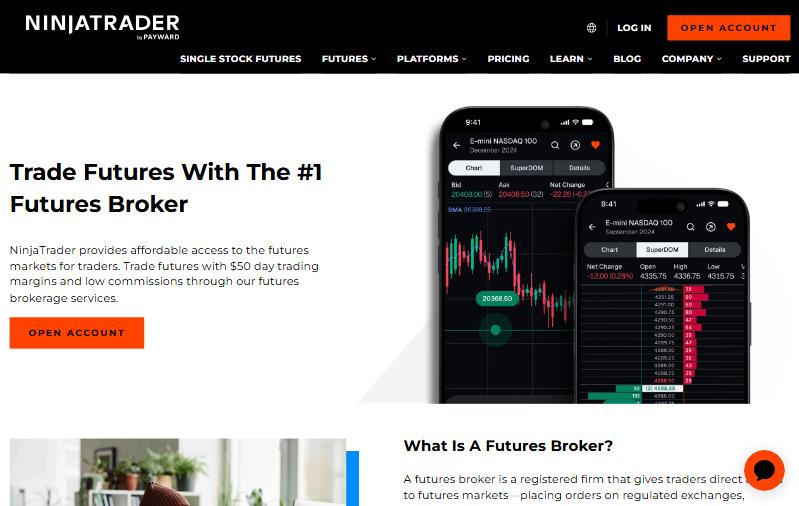
Check the actual NinjaTrader entitlement
The current Apex guide directs missing-account users to Control Center → Help → About and the Evaluation (Rithmic) entitlement. It says NinjaTrader, rather than Apex, controls adding that entitlement. This establishes a diagnostic check, not a guarantee that a new request will be approved despite Rithmic's onboarding notice.
The guide applies to eligible existing desktop configurations. No NinjaTrader login or order was tested on this VPS, so the reference image is not a connected-account screenshot.
Common questions
Why is Rithmic missing from my provider list?
Eligibility, version and configuration can differ. Confirm the supported connection with NinjaTrader and your provider; this review did not reproduce your desktop menu.
Does an Apex setup article guarantee new NinjaTrader access?
No. It conflicts in scope with the current Rithmic onboarding notice. Obtain an account-specific answer before treating the guide as applicable.
Is Sim101 my prop-firm account?
Do not identify accounts by assumption. Compare the selected trading account with the provider's account details and the platform's simulation/live mode before any test.
Does a green connection prove everything works?
No. It is one status signal. Check the account, instrument, data timestamps and error log; order execution needs separate evidence.