
A trailing drawdown rule moves an account's permitted balance floor upward as its defined reference reaches new highs. The provider determines the reference, trailing distance, cap and breach condition. Check the exact plan and account stage; a Rithmic login does not identify those rules by itself.
Educational software guidance. Trading involves risk. Read the financial and information disclaimers.
A worked example with stated assumptions
This illustration uses a hypothetical $30,000 starting reference, a $1,200 trailing distance, intraday peaks and no cap. It is not a provider plan or a recommended configuration.
| Event | Current measured value | Highest reference | Calculated floor | Distance above floor |
|---|---|---|---|---|
| Start | $30,000 | $30,000 | $28,800 | $1,200 |
| New peak | $30,600 | $30,600 | $29,400 | $1,200 |
| Pullback | $30,200 | $30,600 | $29,400 | $800 |
| Later peak | $31,100 | $31,100 | $29,900 | $1,200 |
| Return to $30,200 | $30,200 | $31,100 | $29,900 | $300 |
The floor equals the qualifying peak less the trailing distance under these assumptions. A later decline does not lower that peak. The table shows arithmetic only; it does not establish when an actual account liquidates or the price at which an exit completes.
Confirm five details for your account
- Reference: Does the rule use intraday equity, closed balance or a session-close measurement?
- Components: Are open P&L, fees, deposits and withdrawals included?
- Update time: When does a new reference change the floor?
- Cap: Does trailing stop at a defined floor, and does that differ by account stage?
- Breach rule: Is touching the floor sufficient, and what account outcome follows?
For example, Apex's EOD guide separates daily recalculation from intraday enforcement. Its intraday guide uses intraday peaks. These are plan-specific sources checked on 7 October 2026, not rules for all Rithmic accounts.
Compare the provider record with R Trader Pro
Open Trader Dashboard and inspect the account's risk parameters through the menu below. Record the selected administrative scope and criterion. The dashboard inspected locally included Account Balance, Min Account Balance and Auto Liquidate Threshold Value. These are distinct labels; do not assume each represents the same personal or provider floor.
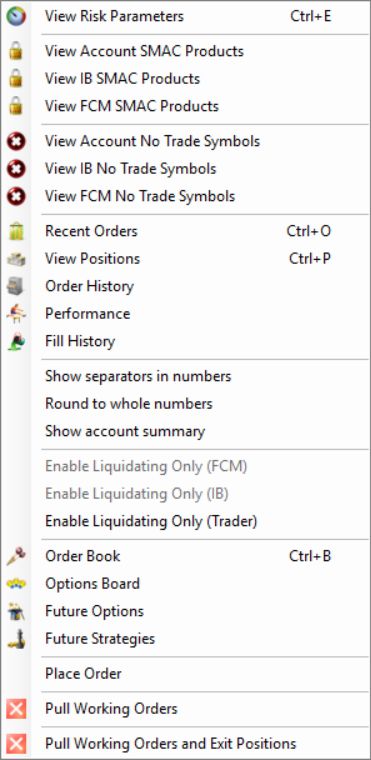
If the provider dashboard and trading application disagree, retain timestamps and ask which value governs the account. A manual calculation can help identify a discrepancy but cannot replace a provider's effective rule or account record.
Compare EOD and intraday drawdown calculations before interpreting when a provider updates or enforces its floor.
Common questions
Is trailing drawdown a daily loss limit?
No. A daily loss rule and a peak-based floor can operate over different periods and use different measurements. Check both if the account has both.
Does the floor reset every morning?
Do not assume that. The reference and reset conditions are part of the provider's account rules.
Does a personal liquidation limit guarantee protection from a breach?
No. Different calculations and execution after a trigger can produce a result beyond the intended threshold.
Does the headline account size show how much I can lose?
No. Use the actual permitted floor and the provider's current rule, not the plan's name or headline balance alone.