
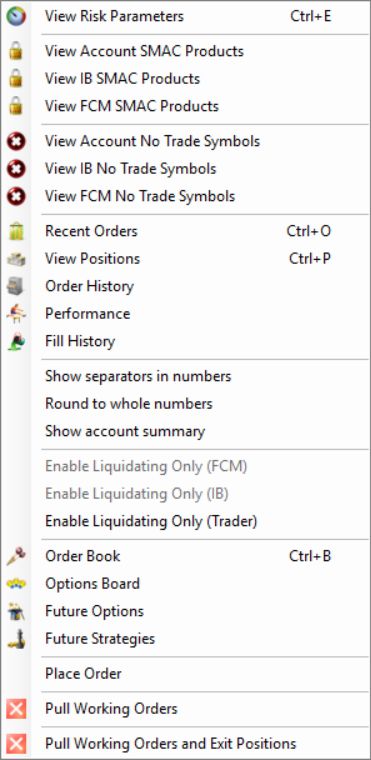
Open File, then Trader Dashboard. Right-click the correct account and choose View Risk Parameters. Review the FCM Administrator, IB Administrator and Trader tabs separately. Confirm the intended criterion, its units and the account's permissions before changing a value. A liquidation threshold is not a guaranteed maximum loss or an automatic promise of a trading lock.
Educational software guidance. Trading involves risk. Read the financial and information disclaimers.
What was verified
In R Trader Pro desktop 17.106.0.2 on 7 October 2026, File, then Trader Dashboard, then the account's View Risk Parameters command opened separate FCM Administrator, IB Administrator and Trader tabs. Only navigation and labels were inspected. No values were edited, applied or tested by placing an order.
Read the settings by purpose
| Question | What to inspect |
|---|---|
| Who controls the rule? | The selected administrator or Trader tab |
| What triggers liquidation? | Auto Liquidate, Criteria and Threshold |
| Does the balance threshold trail? | Trailing criterion, maximum minimum balance and open-P&L treatment |
| Is trading restricted afterward? | Separate liquidation-only, disable or lock controls and provider policy |
| How much can be ordered or held? | Account and product quantity/exposure fields where available |
| Is there a timed restriction? | No Trading From/To and Auto Liquidate At, including timezone behavior |
The observed administrator view included quantity limits; the observed Trader view did not show an editable maximum-position field. Do not assume all controls are available at all permission levels.
Before changing a value
Record the current tab, criterion, unit, account currency and provider rule. Distinguish a dollar balance floor from a loss amount or percentage. Confirm treatment of open profit and loss, fees, deposits and session boundaries. Editing a value can affect an existing position immediately; DayTraders' guidance specifically cautions that changes can trigger liquidation.
The application displayed a notice that scheduled restriction and liquidation times do not automatically adjust when daylight-saving or standard time changes. Confirm the machine's timezone and the provider's intended schedule. Do not copy a time shown in another trader's screenshot.
Liquidation and a trading lock are separate
The Trader tab contains Liquidate Only On Auto Liquidate and Lock On Auto Liquidate. Rithmic's current FAQ, checked 7 October 2026, explains that a liquidation can leave an account in Liquidate Only or Admin Only, depending on its configuration. Those states require manual clearing; do not expect a new trading day or a platform restart to clear them.
That statement describes the resulting account modes. It does not grant a trader permission to edit administrator settings or establish that the two checkboxes are interchangeable. For a restricted account, ask its provider to identify the active mode and the authorized reset route. A Soft Loss Limit is a different criterion: Rithmic describes it as resetting after it fires, so it must not be treated as a persistent daily lock.
Older guidance saying liquidation alone does not disable trading addresses a different configuration. The useful check is the actual resulting mode, rather than the word “liquidation” by itself.
Read the account display

The blank headroom cells in this capture must not be read as zero or unlimited allowance. Use the configured rule and the provider record when a display does not supply a number.
Common questions
Can Trader settings override the provider's rules?
Do not assume they can. Provider-controlled restrictions still apply. Ask the provider to explain the effective rule when tabs contain different criteria or scopes.
What values should I enter?
There is no universal setting for an account size. This guide explains the controls, not a recommended loss allowance or position size.
Does a threshold guarantee the final loss?
No. A trigger and a completed exit are different events. Execution and market conditions can cause the final result to differ from the threshold.
Were these settings activated for this guide?
No. The review inspected the interface without editing risk values or submitting orders.