
A bracket combines an entry with intended stop and target exits. Verify the platform's actual behavior rather than assuming every Rithmic connector sends and manages the same orders. In the inspected R Trader Pro Web session, the bracket panel showed target and stop distances in ticks plus a trailing option. No entry or exit was submitted.
Educational software guidance. Trading involves risk. Read the financial and information disclaimers.
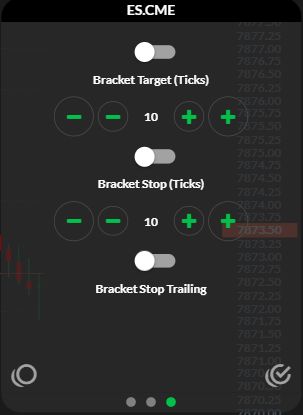
Locate the observed web controls
- Open the instrument in R Trader Pro Web.
- Open the gear beside the top-left navigation menu.
- Select the third dot at the bottom of the settings panel.
- Identify Bracket Target (Ticks), Bracket Stop (Ticks) and Bracket Stop Trailing.
The screenshot shows values of 10 with switches off. Those are observed values, not recommended risk settings. Opening a settings panel does not create a working stop or target. Desktop RTrader Pro and other platforms need their own instructions.
Understand the three separate events
| Event | Evidence to inspect |
|---|---|
| Entry request sent | The order response for the intended account and contract |
| Entry fills | Filled quantity and price, including partial fills |
| Exit orders become active | Separate stop/target status, quantities, prices and linkage |
Do not assume an exit exists simply because a bracket switch was enabled. A rejected child order, mismatched quantity or local dependency needs separate investigation.
Where is the exit logic running?
NinjaTrader's order-location guide distinguishes orders from OCO management. Apex's current NinjaTrader guide specifically warns about local OCO dependency for its Rithmic workflow. Do not transfer behavior from RTrader Pro or another connector to NinjaTrader.
For automated alerts, choose the exit-handling mode documented for your exact route. The PickMyTrade Rithmic strategy guide distinguishes strategy-controlled exits from attached exits and multiple-exit arrangements. Use the current generated configuration for the selected account and exit mode.
A useful before-and-after record
In a permitted simulation, record the selected account/contract and configured exit mode before a test. Afterwards, record the entry response, filled quantity, each exit's accepted state and what happened to the remaining exit when one filled. A screenshot of the settings alone cannot satisfy this check. Do not induce a live disconnect to create evidence.
Captured reference
Find the desktop bracket configuration
- Open File, then Order Book.
- Select Bracket/OCO.
- Select Config in the Brackets area.
- Inspect Target Only, Stop Only or Both, then the target/stop tick distances and quantities.
- Expand Show more options to locate stop-type, trailing and break-even controls.
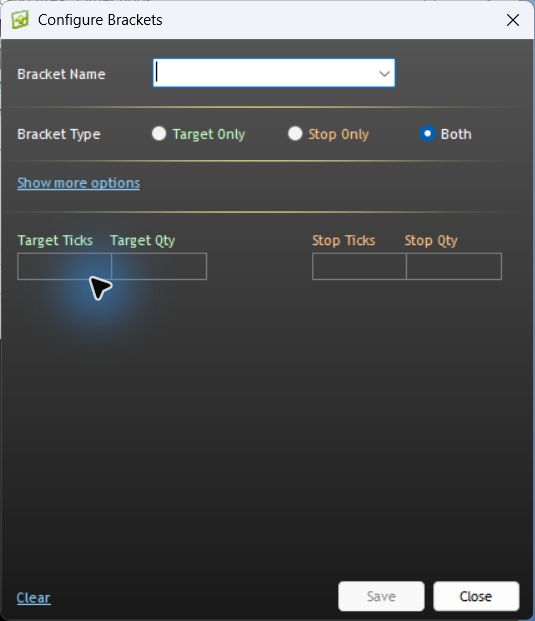
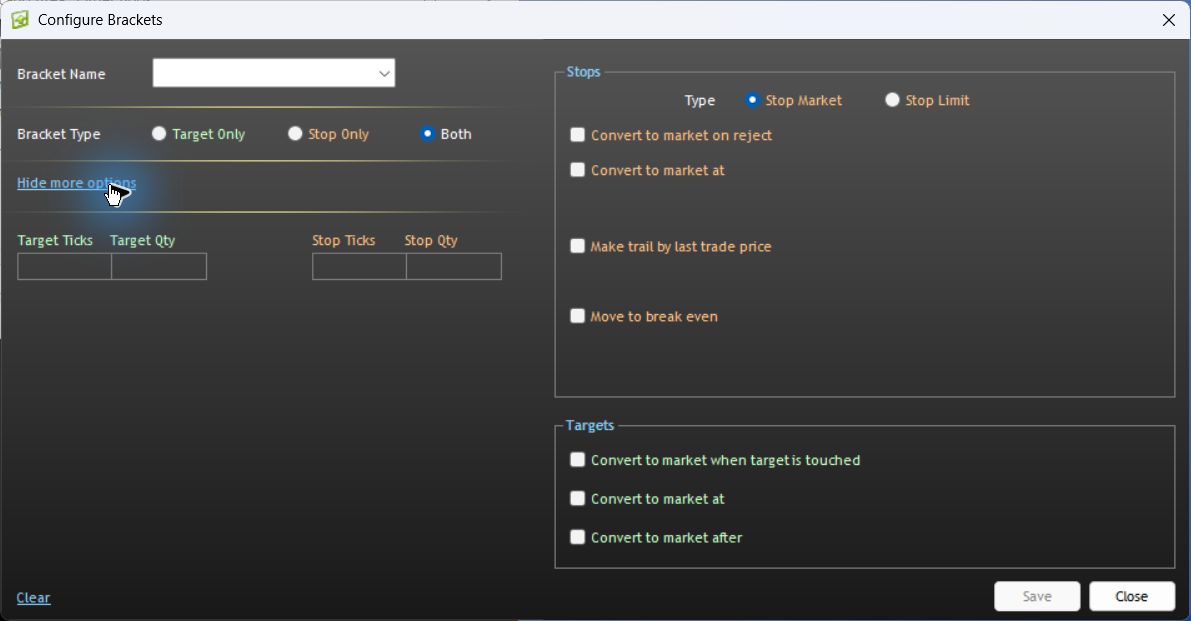
Observed in desktop version 17.106.0.2, Apex/Chicago Area, 7 October 2026. No template was saved and no order was submitted. These controls do not establish that protective orders are working.
Documented platform differences
| Platform / connection | What the current vendor documentation establishes |
|---|---|
| NinjaTrader 8 / Rithmic | Accepted or working orders are held remotely; OCO management is local to the PC. |
| Sierra Chart / Rithmic Direct | Server-managed OCO is supported; server-managed bracket orders are not supported as of the vendor's current writing. |
| R Trader Pro desktop | The native interface references establish control locations, not a completed execution or disconnect test. |
Sources checked 7 October 2026: NinjaTrader's Rithmic-specific order-location section and Sierra Chart's service capabilities. A server-held stop and the software that creates, trails or cancels its companion are different parts of the workflow.
Common questions
Does a bracket guarantee a maximum loss?
No. A configured exit is not a guaranteed fill price or successful order. Inspect the actual stop type and response.
Can I cancel one exit and assume the other stays?
Do not assume that behavior. It depends on the platform's linkage and cancellation rules; inspect both orders and the position afterwards.
Can I use multiple targets?
Only if the selected platform and workflow support it. Verify quantities after partial exits and avoid combining incompatible exit-handling methods.
Is the screenshot a completed bracket test?
No. The desktop and web screenshots verify visible controls. They are not recordings of filled entries, linked working exits or a disconnect test.