
Read why the broker refused the trade. If the account lacks the right to trade that product, check its approved permissions in Client Portal. A live quote or a green app link does not grant that right. Follow the broker’s process and wait for approval.
Educational software guidance. Trading involves risk. Read the financial and information disclaimers.
Step by step
- 1 Copy the full broker rejection and affected contract.
- 2 Confirm the account and username used by the app.
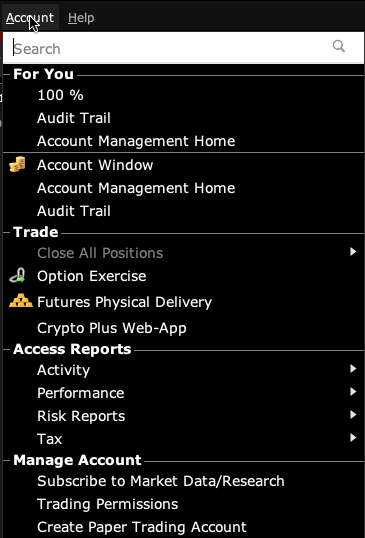
- 3 Review the needed trading permission in Client Portal.
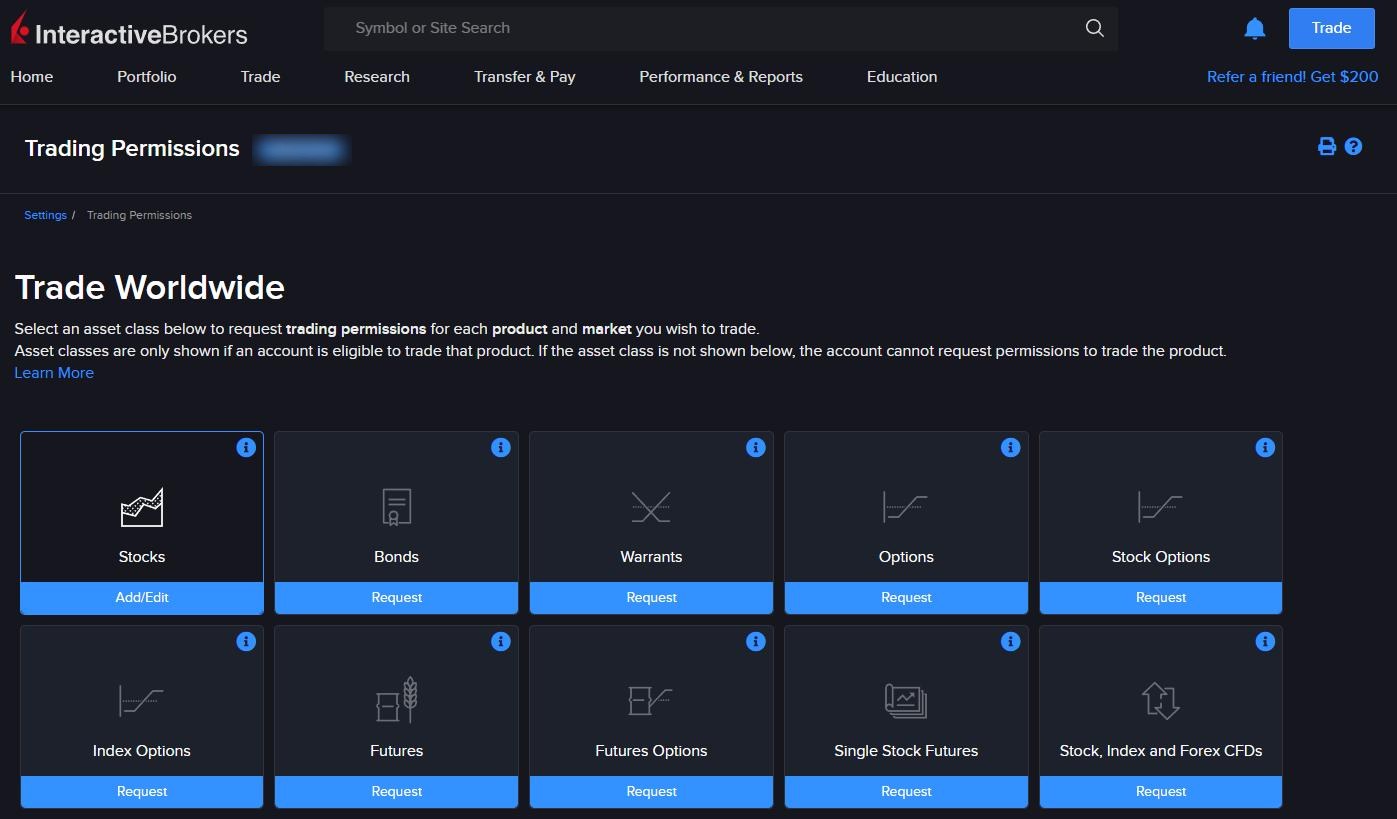
The Trading Permissions page in Client Portal: open the asset class and market you were rejected on to request or edit its permission. - 4 If approval is missing, follow the broker’s approval process and wait for its result.
- 5 After approval, recheck the intended contract and order rather than replaying a backlog of alerts.
A practical example
A quote is visible, but the broker refuses the order because the account cannot trade that product. The feed has done its job; it is the trade approval that needs review. Read the full reason and check the right account in the portal. Do not buy another data package to solve this case. If the broker asks you to apply for access, use the normal process and give accurate details. Wait for the result before sending another test. A saved alert does not grant a right that the broker has not approved.
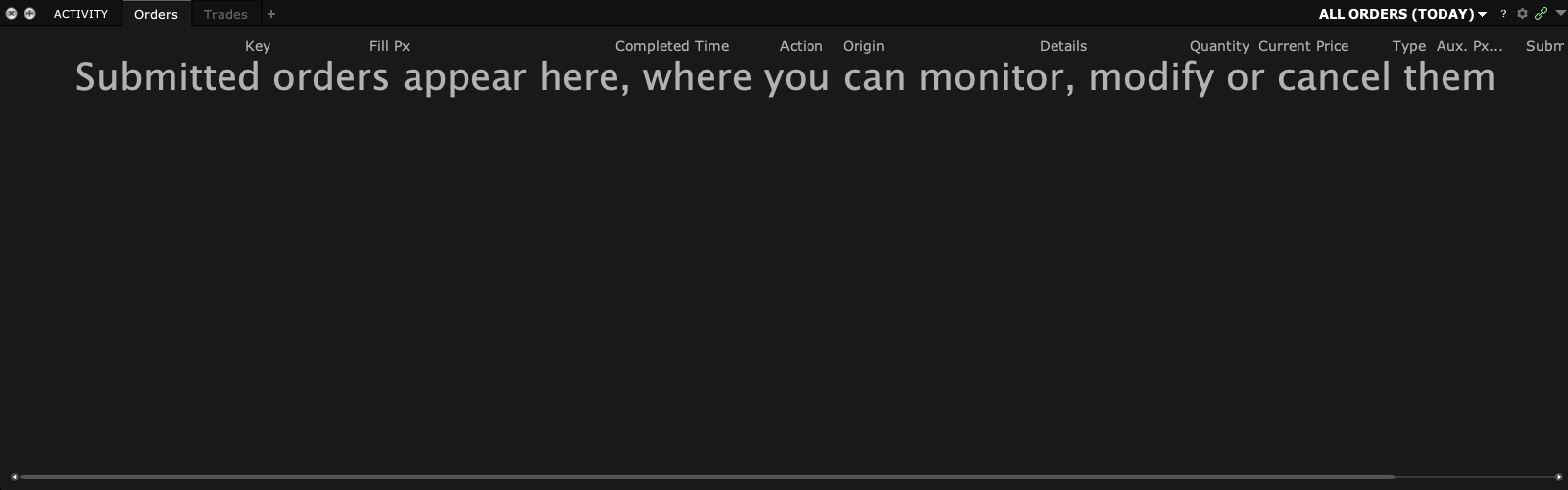
Screen reference
Mistake to avoid
Common questions
Can API settings override permission?
No. Local connection settings do not grant broker approval.
Does a market-data package solve this?
No. Data and trading permissions serve different purposes.