
An option on a future is not the same product type as an option on a stock. Find the full contract in TWS. Check which future it is based on, then choose the right type in the app. Keep the option date and the underlying future’s date separate.
Educational software guidance. Trading involves risk. Read the financial and information disclaimers.
Step by step
- 1 Find the intended futures option in TWS and open Description.
- 2 Note the underlying future, option expiry, strike, right, and multiplier.
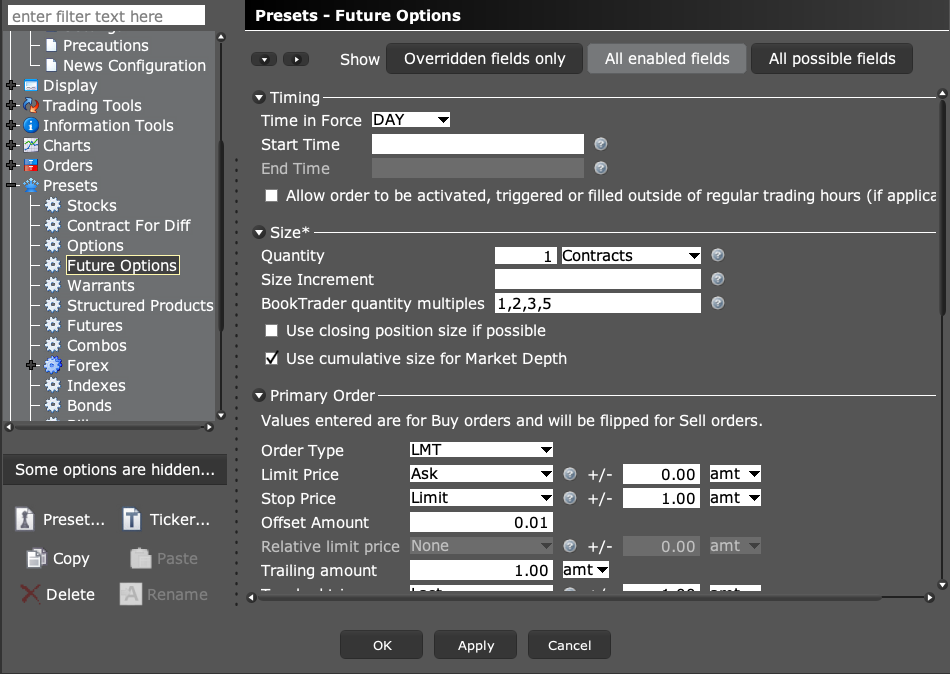
- 3 In the app, choose the supported Futures Options category rather than assuming Options covers it.
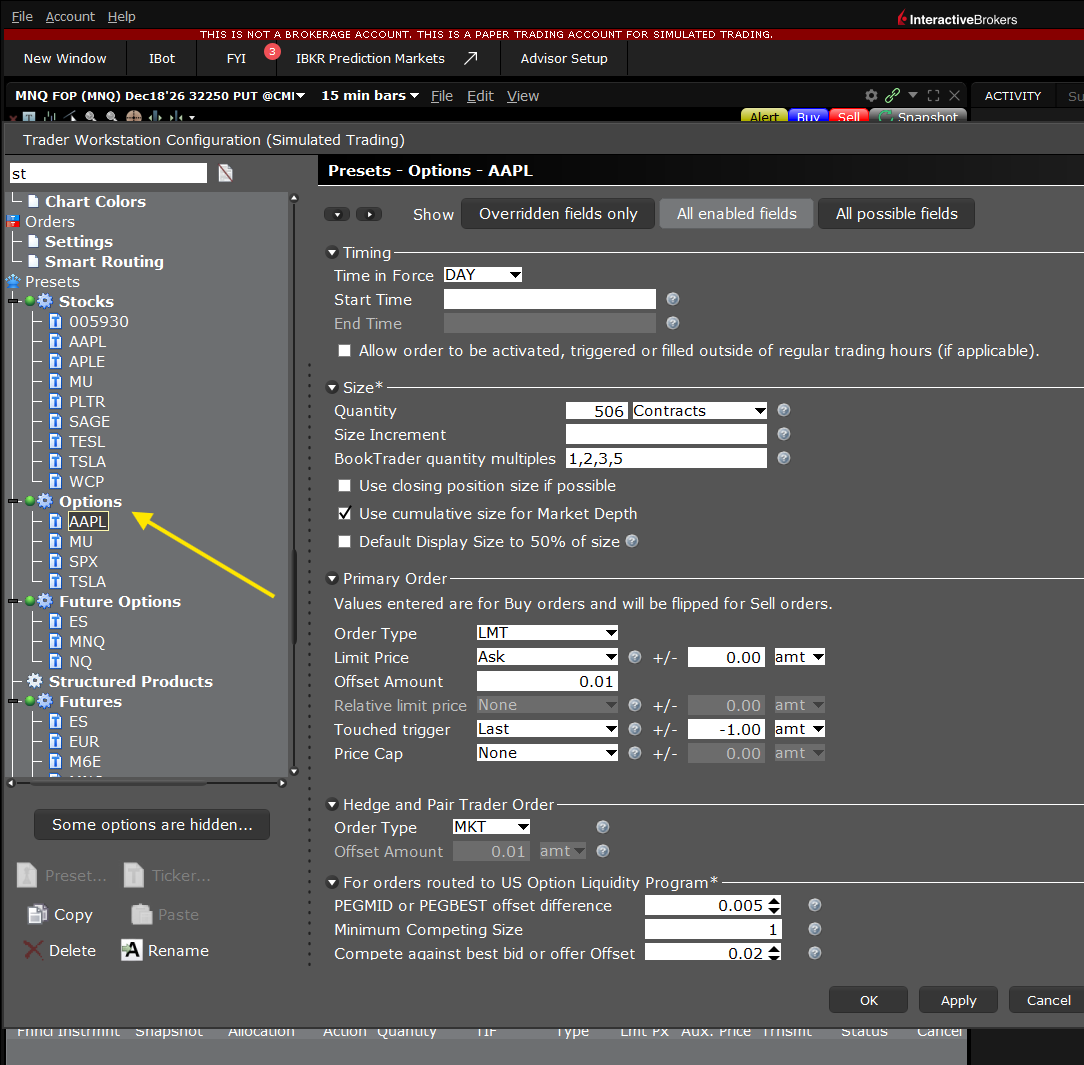
TWS Global Configuration lists Options and Future Options as separate preset categories, each with its own settings. - 4 Compare the generated contract with the TWS description.
- 5 Check trading permissions and session eligibility for the exact product.
A practical example
Suppose you want an option on a future. The underlying is that future, not a stock with a similar name. Read the full Description in TWS and keep both the option expiry and the future it is based on. They can be separate dates. Then choose the right product type in the app. Do not force it into a stock-option form just because both forms have a strike and a call-or-put box. A contract lookup must return the product you chose, not merely any option that exists.
Screen reference
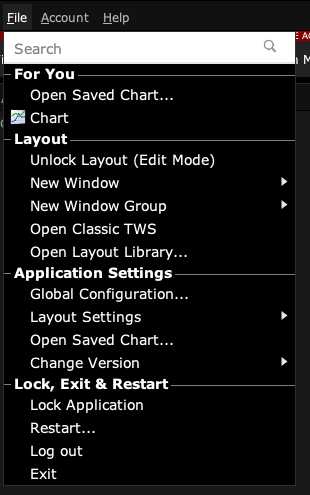
Start in Mosaic with File → Global Configuration. Then choose the panel named in the steps.
Mistake to avoid
Common questions
Is FOP the same security type as OPT?
No. They identify different option categories in the TWS API.
Do stock-option trading hours apply?
Check the actual futures-option contract schedule.