
Check the quote’s data status before using its price. A moving number can still be delayed. TWS and an API app may request different data types, so compare the same contract and timestamp in both.
Educational software guidance. Trading involves risk. Read the financial and information disclaimers.
Step by step
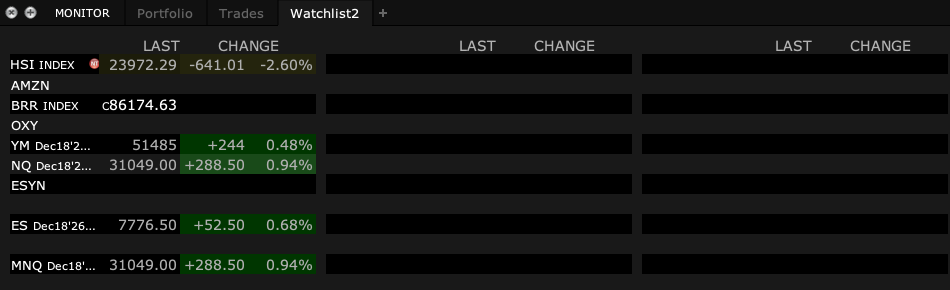
- 1 Open the exact product in a TWS watchlist.
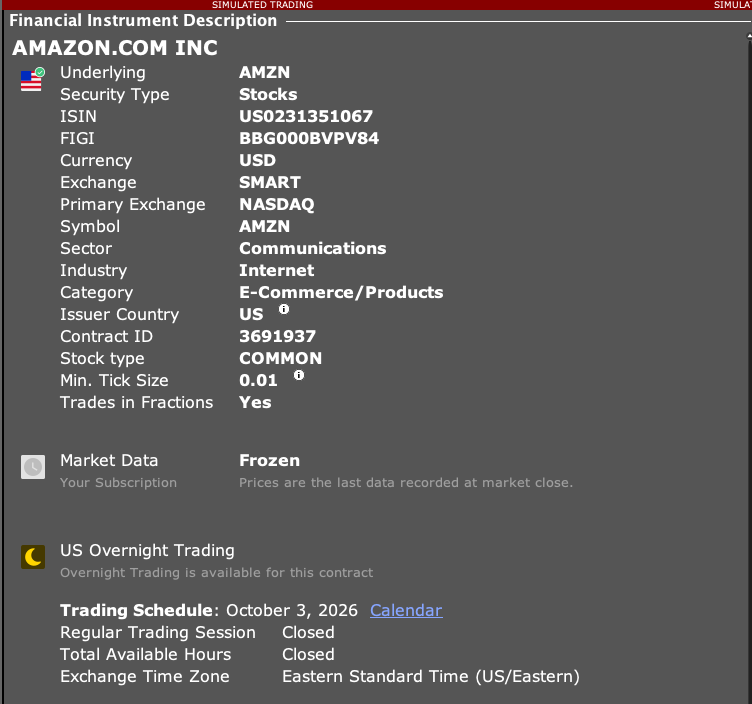
- 2 Open Financial Instrument Info → Description from the contract’s right-click menu. Read Market Data and Trading Schedule. The captured example shows Frozen data and a closed market.
- 3 Compare the time and contract with the external app’s quote.
- 4 Check whether the app requests live, frozen, delayed, or delayed-frozen data.
- 5 If live data is needed, check the needed IBKR data access rather than assuming a chart subscription covers it.
A practical example
A quote changes on screen, so it feels live. But it may show a trade from several minutes ago. Read the feed label and time, then compare the same contract in the app. A still price can also be normal after the market closes. The test is not simply whether a number moves. You need to know what kind of price it is and how old it is.
Screen reference
Mistake to avoid
Common questions
Is frozen data live?
Frozen data can represent the last available values after a session. Check its timestamp.
Can I use a TradingView subscription in TWS?
Data access are platform-specific; check IBKR separately.