
Trace size through the signal, account multiplier, contract mapping, and final broker order. The size shown by a chart strategy may not be the final number of shares or contracts after the app’s settings apply.
Educational software guidance. Trading involves risk. Read the financial and information disclaimers.
Step by step
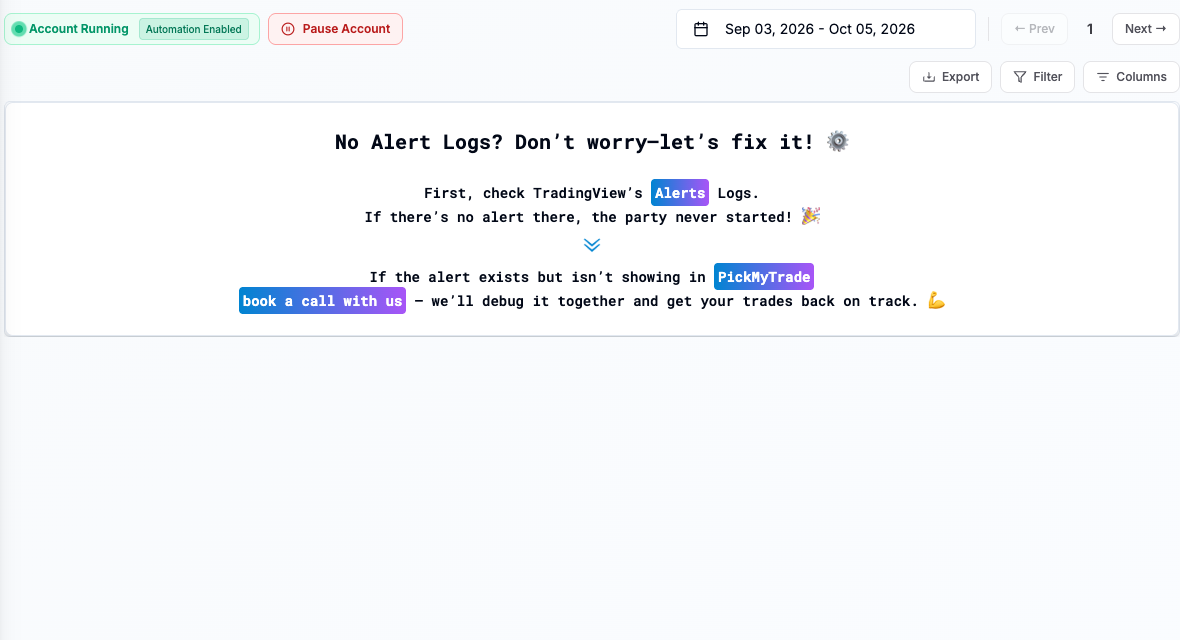
- 1 In PickMyTrade, select IB and open Alerts. Record the size in the received message, not just a chart label. Match its time and product first. See screenshot.
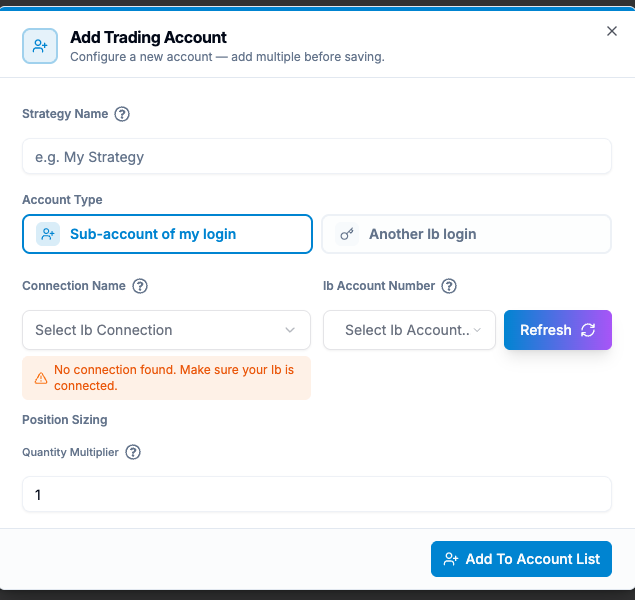
- 2 Review Added IB Accounts in the original alert setup. Add Account shows the Quantity Multiplier control. A new blank form does not reveal the value saved in an older alert. See screenshot.
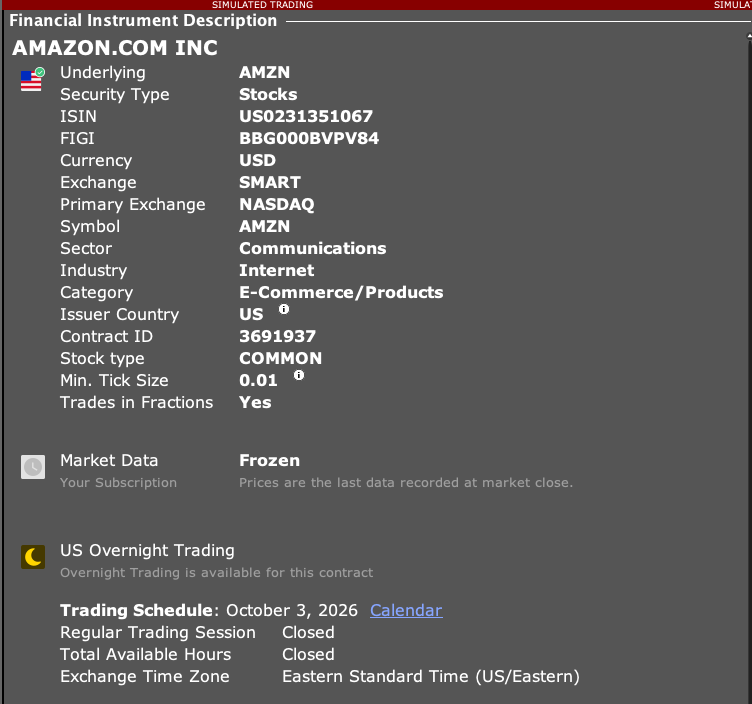
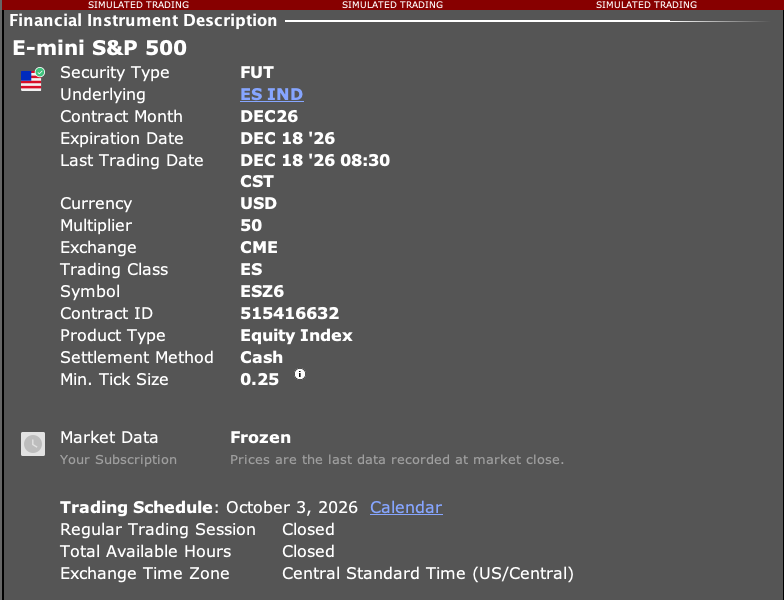
- 3 Confirm the product’s units and multiplier. See screenshot.
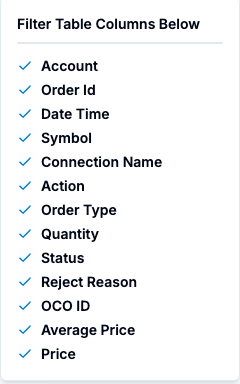
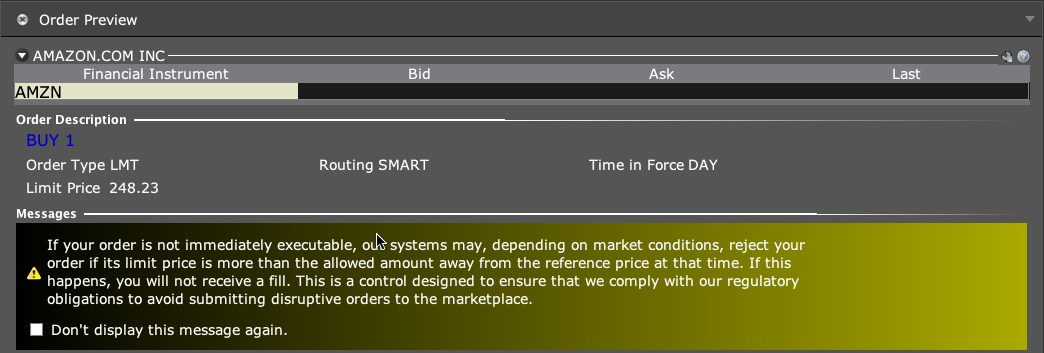
- 4 Open Orders → Columns and include Quantity, Status and Order Id. Match that record to the TWS order and fills. See screenshot.
- 5 Correct the specific sizing input and retest on paper before reusing the alert.
A practical example
An alert asks for two contracts and the selected account row applies a multiplier of two. The resulting size may be four, depending on the chosen sizing mode. Read the current mode rather than guessing from the chart. Trace each input to the final broker size. If you want two at the broker, fix the input that caused the scaling; do not keep changing unrelated defaults until the number happens to match.
Screen reference
Mistake to avoid
Common questions
Can different account rows create different sizes?
Yes, where size multipliers are set.
Are option contracts and stock shares the same unit?
No. Confirm the product and units.