
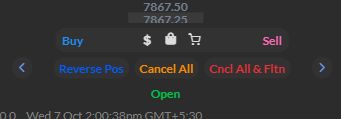
Flattening requests the reduction of a position to zero. Do not assume that every flatten button covers all accounts or cancels every working order. In the inspected R Trader Pro web and desktop Order Book, the lower controls include Cancel All and Cncl All & Fltn. Verify the documented scope before using them, then inspect both positions and orders.
Educational software guidance. Trading involves risk. Read the financial and information disclaimers.
Locate the observed controls
- Open the relevant instrument's Order Book or expanded web instrument view.
- Identify the selected account and contract.
- Locate Cancel All and Cncl All & Fltn below the price ladder.
- Confirm their scope and confirmation flow for the platform/version before activating them.
These steps locate the controls; the inspection did not activate them.
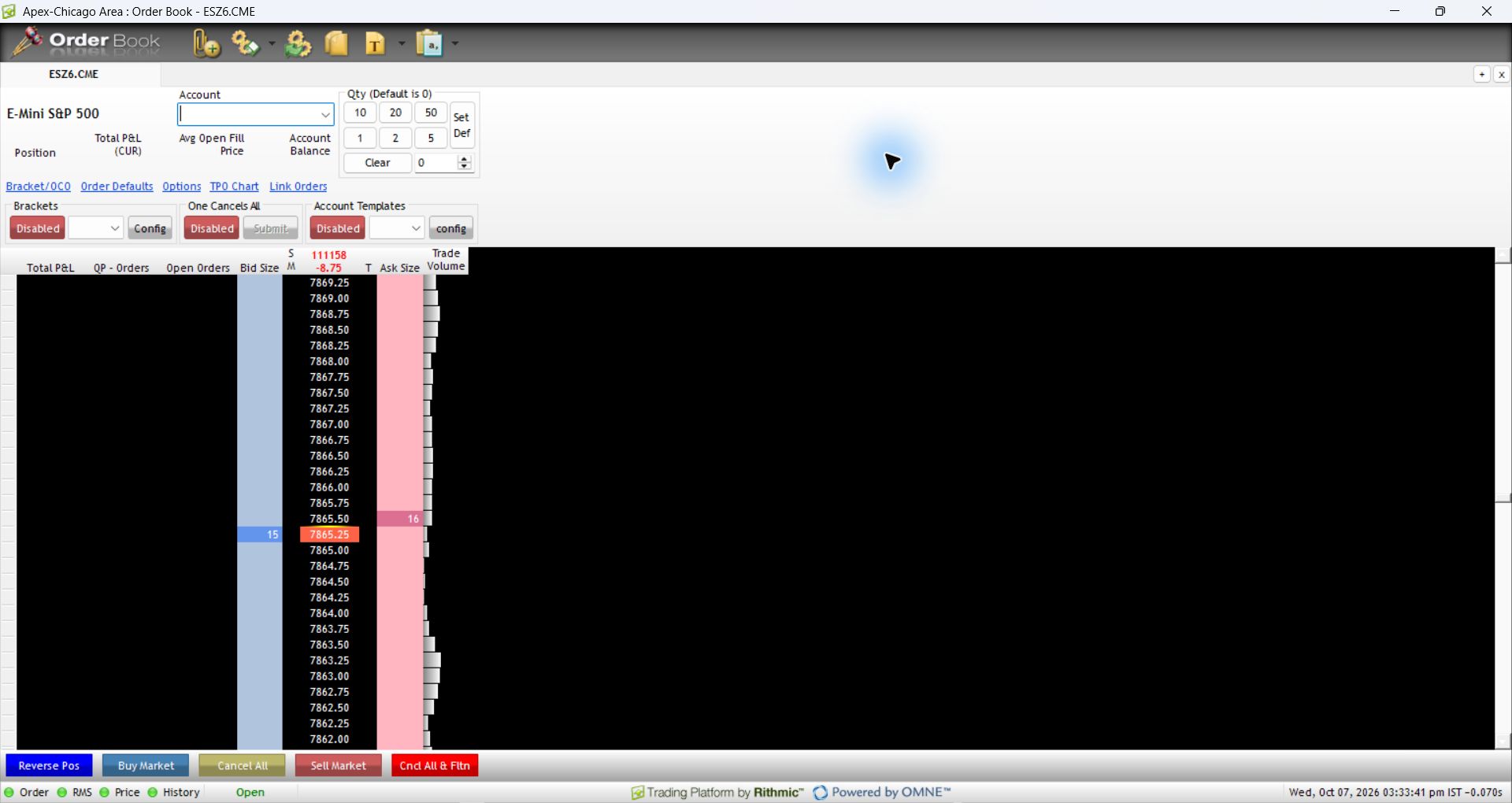
Separate cancellation from closing a position
| Intended result | Evidence to inspect afterwards |
|---|---|
| Cancel a working order | Final cancellation acknowledgement and any intervening fills |
| Close a position | Executions and current position quantity |
| Finish an account-wide shutdown | Every relevant instrument, working order and signal source |
An order can fill before its cancellation completes. A platform that displays zero position can still have an unrelated working order. Disable or pause the source of new signals as appropriate to the documented workflow so that another component does not immediately submit a new entry.
If the result is uncertain
Check the latest server-reported orders, fills and positions before repeating the request. A second full close can create an opposite position if the first close already executed. If you cannot establish the state or cannot reach the order connection, use the provider's published trade-desk or emergency-support procedure.
Keep that procedure accessible before a failure occurs. Record the account and instrument privately and retain the original request time and response for reconciliation. A screenshot of a button does not establish that it worked.
Automated close requests need route-specific validation
Use the current generated message for the intended Rithmic route and exit mode. Confirm whether it addresses one symbol, one account or a larger configured set. An accepted webhook is not an executed close. See the Rithmic JSON validation guide.
Do not copy a generic action field or symbol from an unrelated integration. The PickMyTrade Rithmic JSON documentation is a configuration reference, not proof of a successful close on this account.
Apex's documented per-position route
Apex's current instructions say to open File → Positions, identify the position, then use the red X next to that position. This addresses that position; it is not evidence that every account or working order was cleared.
If there are several instruments or accounts, reconcile each individually. Check the final quantity, intervening fills and outstanding orders after a close request. If a copier is involved, follow its leader/follower shutdown sequence first: an independent follower close can be followed by another copied action.
The desktop controls were inspected without activation. Keep the provider's current failure-handling instructions accessible before trading, and use its stated escalation route if you cannot establish the result.
Captured interface references
These images show the interface in the stated session. They do not reproduce an error or establish the outcome of an order.

Common questions
Does Cancel All close a position?
Do not treat cancellation and position closing as equivalent. Check the documented function and the resulting position.
Can another device be used during a failure?
Only if that account and connection allow it. Session conflicts and local order-management dependencies must be considered; another login is not a guaranteed recovery method.
Can a flatten request guarantee a particular exit price?
No. Acceptance, market conditions and the actual execution determine the result.
Has an account-wide emergency close been tested here?
No. This guide establishes observed controls and the provider-documented per-position route. It does not certify a one-click, all-account emergency close.