
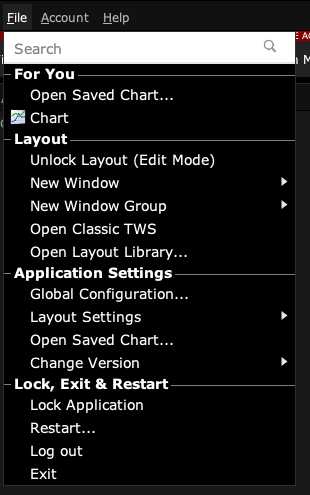
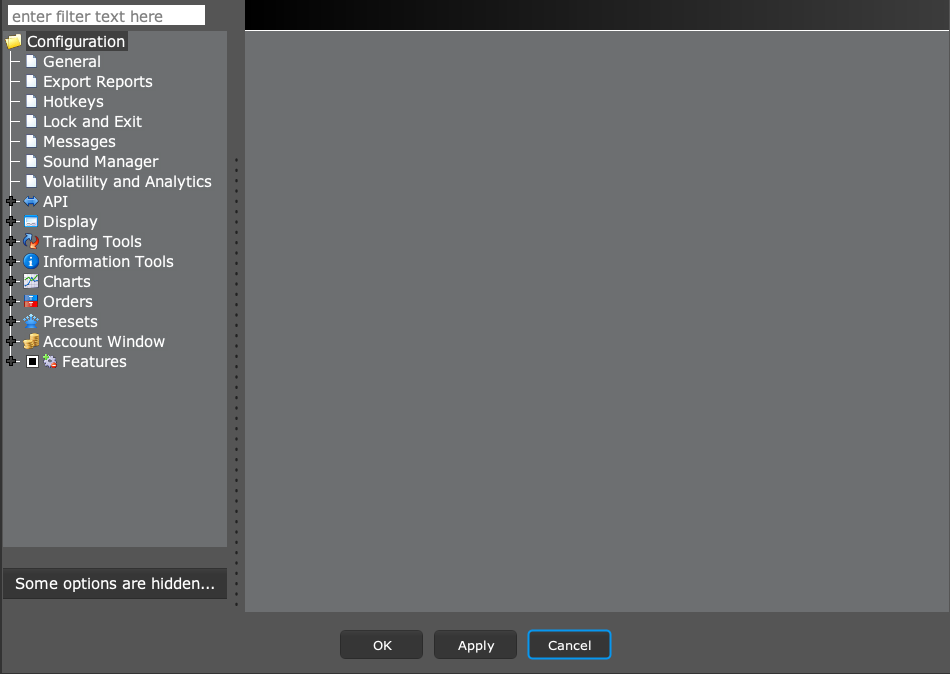
In Mosaic, open File → Global Configuration. In Classic TWS, use Edit → Global Configuration. The left panel selects a settings category and the right panel shows its controls. Use this window to check defaults before changing them.
Educational software guidance. Trading involves risk. Read the financial and information disclaimers.
Step by step
- 1 Check whether you are using Mosaic or Classic TWS.
- 2 Open the matching File or Edit menu and select Global Configuration.
- 3 Expand the category you need, such as API, Display, or Presets.
- 4 Read the selected panel’s title so you know which settings you are viewing.
- 5 Use Cancel if you only inspected settings. Use Apply or OK only for changes you intended.
A practical example
A guide says to use Edit, but your screen has File. First check whether you are in Mosaic. These two layouts use different menu names for the same settings window. Once it opens, read the panel title before you change a box. You can use Cancel after looking around. This lets you learn where the controls are without changing how the app behaves.
Screen reference
Start in Mosaic with File → Global Configuration. Then choose the panel named in the steps.
Mistake to avoid
Common questions
Why does another guide say Edit rather than File?
The menu differs between Classic and Mosaic layouts.
Can I search the settings list?
The setup window has a text filter for narrowing the pages shown.