
TWS hotkeys can trigger actions quickly, including order-related actions. Review the command, scope, and any confirmation behavior in Global Configuration → Hotkeys. Test a new shortcut in a paper workflow before relying on it.
Educational software guidance. Trading involves risk. Read the financial and information disclaimers.
Step by step
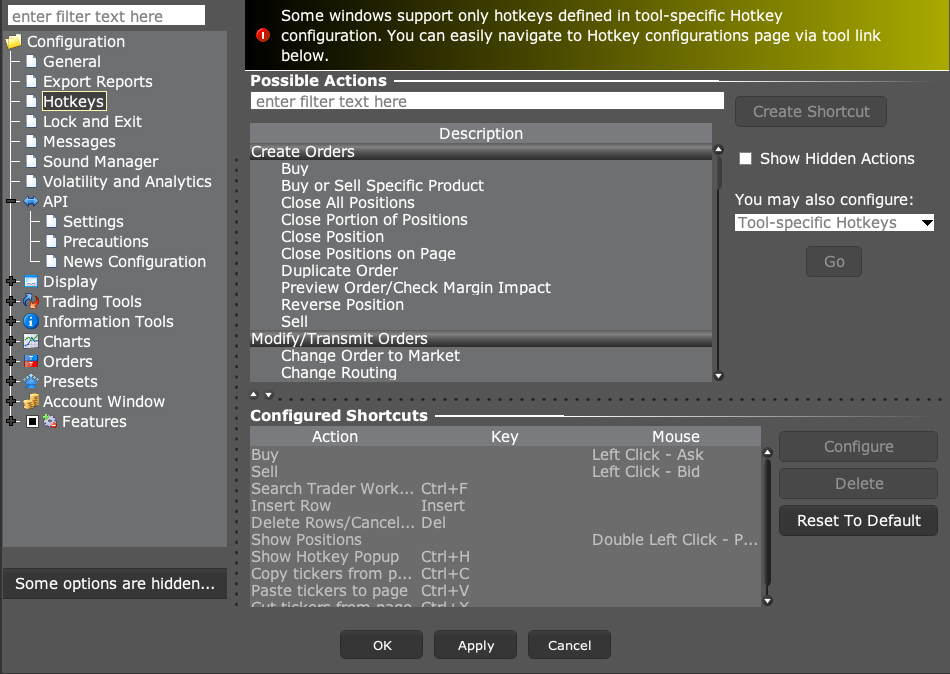
- 1 Open Global Configuration → Hotkeys.
- 2 Select the needed tool or action and check its assigned key combination.
- 3 Check whether the shortcut stages, transmits, modifies, or cancels an order.
- 4 Look for conflicts with operating-system shortcuts and other TWS commands.
- 5 Test the intended command in paper trading and confirm what the screen actually does.
A practical example
A key may stage an order in one tool but send an order in another workflow. Read the action it is tied to. Use a paper screen for the first test, and check which window has focus. If the shortcut did the wrong thing, stop and fix the mapping before using it again. Speed is useful only when the key does exactly what you expect.
Screen reference
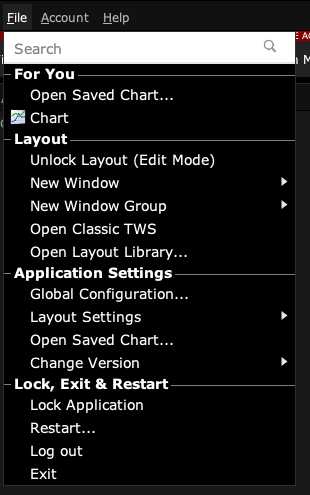
Start in Mosaic with File → Global Configuration. Then choose the panel named in the steps.
Mistake to avoid
Common questions
Will the same shortcut work in every TWS tool?
Check its set scope and the active window.
Does a shortcut always show a confirmation?
Inspect the command and message settings; do not assume a confirmation will appear.