
First find out what is slow: the TWS menus or the price feed. Try a small layout, then compare it with your usual set of windows. Check memory and the TWS version too. Change one thing at a time so you can tell what helped.
Educational software guidance. Trading involves risk. Read the financial and information disclaimers.
Step by step
- 1 Note the TWS version, operating system, and the exact action that becomes slow.
- 2 During a safe pause, compare a simpler layout with fewer active charts, scanners, or watchlists.
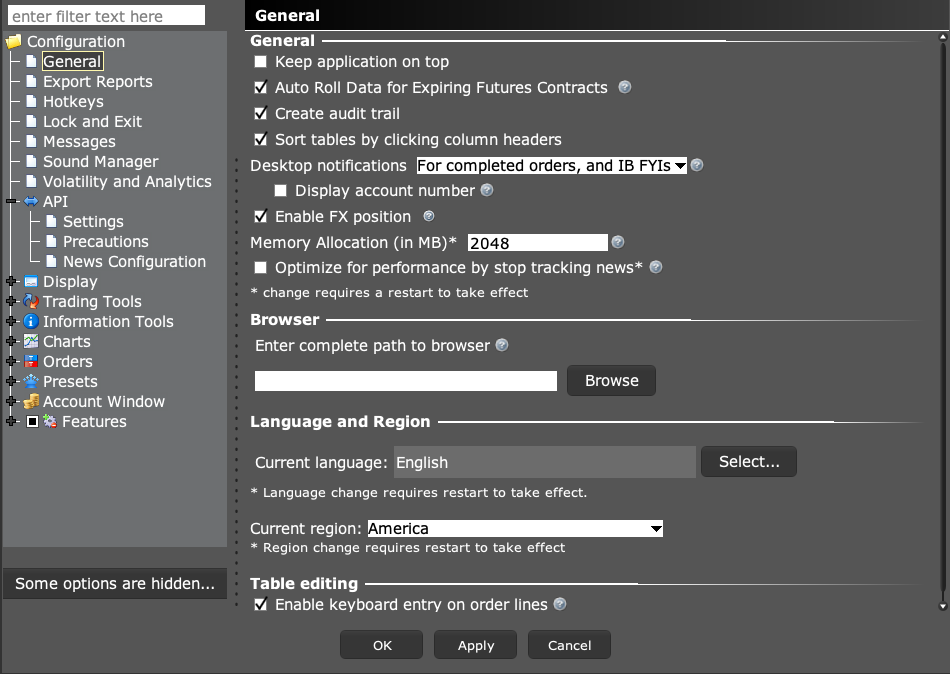
- 3 Open General settings and review memory allocation against available system memory.
- 4 Change one needed item at a time and repeat the same task.
- 5 If the issue remains, give IBKR a repeatable example and diagnostic logs.
A practical example
Choose one repeatable task, such as switching to a saved watchlist. Try it with your usual set of windows, then with a small layout during a safe pause. If the small layout is fast, that gives you a clue about workload. If both are slow, note whether menus are slow too or only new data. Keep these results with your TWS version. They help support ask the right next question instead of repeating a list of broad guesses.
Screen reference
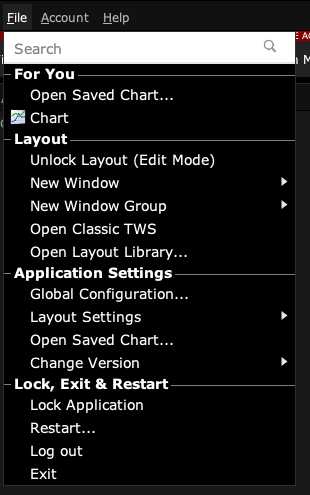
Start in Mosaic with File → Global Configuration. Then choose the panel named in the steps.
Mistake to avoid
Common questions
Should I at once reinstall TWS?
First preserve settings and gather a repeatable case.
Can an empty watchlist help diagnosis?
A smaller workload is a useful comparison, not proof of a universal cure.