
Start from the position you already hold to add a stop and target. Do not start with a new entry. First check whether there are exits for those shares or contracts. Then use the position’s exit tool and review its side and size before sending.
Educational software guidance. Trading involves risk. Read the financial and information disclaimers.
Step by step
- 1 Find the exact position in Portfolio and check its size and direction.
- 2 Review working orders for that contract and account.
- 3 Open the position’s Trade menu and choose Create Target/Stop Exit Bracket where available.
- 4 Set the intended closing size, stop type, and target, then review the preview.
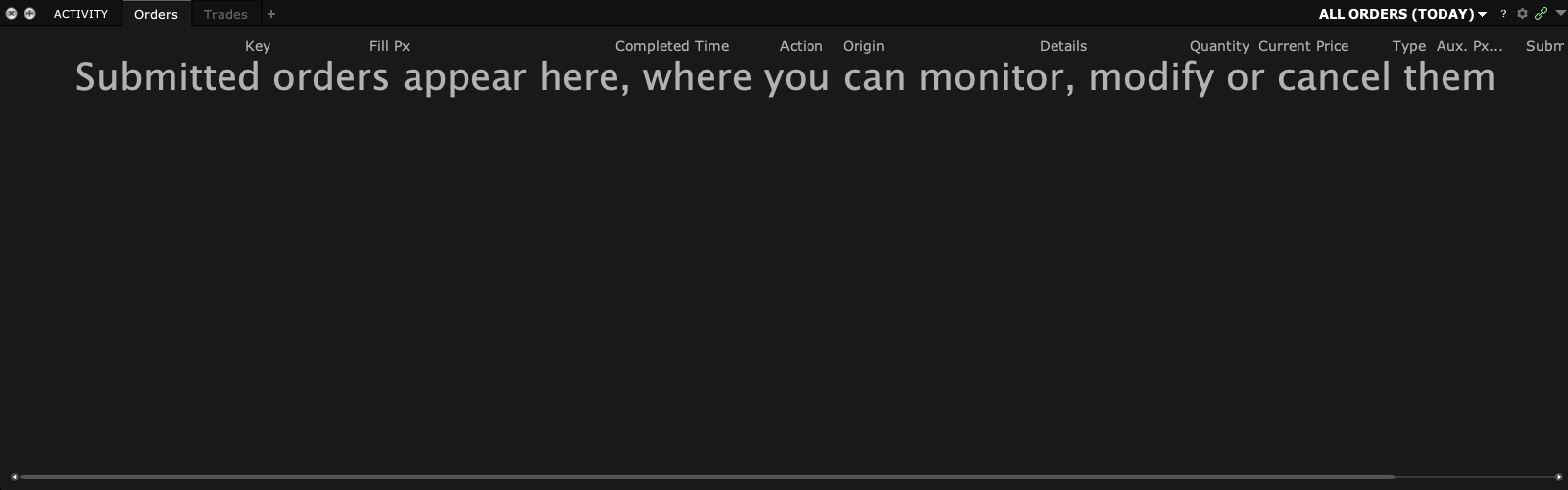
- 5 After a planned order, check both exits and their relationship in the broker order view.
A practical example
Suppose you already hold five shares and now want to plan a stop and target. Start from that position, not a new buy ticket. First check whether an app already placed exits for those shares. Then inspect the exit tool’s side and size. The goal is one planned way to close the existing shares, not another entry plus another set of closing orders. Check what remains after the new exit group is accepted.
Screen reference
Mistake to avoid
Common questions
Is this another buy order for a long position?
No. The workflow should create the intended closing-side exits. Verify side and size.
Can I use a bracket from a new entry ticket instead?
Do not accidentally submit a new entry when the task is to manage an existing position.