
TradingView’s strategy report shows model trades. TWS shows broker orders and fills. Start with a real alert in the log and trace that event. A trade drawn on an old chart is not proof that an alert was sent or a broker order was placed.
Educational software guidance. Trading involves risk. Read the financial and information disclaimers.
Step by step
- 1 Identify the backtest trade and whether it occurred before the alert was created.
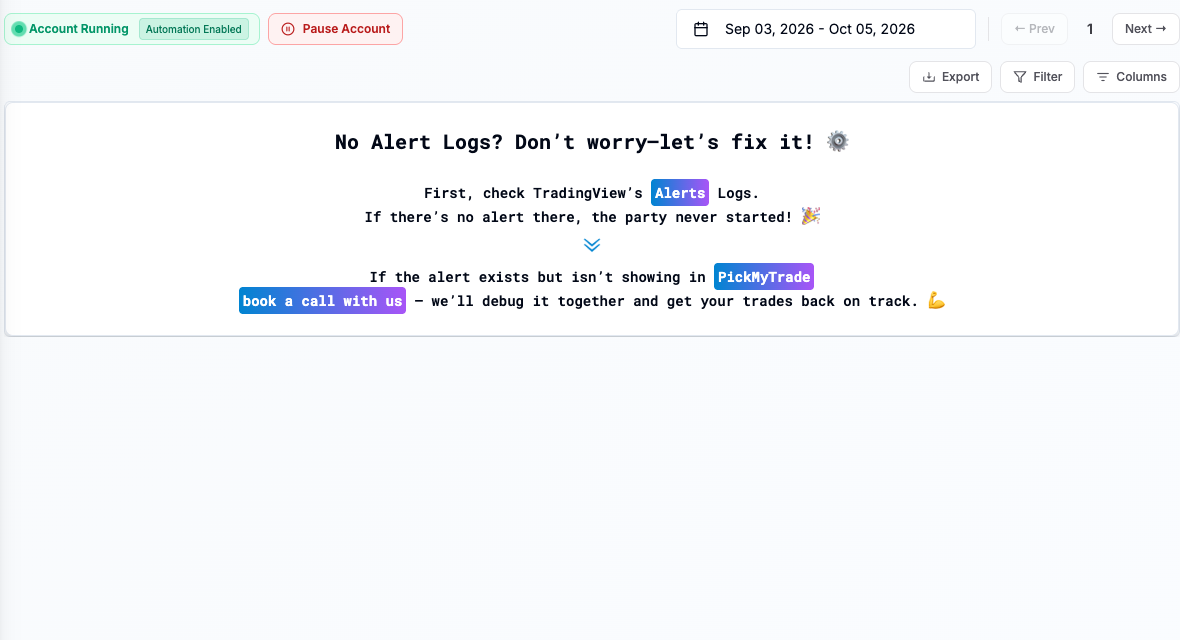
- 2 Check the TradingView alert log for a real event at that time.
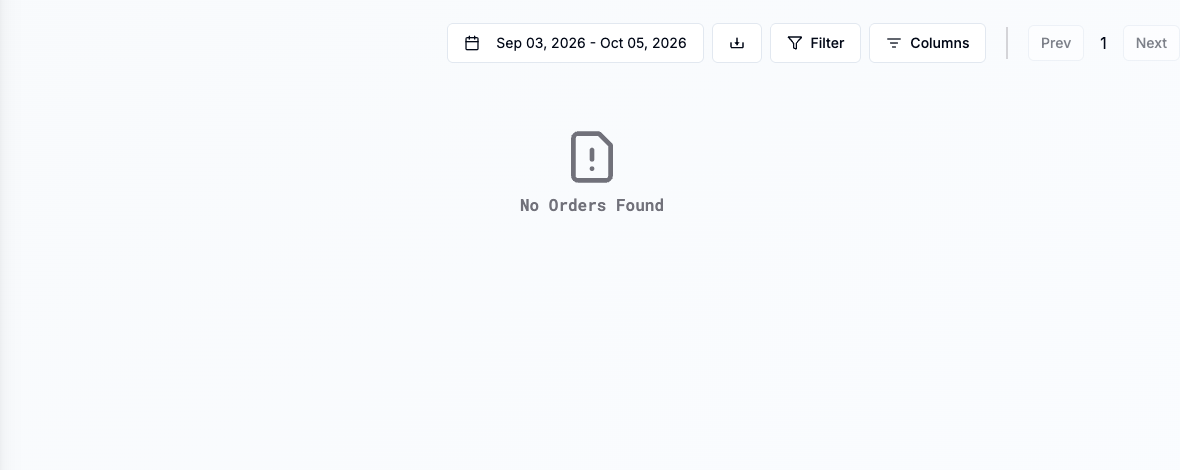
- 3 If an event exists, trace its receipt and processing in PickMyTrade.
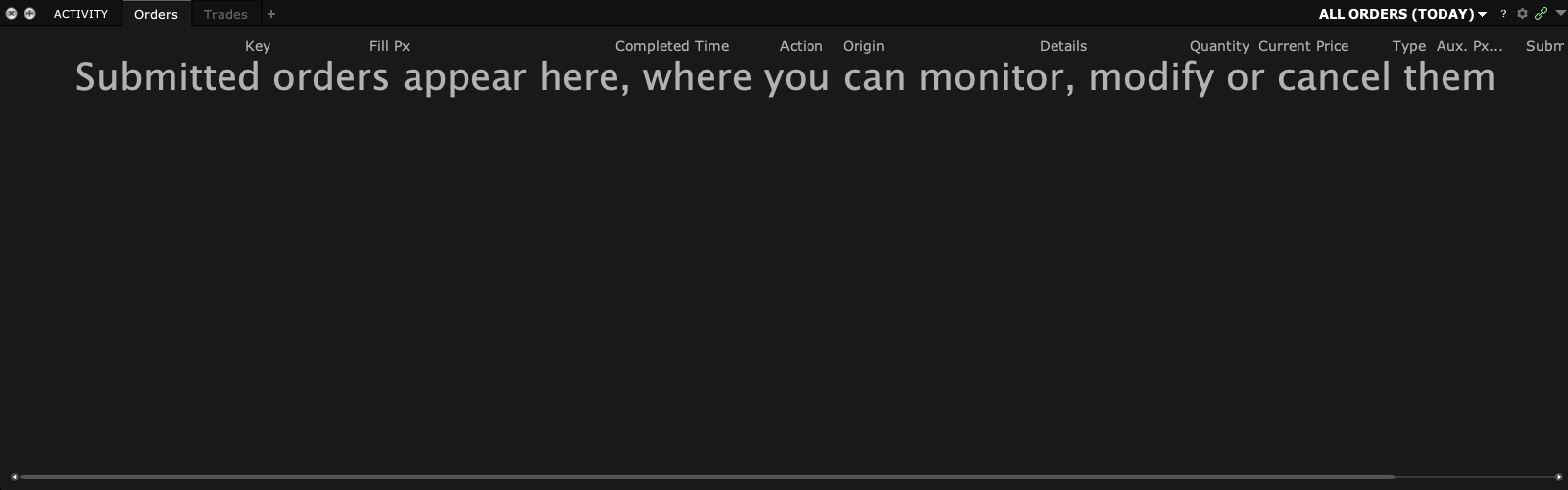
- 4 Compare the resulting TWS order, rejection, or fill.
- 5 Record differences caused by order rules, data, timing, or execution separately from alert setup.
A practical example
A strategy report shows a trade from last month. You only created the live alert today. Do not expect last month’s model trade to appear as a new broker fill. Find a real alert event after the alert was active, then follow that event through the app and TWS. Keep model results and broker results in separate columns so you can compare the right things.
Screen reference
Mistake to avoid
Common questions
Do old backtest trades get sent when I create an alert?
Do not expect historical simulated trades to be replayed as new broker orders.
Can synthetic chart prices affect comparisons?
Yes. Use chart types and prices right for the test and document the choice.