
Compare the app’s symbol settings with the exact TWS contract. Use PickMyTrade’s documented Create Settings workflow when a symbol is missing. A successful ticker search is only useful if it resolves the intended product.
Educational software guidance. Trading involves risk. Read the financial and information disclaimers.
Step by step
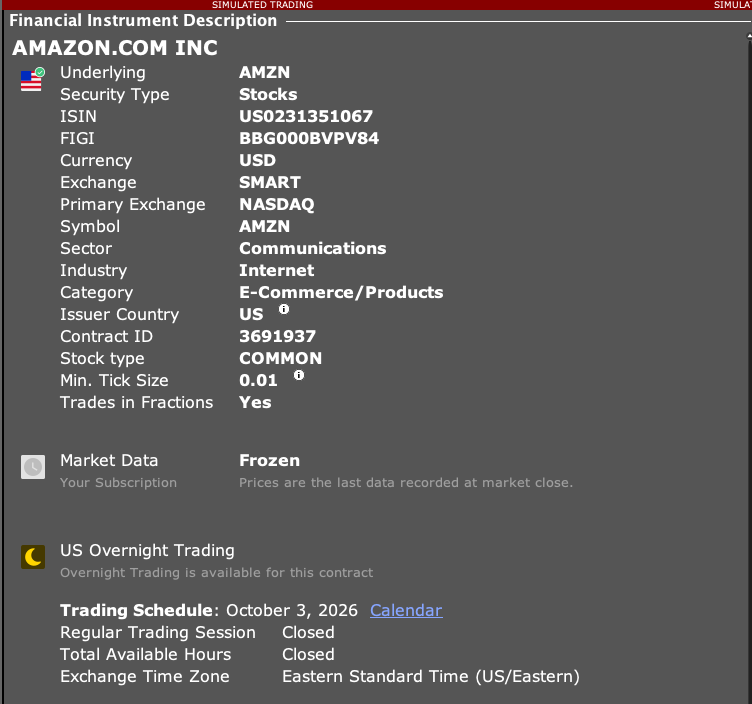
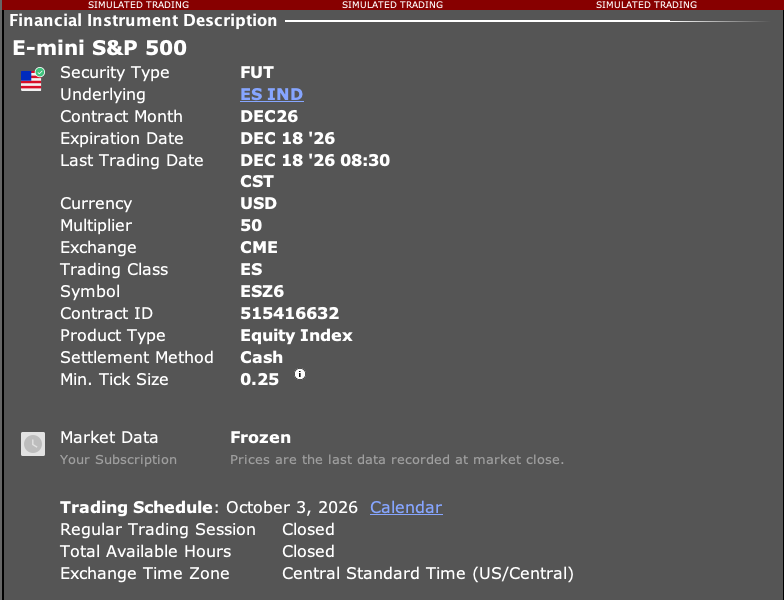
- 1 Find the product in TWS and open its Description. See screenshot.
- 2 Record the needed contract details, including expiry and multiplier where applicable. See screenshot.
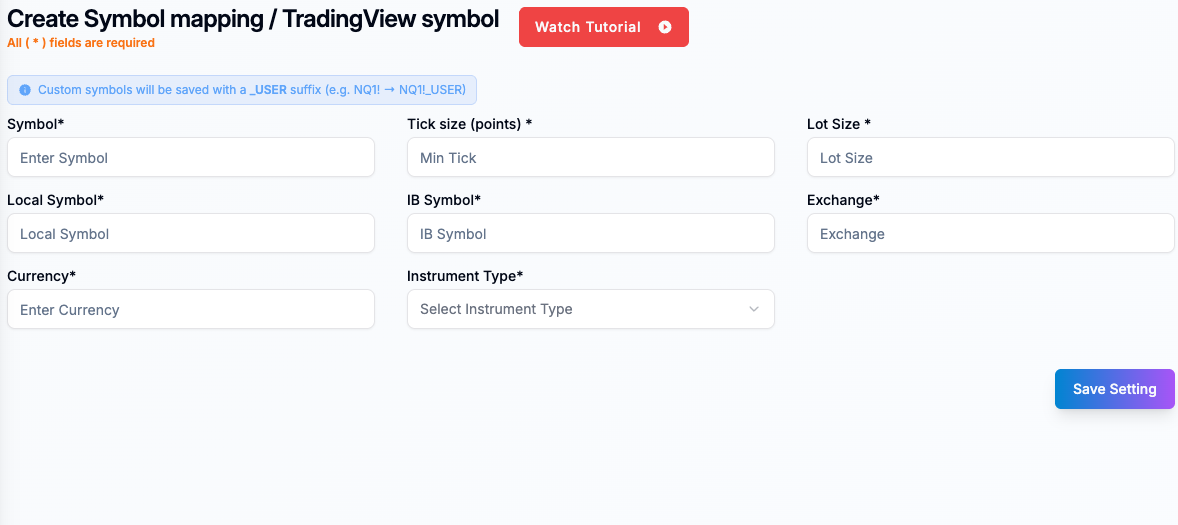
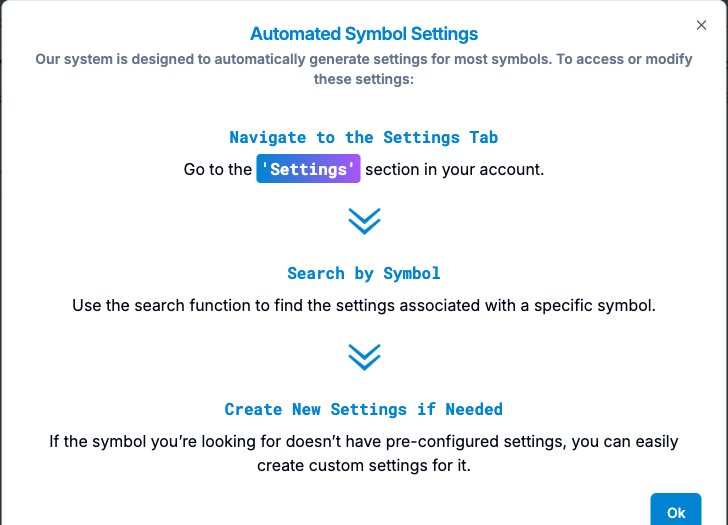
- 3 With IB selected, open Settings and use Filter symbol. If the intended symbol is missing, open Create Settings. See screenshot.
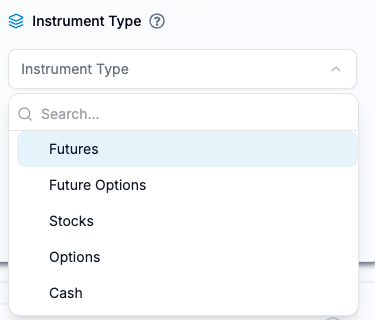
- 4 Enter verified Symbol, Local Symbol, IB Symbol, Exchange, Currency, tick size and Lot Size. Choose the product type and review any extra fields. Do not guess a value to pass the form. See screenshot.
- 5 Review the fields before using Save Setting. This form adds _USER to custom symbols. Check the resulting name and resolved contract in a paper workflow before live use. See screenshot.
A practical example
The chart name looks right, but the app says no matching symbol setting exists. Open the product in TWS and read its full details. Then use the app’s IB symbol form. A stock form and a futures-option form need different fields. Do not guess at a tick value or exchange just to save the row. Resolve the saved mapping and check the full product before using it for a trade.
Screen reference

Mistake to avoid
Common questions
Can I use another broker’s symbol settings?
Use the IB-specific mapping for this workflow.
Does adding a symbol grant permission to trade it?
No. Account approval and product support remain separate.