
In R Trader Pro desktop, open File, then Fill History for executions or Order History for order activity. Fill History has an account filter, Trade Date range, Fetch button and an export toolbar menu containing Export As CSV. In NinjaTrader 8, the reporting window is New, then Trade Performance.
Educational software guidance. Trading involves risk. Read the financial and information disclaimers.
Find and filter desktop fill history
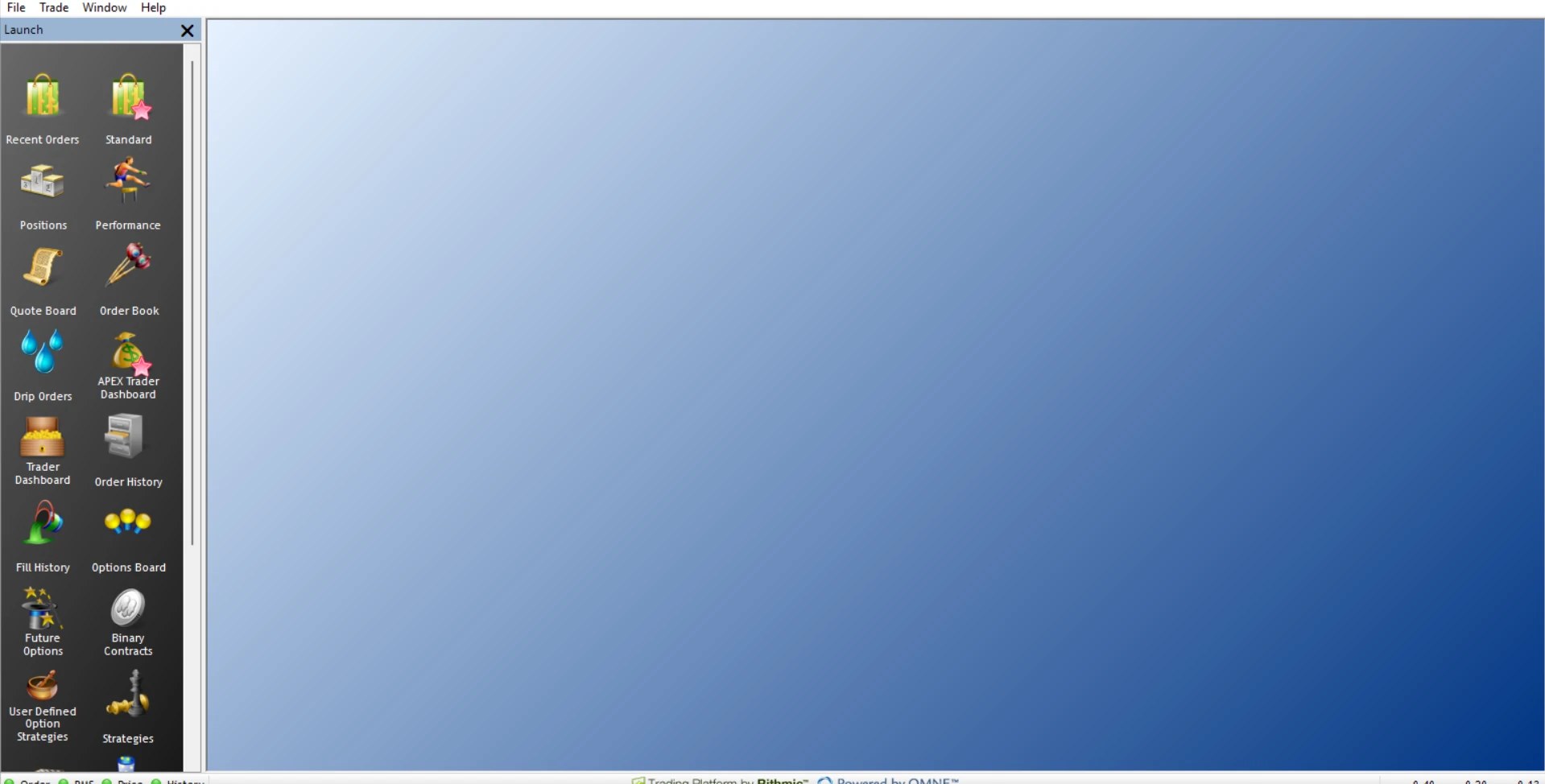
- Open File, then Fill History. The Launch panel also provides a Fill History tile.
- Select Showing all accounts if you need to inspect the account filter. Match the provider's account identifier, not just a friendly name.
- Choose the required Trade Date range and select Fetch.
- Inspect Symbol, Exchange, Fill Size, Fill Price and Fill Time. Note the displayed timezone; this session showed IST.
- Open the export toolbar dropdown and select Export As CSV to begin an export. Check the chosen destination and contents before sharing a file.
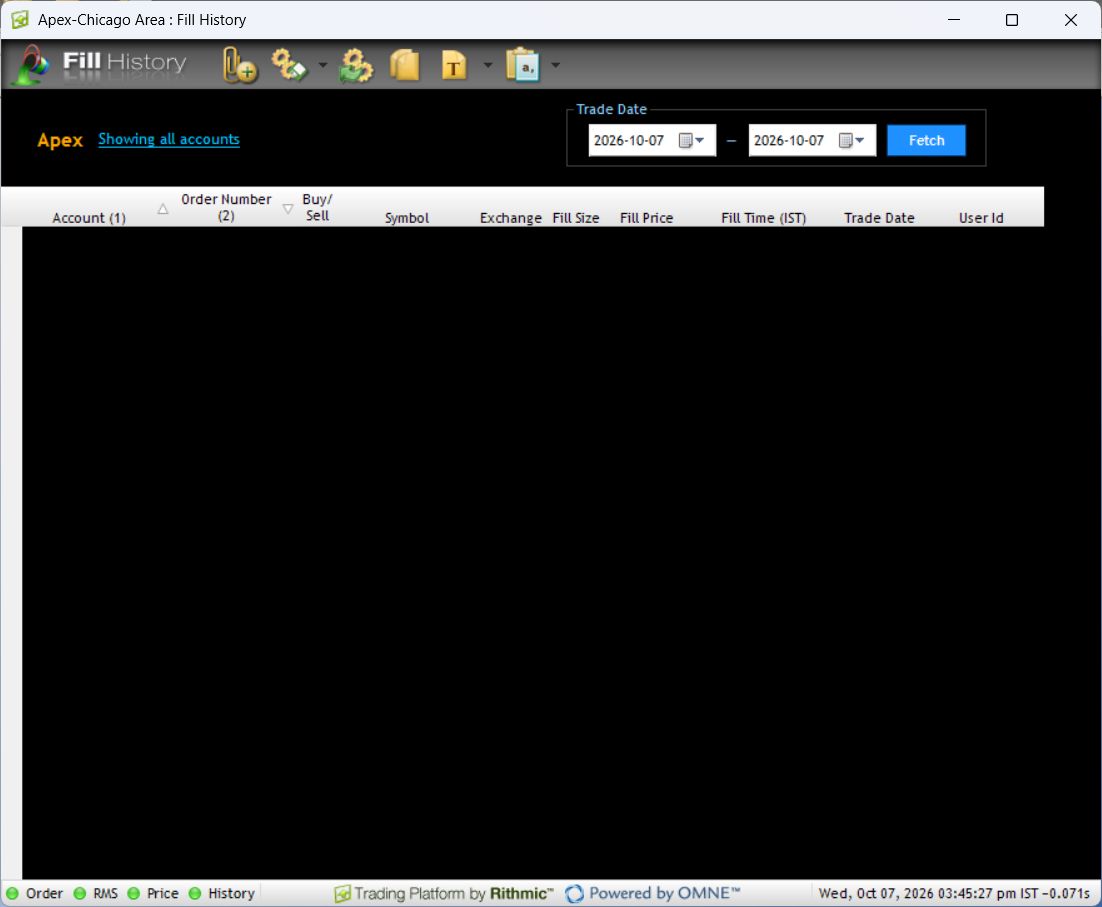
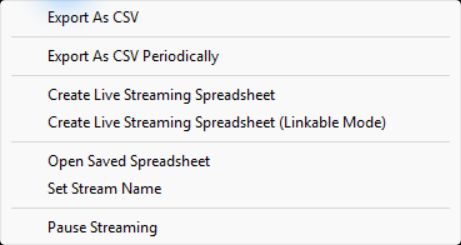
The captured grid was empty. It verifies the controls and columns, not data retention, an exported file or the account's historical trading activity. A blank grid is not proof that no order was submitted.
Orders, fills and positions answer different questions
| Record | Question it helps answer |
|---|---|
| Order activity | What was requested, accepted, changed, cancelled or rejected? |
| Fill history | What quantity actually executed and at what price? |
| Current positions | What exposure remains now? |
| Provider statement | What official account charges and totals were reported? |
An order can have several fills. Do not count every fill row as a separate entry decision. Compare account, contract, side, timestamps and the available order identifiers when reconciling records.
NinjaTrader 8 uses Trade Performance
The official Trade Performance guide locates the window under the Control Center's New menu. Use its date and account filters to generate the relevant view. Older instructions referring to an Account Performance menu should not be followed as an exact NinjaTrader 8 path.
NinjaTrader reporting has not been captured in this local session. For its current display and export details, follow the linked platform documentation rather than transferring R Trader Pro's toolbar instructions.
If expected fills are missing
- Confirm the System, login and account match the original request.
- Broaden the trade-date range around a session boundary, keeping the timezone in view.
- Confirm that the original event was a fill, not a working, cancelled or rejected order.
- Compare the provider statement and the platform that submitted the request.
- Ask the provider about history availability if records still disagree. Do not assume an unlimited server retention period.
For automation, retain the alert timestamp and receiving-system response alongside the broker record. An alert log establishes that a signal occurred; it is not a replacement for the execution report.
Additional interface references
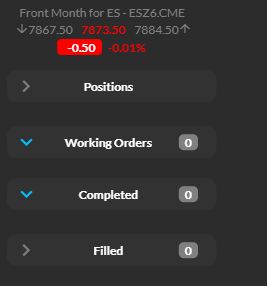
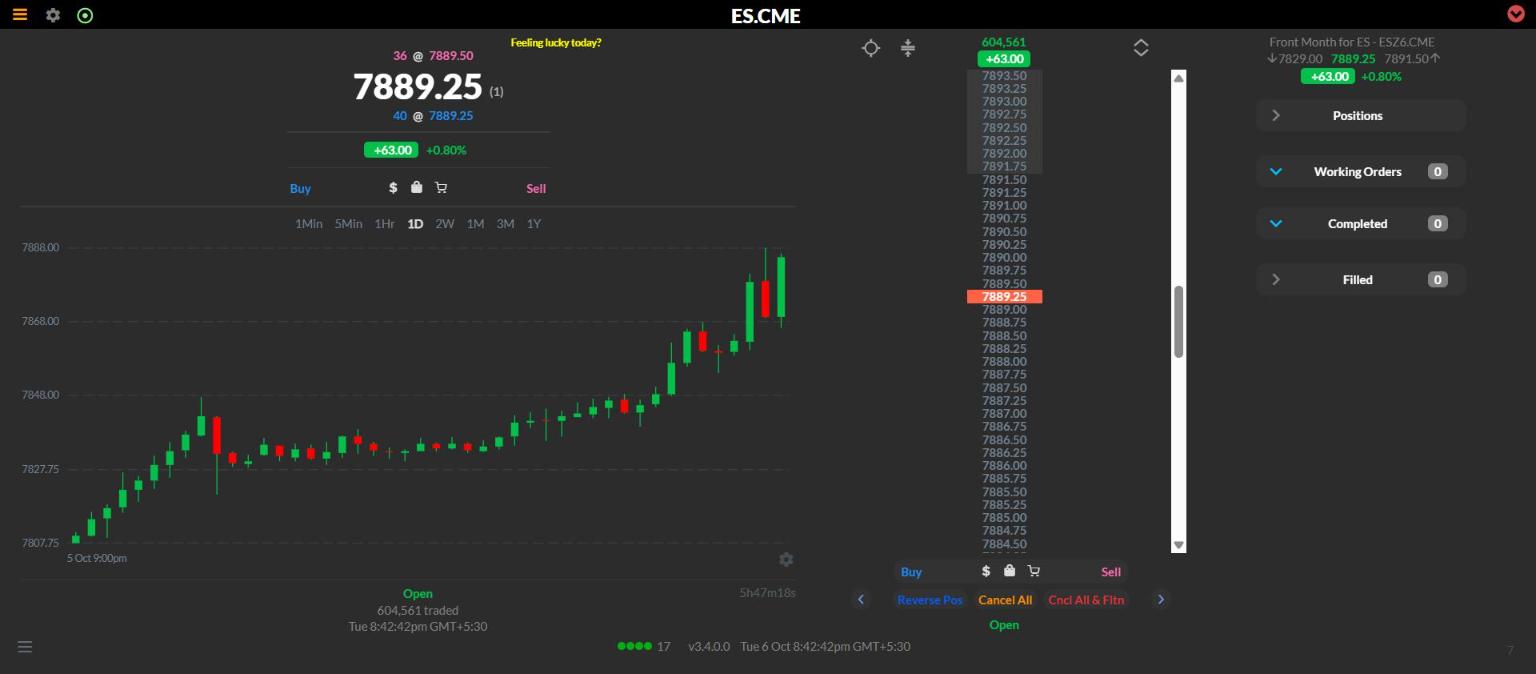
These earlier captures provide interface context only; they are not completed-order evidence.
Common questions
Does an empty Fill History mean the account has never traded?
No. Filters, date selection, access and available history can affect what is returned.
Is a platform CSV an official tax statement?
No. Use the official records required for your account and jurisdiction. Platform exports support reconciliation but do not replace the provider's reporting.
Can the same order produce several rows?
Yes, when it executes in parts. Check filled and remaining quantity rather than treating each row as a new order.
What should be removed before sharing a screenshot or CSV?
Remove credentials, tokens, names and account or order identifiers unless the intended support channel specifically needs them. Keep a private unmodified copy for your own reconciliation.