
TWS provides the full trading workspace. IB Gateway provides an API connection interface. Both require a broker login. Use the program your app supports and match its actual port; switching programs alone does not fix data or trading permissions.
Educational software guidance. Trading involves risk. Read the financial and information disclaimers.
Step by step
- 1 Identify which program your app documents and supports. Do not assume every TWS app also supports every Gateway workflow.
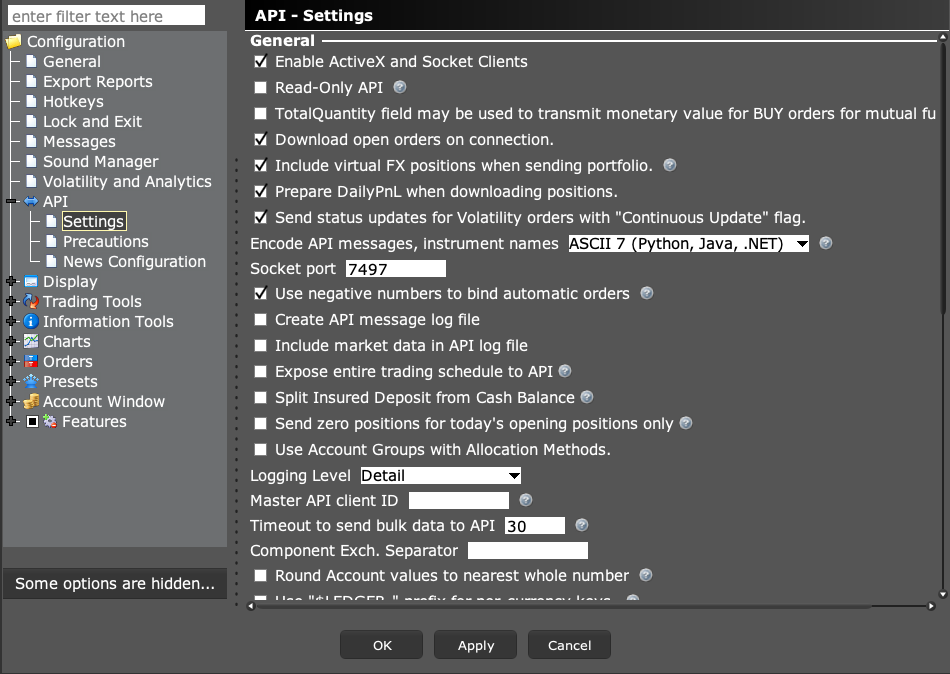
- 2 For TWS, review Global Configuration → API → Settings. For Gateway, review Configure → Settings → API → Settings.
- 3 Match the set host, port, and login mode in the client app.
- 4 Check account access and market data after connecting.
- 5 Keep a documented way to check broker orders and positions when diagnosing an automation problem.
A practical example
Suppose an old app profile says TWS paper on port 7497, but you now open Gateway paper. Its default port is different. Read the port in the program that is actually running and check that the app supports that program. Keep the rest of the test small. One correct account and one known quote are easier to check than a full set of charts and alerts at once.
Screen reference
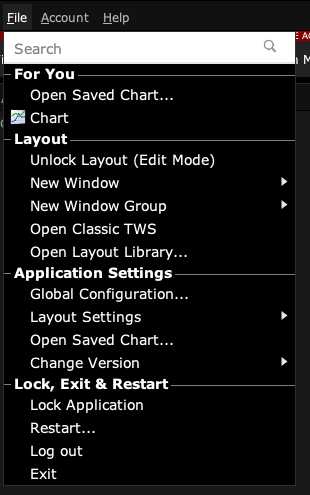
Start in Mosaic with File → Global Configuration. Then choose the panel named in the steps.
Mistake to avoid
Common questions
Does Gateway use 7497 by default?
Its usual paper default is 4002. Read the actual set value.
Can I run both with the same username?
Concurrent trading-session rules still apply; review IBKR’s login guidance.