
Record the time zone attached to each timestamp. The TWS operator time zone, an exchange time zone, and UTC can describe the same event with different clock times. Align zones before declaring an alert late.
Educational software guidance. Trading involves risk. Read the financial and information disclaimers.
Step by step
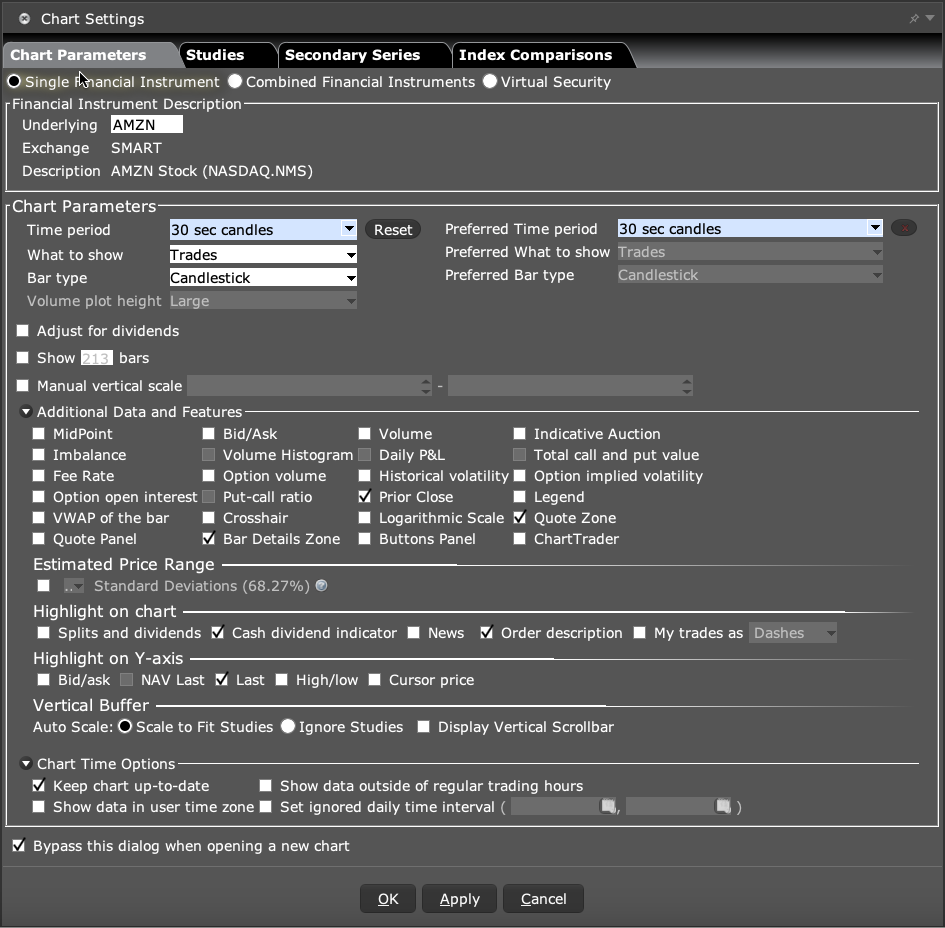
- 1 In the TWS chart, open Edit → Chart Parameters. Read Show data in user time zone under Chart Time Options. Write down the chart zone and the app log’s time-zone rule; do not assume they match.
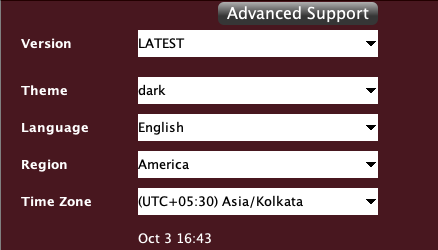
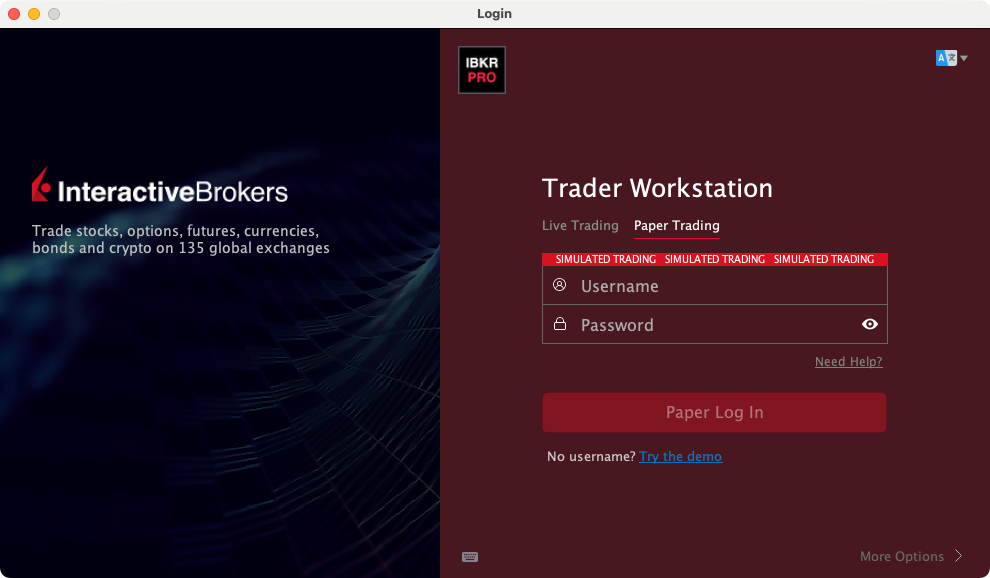
- 2 For TWS operator time, check More Options on the login screen during your next planned login.
- 3 Check whether the API request explicitly uses an exchange zone or UTC.
- 4 Convert a single known event into one comparison zone.
- 5 Account for daylight-saving changes when comparing dates across the year.
A practical example
A log uses UTC while a chart uses the exchange’s local time. The same event will show two clock times. Pick one event you can find in both places and convert its time. Do this before measuring a delay. A one-hour or several-hour gap may be a zone mismatch, not slow order routing. Note the date too, because daylight-saving changes can shift the offset.
Screen reference
Mistake to avoid
Common questions
Is my computer clock the only time zone involved?
No. Broker, exchange, chart, and app settings may differ.
Does a one-hour gap always mean latency?
No. First check time zones and daylight-saving rules.