TradingView and PickMyTrade

TradingView alert still uses old strategy settings

Quick answer

A script alert uses a saved version of its setup when created. Editing the chart does not necessarily update that running alert. Recreate the affected alert with the intended settings and avoid leaving the old one active.

Educational software guidance. Trading involves risk. Read the financial and information disclaimers.

Step by step

  1. 1 Open the intended chart symbol and timeframe.
  2. 2 Confirm the script version and inputs you want the alert to use.
  3. 3 Compare those settings with the existing alert setup.
  4. 4 Create the replacement alert with the correct generated message and destination, then remove or disable the old alert with care.
  5. 5 Test one paper signal and check that only the intended alert fired.

A practical example

You change a script input from one value to another on the chart. The running alert may still use the old saved copy. Create the new alert from the setup you now want, then remove the old one if it should stop. Test one event and check which alert ID fired. A chart that looks right is not proof that a server-side alert now uses the same inputs. Keep the alert setup with your test notes so a later change is easy to trace.

Illustrative scenario, not a record of a trade placed during this review.

Screen reference

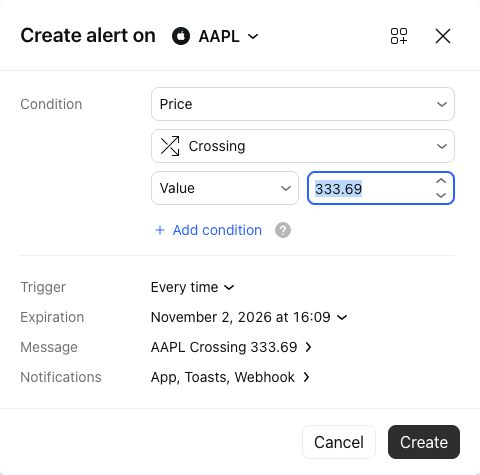
TradingView unsaved price-alert settings with Condition, Trigger, Message and Notifications
This is an unsaved example price alert. Every time is a price-alert trigger; it does not show a script bar-close setting. The example price is not a recommendation. The draft was canceled without creating an alert. Captured in TradingView web on 3 October 2026. Open the image for full size.
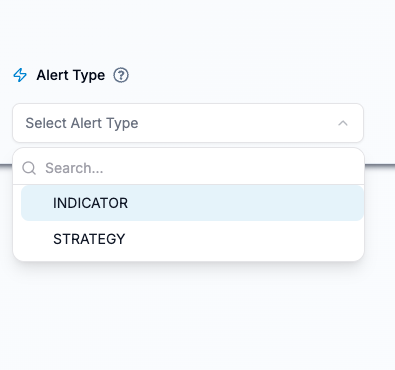
PickMyTrade Alert Type menu with INDICATOR and STRATEGY
Match this choice to the TradingView script that supplies the alert. The menu alone does not confirm the script condition or message format. Captured in PickMyTrade on 3 October 2026. Open the image for full size.
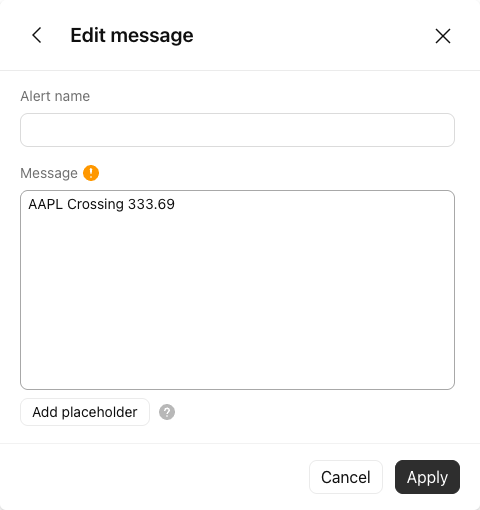
TradingView alert Message editor with a default AAPL Crossing price message
This default price-alert text is not a valid PickMyTrade order payload. Use the current message generated for your verified integration. The draft was canceled without applying changes or creating an alert. Captured in TradingView web on 3 October 2026. Open the image for full size.
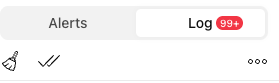
TradingView Alerts sidebar with the Log tab selected
Open Alerts, then Log, to look for the event. Existing event rows, alert names and message details are excluded. The screenshot does not demonstrate webhook status or delivery. No log records were cleared. Captured in TradingView web on 3 October 2026. Open the image for full size.
How to confirm the result The running alert should reflect the intended script setup without duplicate old alerts.

Mistake to avoid

Changing the chart and assuming the server alert changed can leave old sizes or exit logic running.

Common questions

Do indicator input changes update existing alerts automatically?

TradingView documents alert snapshots; recreate when the saved setup needs to change.

Should I keep both alerts during migration?

Only if you intentionally want both; otherwise avoid duplicate execution.

Financial and information disclaimers

Financial disclaimer

These guides explain software. They are for education, not financial, investment, tax, or legal advice. No example is a suggestion to buy or sell a product or use a trading strategy. Trading can lose money, including all funds you put at risk. With margin, futures, short sales, or some options, losses can exceed your starting funds. Automation can fail, send duplicate orders, or act late. Stops do not guarantee a fill or a price. Review your orders and positions, and seek advice from a qualified professional for your own needs. Paper trades, examples, and past results do not predict live results or promise a profit.

Information disclaimer

This is general help based on the sources and check date shown on the page. Screens, settings, fees, data access, and product support can change or differ by app version, account, country, and broker. The content may contain errors or become out of date; accuracy, completeness, and continuous service are not guaranteed. Check current broker and app instructions before acting. Screenshots show where controls are; they do not prove that an order test passed. This guide does not replace broker terms or risk notices. References to IBKR and TradingView identify their products and do not imply their endorsement of this guide.

IBKR risk disclosures · IBKR paper-trading limits · SEC guidance on automated investment tools

PickMyTrade help · Independent guidance for Trader Workstation and the desktop integration. TWS images show paper trading. Other applications are named in the image captions. Settings and availability can vary by version and account.

Automate TradingView alerts to Interactive Brokers

See the IBKR integration