
Identify whether TradingView sends exits or PickMyTrade attaches broker-side stops and targets. Configure the documented mode with care. Mixing independent exit instructions can leave duplicate or unexpected closing orders.
Educational software guidance. Trading involves risk. Read the financial and information disclaimers.
Step by step
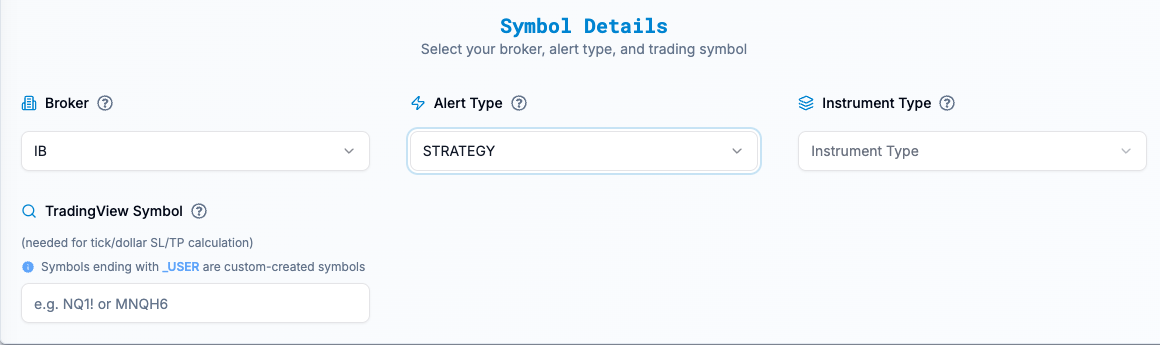
- 1 In PickMyTrade, select IB and open Generate Alert. Choose STRATEGY under Alert Type and confirm the Instrument Type. See screenshot.
- 2 Compare No SL/TP, Attach SL/TP to Orders, and Multiple Exits (TP1, TP2...). Choose the mode that matches how your script supplies exits. See screenshot.
- 3 Review the generated settings and any stop or target values. Record which system sends each closing instruction. Do not assume an exit card proves that a broker stop exists.
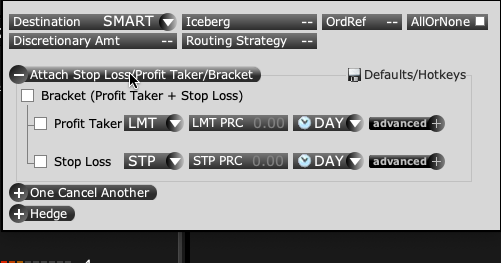
- 4 In a paper test, compare the TWS entry and child orders with the chosen mode. See screenshot.
- 5 After a test exit, check the remaining position and any surviving orders.
A practical example
Suppose your chart sends both entry and exit alerts, while you also ask the app to place a stop and target. You need to know what happens when either route closes the trade first. Does a working exit remain? Does the next chart exit still send a new close? Follow the mode that the app documents and check one full paper cycle. Start with one small planned case. At the end, read the actual position and the order list. An empty position does not prove that no old stop is still waiting.
Screen reference

Mistake to avoid
Common questions
Does every mode attach a stop?
No. Check the documented mode you selected.
Can I assume all partial-exit combinations are supported?
No. Verify the current app’s supported combinations and test them.