
Keep the chart symbol, generated alert symbol and actual execution contract separate. Do not automatically replace ES1! with a dotted Rithmic display name in the webhook. Use the symbol selected and generated for the intended PickMyTrade connection, then verify the destination contract.
Educational software guidance. Trading involves risk. Read the financial and information disclaimers.
Three values to compare
| Value | Example or source | Why to check it |
|---|---|---|
| TradingView chart symbol | A continuous chart or a specific expiry | Identifies the series generating the signal |
| PickMyTrade alert symbol | The current generated message | Identifies what the route is being asked to resolve |
| Rithmic execution contract | The actual destination order | Establishes which contract received the request |
In the web session inspected on 7 October 2026, the ES view showed the front month as ESZ6.CME. This is a dated display observation, not evidence that every webhook accepts that string.
Verify a mapping
- Record the TradingView symbol and whether it is continuous or expiry-specific.
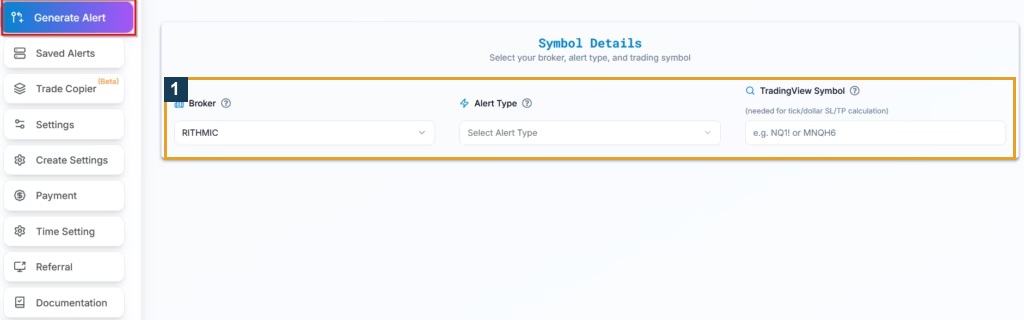
- Select the intended execution symbol in PickMyTrade. The Rithmic strategy guide describes symbol selection and setting up missing mappings.
- Generate the alert message for the correct connection. Preserve the generated syntax rather than manually adding an exchange suffix.
- Inspect a resolved alert in a suitable permitted test. Compare the requested symbol with the destination order's contract month and exchange.
- Repeat the check after a rollover or a change in mapping, strategy, account or alert configuration.
Rollover is not the same as moving a position
PickMyTrade's rollover document, updated 29 September 2026, recommends selecting the exact contract and describes continuous-symbol switching four days before expiry. It also says that existing futures positions are not automatically managed at expiration. Those are different operations.
The document does not prove that every instrument and Rithmic account observed here follows an identical transition. Confirm the destination contract around expiry; retain any open-position management decision separately.
If the symbol is rejected
Compare the generated value, the saved mapping, connection choice and available instrument. Preserve the exact error. Do not use another instrument merely because it produces a successful order, and do not infer that a mini and micro are interchangeable quantities.
Captured reference images
The captions distinguish observed web screens from vendor documentation and imported desktop references. None proves a successful order or the unobserved desktop workflow.
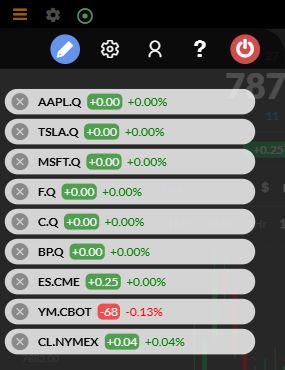
What this mapping reference establishes
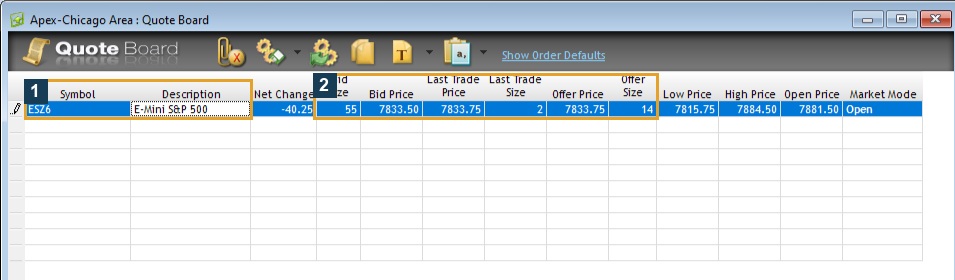
The native ES lookup and official generator illustration establish the distinction between a platform contract label and a receiver-selected symbol. They do not establish a completed TradingView-to-Rithmic order. The account-specific generator/outcome check belongs to the linked setup and JSON validation workflow; use its actual result before relying on a new mapping.
The CME customary equity roll calendar now uses a Monday convention. That exchange reference and the receiver's documented mapping schedule are separate; compare both with the actual destination expiry.
Native contract-reference observation
On this VPS, entering ESZ6.CME in the native Quote Board symbol cell and leaving it resolved an ESZ6 / E-Mini S&P 500 quote row. This supports identification of that native contract only. It does not establish PickMyTrade's generated payload format or a TradingView-to-execution mapping result.
Common questions
Must I hardcode every symbol?
No universal rule is established. Use the documented generated configuration for the route and verify the intended result.
Does a continuous chart determine the execution expiry?
Not by itself. The chart and the receiving service may follow different rollover rules.
Does automatic mapping close an old position?
No such behavior should be inferred. Mapping a new alert and managing an existing position are separate tasks.
Is the October screenshot a current symbol list for future dates?
No. It records one instrument in one session on 7 October 2026. Check the contract intended at the time you configure the alert.