
Confirm the product, expiry and exchange in the interface that will use the symbol. In the inspected native Quote Board, entering ESZ6.CME in the symbol cell and leaving that cell resolved an ESZ6 / E-Mini S&P 500 quote row. This is a verified lookup for that build and environment, not a universal JSON or platform format.
Educational software guidance. Trading involves risk. Read the financial and information disclaimers.
Read a futures contract code
A contract code commonly combines a product root, expiry-month letter and year. CME's code explanation identifies ES for E-mini S&P 500 and warns that formats vary across platforms. The month-code table includes:
| Month | Code | Month | Code |
|---|---|---|---|
| January | F | July | N |
| February | G | August | Q |
| March | H | September | U |
| April | J | October | V |
| May | K | November | X |
| June | M | December | Z |
Do not construct a contract merely because a month code exists; available expiries vary by product. A single-digit year also needs the current product/date context.
Native quote lookup observed here
- Open the desktop Quote Board from the launcher.
- Activate an empty Symbol cell in this inspected interface.
- Enter the intended contract and exchange in its accepted notation. The observed test used ESZ6.CME.
- Leave the cell and verify the resolved description and quote row.
- Confirm the product/expiry against current exchange/provider references before using it in a trading workflow.
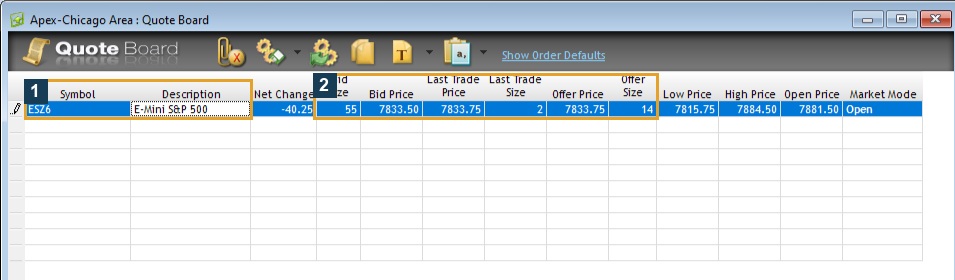
No order was sent and no front-month selection algorithm was tested. A populated row establishes that this lookup returned quotes, not account permission or a guarantee of future quote availability.
Keep entry formats separate
The native Order Book labels its input Symbol.Exchange, while its Account selector is separate:
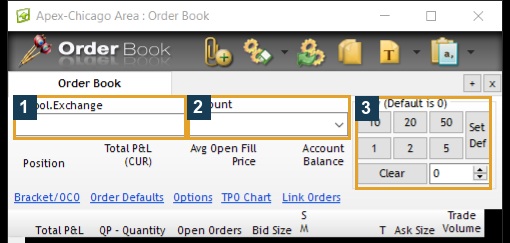
Sierra Chart documents its own dotted symbol format. PickMyTrade's generator can have a separate trading-symbol field and mapping rules. Do not insert native dotted notation into every connector or alert payload by assumption.
Common questions
Is ES1! the same text as ESZ6.CME?
No. A continuous chart label and a specific contract identifier are different. Confirm the execution contract.
Can I always type the dotted format?
It worked in the observed native lookup. Use the current instructions for each other interface.
Does a valid quote symbol prove I can trade it?
No. Trading permissions, account and order route are separate.
Is a complete symbol-search dialog verified here?
No. This article documents direct cell lookup. It does not invent a search-button location or a complete current expiry list.