
Choose the alert event that the script and receiving integration are designed to use. A strategy order-fill event comes from TradingView's broker emulator; it is not a fill report from your Rithmic account. An alert() event occurs when the script calls that function. Using both is not automatically correct for every integration.
Educational software guidance. Trading involves risk. Read the financial and information disclaimers.
Compare the event sources
| Source | What triggers it | What to verify |
|---|---|---|
| Price or drawing alert | The configured chart condition | Whether the message has the recipient's intended meaning |
| Indicator condition | Its supported condition or script event | Condition, message and frequency |
alert() call |
Script logic executes the function | Which calls carry trade instructions |
| Strategy order-fill event | Emulator fills the strategy's simulated order | Required placeholder/message and intended integration |
TradingView's Pine alert guide documents these distinctions. Creating an event in code does not itself create a running alert; the user must configure the alert through the supported interface.
Choose using the script's contract
- Identify whether the script is an indicator or strategy and obtain its alert instructions.
- Determine whether its trade messages come from order-fill events,
alert()calls or a specific indicator condition. - Match the receiving service's generated message to that event source.
- Check entry, exit, reversal and partial-exit instructions separately. Do not treat every event as an entry.
- Recreate a script alert when its saved inputs/symbol/timeframe context must change.
- Inspect actual alert, receiving-service and broker records during an appropriate permitted verification process.
No alert was created or trade triggered for this article.
Keep exit modes consistent
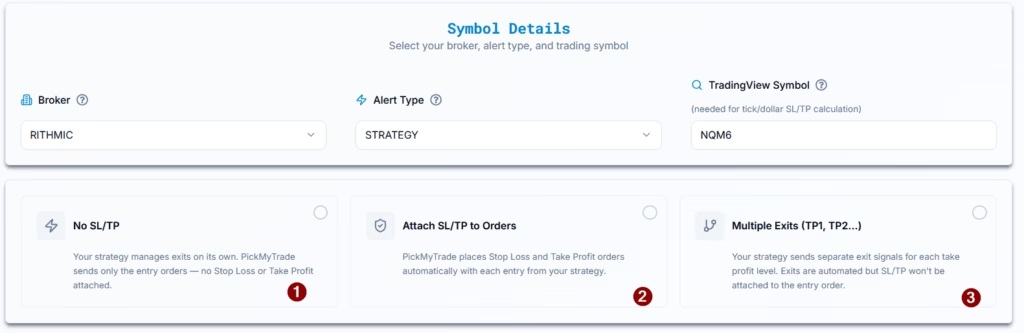
PickMyTrade's Rithmic strategy guide distinguishes strategy-controlled exits, attached SL/TP and multiple exits. The vendor illustration below identifies those choices. It is not proof of their behavior on your account, and its NQM6 example is not a current contract recommendation.
When can two streams cause duplicate requests?
If both an order-fill event and an alert() call trigger with trade instructions, they can produce separate messages. Check both sources and the actual timeline. A setting that permits adding to a position is not the same as transport-level deduplication. See duplicate-order reconciliation.
For a strategy-based route, match Pine strategy alerts to the generated message instead of combining incompatible placeholder examples.
Common questions
Should every strategy use Order fills only?
Use the script and integration's current instructions. Some workflows use explicit alert() messages instead.
Is a strategy fill a Rithmic fill?
No. It is an emulator event; confirm the actual broker result separately.
Does selecting both always double trades?
No. That depends on which events actually trigger, their messages and receiving-service behavior.
Do changed chart inputs update an existing alert?
TradingView documents a saved context. Recreate the script alert when that context needs to change.