
Choose the Pine event that should trigger automation, then use the current receiver-generated message for that event type. A strategy’s simulated order-fill alert is not a Rithmic fill. Indicator conditions and alert() events have different behavior and cannot be treated as interchangeable strategy events.
Educational software guidance. Trading involves risk. Read the financial and information disclaimers.
Choose the event source
| Pine / alert feature | Role |
|---|---|
| Indicator alertcondition() | Defines a selectable indicator condition |
| alert() | Emits an alert event with a script-defined message when its code executes |
| Strategy order-fill event | Reports a TradingView broker-emulator fill |
| Order function alert_message | Provides order-specific text used with the appropriate strategy alert placeholder |
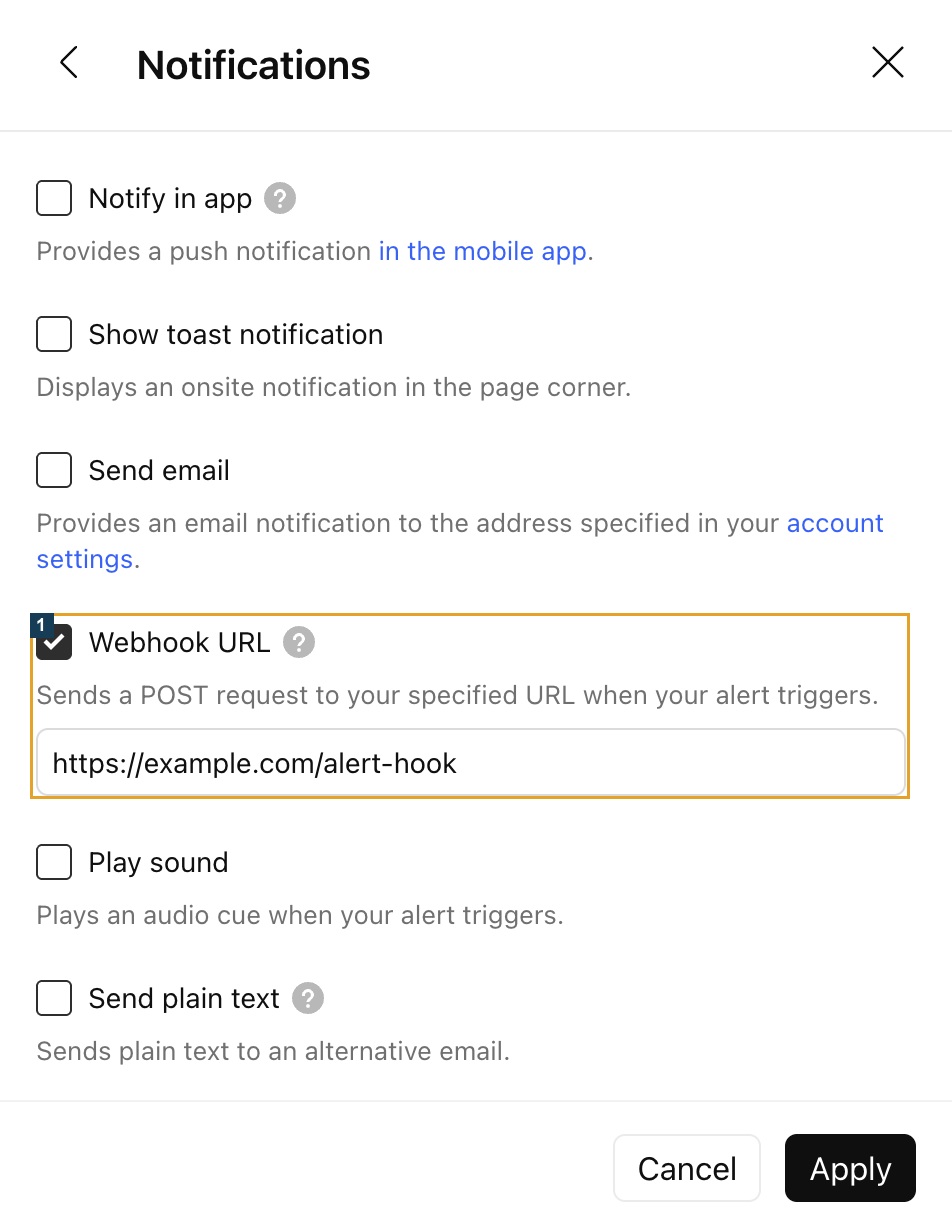
See TradingView's Pine alert documentation. Alerts run on saved server-side context. Changing a chart, input or script does not automatically update an already running alert; recreate it when the intended context changes.
Keep order quantity and position size separate
{{strategy.order.action}} and {{strategy.order.contracts}} describe an order event. {{strategy.position_size}} describes position state. A reversal can require an order larger than the intended final position, so blindly substituting one quantity for another can mis-size the receiver's action.
If the script uses order-specific alert_message, the alert needs the corresponding {{strategy.order.alert_message}} placeholder. Do not assume every order function supplied text, or combine a custom message with an incompatible generator template.
Configure the receiving service
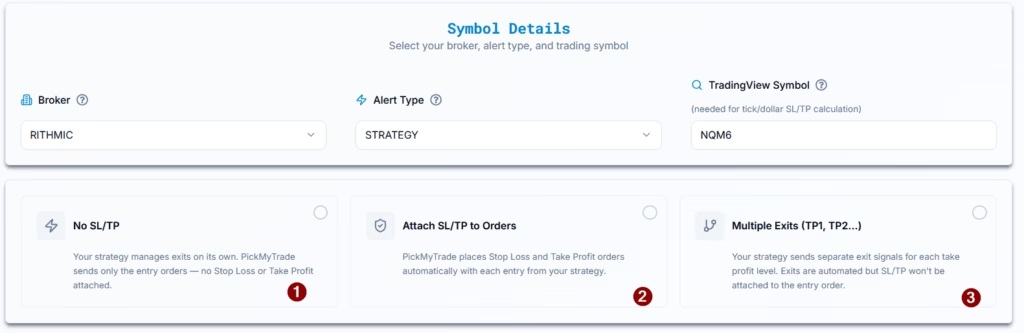
In PickMyTrade, choose the Rithmic strategy or indicator mode that matches the event. Use its current strategy instructions and generated configuration. Preserve the exact account, symbol, sizing and exit mode. This guide deliberately does not invent a runnable order schema.
Realtime behavior needs its own check
Intrabar recalculation, repainting and order timing can make realtime behavior differ from historical results. Record the script settings and event frequency. Prevent duplicate execution paths, and reconcile an emulator event with the recipient response and broker records before treating it as successful automation. See the account-specific JSON verification, which remains distinct from these Pine event concepts.
Screenshot references
Common questions
Does Pine connect directly to Rithmic?
The described workflow uses TradingView alerts and a supported receiving service; Pine is not a Rithmic login client.
Do strategy placeholders apply to any indicator?
No. Use the event and message features supported by the selected script type.
Will editing my chart update a running alert?
TradingView saves alert context; recreate it when the intended context changes.
Does a backtest prove the live order path?
No. Emulator events and broker execution are separate.