Multiple accounts

Switch Between Rithmic Accounts Without Losing Track of Orders

Quick answer

For accounts exposed by one connection, select the intended account in the order-entry window and check it again before submitting. Changing the selected account does not close positions or cancel orders on the previous account. Other windows or strategies may retain their own selection.

Educational software guidance. Trading involves risk. Read the financial and information disclaimers.

Switch within the inspected desktop workflow

  1. Open File → Trader Dashboard and identify the provider-issued account ID privately.
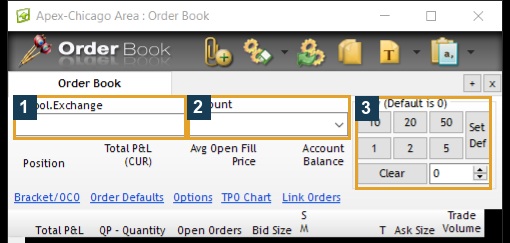
  2. Open the relevant Order Book and inspect its account selector.
  3. Select the intended destination only after matching the full ID and connection.
  4. Check the instrument, expiry, quantity and active entry/exit configuration in that window.
  5. Recheck other order-entry windows and automated strategies separately.

The captures establish where to inspect accounts and entry controls. The inspection did not submit an order to either account. Do not interpret a changed dropdown as an account-wide transfer of every window.

Keep the previous account in view

Record its positions, working orders and copier participation before switching. A pending order can still execute while another account is selected. A copier can also route subsequent actions to a follower that is no longer on screen.

When the account is not listed

Compare the provider assignment with the current username/System and account status. A website account, trading username and trading account ID are different identifiers. Apex's login guidance illustrates why website credentials do not substitute for trading credentials.

For a different login, follow the platform's supported connection process. Do not assume NinjaTrader can maintain multiple Rithmic providers concurrently simply because it stores their profiles. Establish the effect of disconnecting on existing local order management before switching connections.

Screenshot references

Actual two-account Trader Dashboard on this VPS. Account IDs, names and balances are concealed; no account was traded or renamed.
Actual desktop order-entry controls, including account selection. The inspection did not select an account or send an order.

Common questions

Does switching flatten the old account?

No. Inspect its positions and working orders separately.

Does the selector change every chart?

Do not assume so. Check each order-entry panel and strategy.

Can a missing account be activated by reinstalling?

An installation cannot grant provider account permission. Check the assignment and status first.

Can nicknames replace account IDs?

Use nicknames as a visual aid, but match the full provider-issued identifier.

Financial and information disclaimers

Financial disclaimer

These guides explain software and workflows. They are for education, not financial, investment, tax, or legal advice. No example is a suggestion to buy or sell a product or use a trading strategy. Trading futures involves substantial risk and can lose money, including all funds you put at risk. Leverage can cause losses that exceed your starting funds. Automation can fail, send duplicate orders, or act late. Stop orders do not guarantee execution or a specific exit price; their behaviour depends on the order type and applicable exchange rules. Review your orders and positions, and consult a qualified professional for your own situation. Paper trades, examples, and past results do not predict live results or promise a profit.

Information disclaimer

This is general help based on the sources and check date shown on each page. Screens, settings, fees, data access, server names, error wording, menu paths, and product support can change or differ by app version, account, country, broker, prop firm, and FCM. The content may contain errors or become out of date; accuracy, completeness, and continuous service are not guaranteed. Check current Rithmic, broker, prop firm, and platform instructions before acting. Screenshots show where controls are located; they do not prove that an order test passed. These guides do not replace broker terms or risk notices. References to Rithmic, RTrader Pro, CME Group, NinjaTrader, Tradovate, TradingView, Apex, Topstep, TradeDay, Leeloo, Bulenox, Earn2Trade and other brands identify their products and do not imply any endorsement of this guide.

Documentation only. Live trading workflows are not certified or execution-tested.

Automate TradingView alerts to Rithmic

See the Rithmic integration