
Compare the requested size with the account’s order and position limits, including existing exposure and any pending orders counted by the provider. A maximum order size, a directional exposure limit and a maximum open position can be different checks.
Educational software guidance. Trading involves risk. Read the financial and information disclaimers.
Reconstruct the intended position
- Identify the account and exact contract from the rejected request.
- Read the current position from the account, not only the strategy chart.
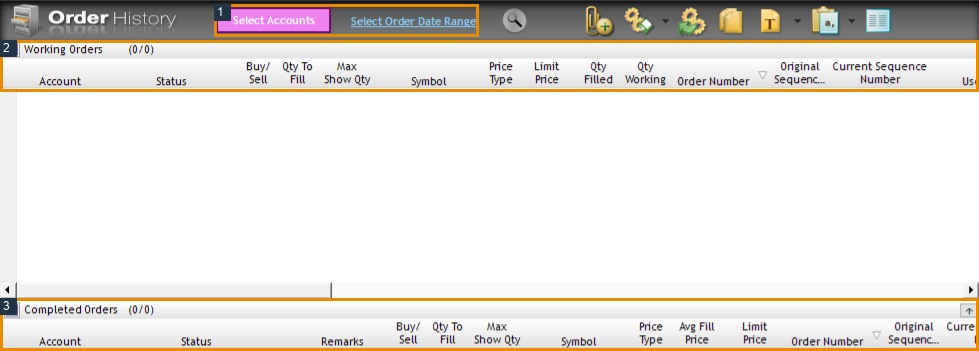
- List working entries and exits, including orders from another platform or copier.
- Record the new request's side and quantity.
- Inspect File → Trader Dashboard → right-click account → View Risk Parameters and compare the applicable administrator/product limits.
- Ask the provider how it combines contracts and working orders when the displayed limit is ambiguous.
Why a small-looking request can fail
| Situation | What to check |
|---|---|
| One-contract addition to an existing position | Resulting exposure, not just the new order size |
| Reversal | Quantity needed to close the old side and establish the new side |
| Another working entry | Whether the provider reserves exposure for it |
| Mixed micros and minis | Provider weighting, not an assumed 10:1 risk-rule conversion |
| Different expiries | Whether the limit aggregates the product across contracts |
| Copier | The actual follower quantity after multiplier/rounding |
Rithmic distinguishes pre-trade quantity limits from liquidation thresholds. A personal stop-loss distance does not increase the permitted contract count.
Fix the mismatch at the source
If a template or automation sent the wrong quantity, correct that configuration after checking existing orders. If the account's assigned limit is wrong, request a provider review. Do not split an instruction into smaller orders to circumvent a total exposure limit. Do not raise a risk limit as an error-message experiment.
For support, include the rejection and the before-request position/working-order state. Ask which exact field rejected the request and how the provider calculated the exposure. Keep private identifiers out of public screenshots.
Interface reference
Common questions
Is the account-size label the maximum buying power?
No. The provider sets the applicable product and account limits separately.
Can I change the limit in the Trader tab?
Only if the account permits that particular control. Administrator restrictions still apply; the inspected Trader view did not expose a general editable maximum-position field.
Are ten micros always counted as one mini?
Their economic size and a firm’s contract-counting rule are different. Obtain the rule for your account.
Can this happen on an exit?
An oversized or wrong-side request can increase or reverse exposure. If the request truly reduces exposure and fails, escalate its exact response.