
An order marked cancelled needs its full history and cancellation reason checked. A platform label alone cannot tell you whether the exchange, provider, OCO manager or your own application initiated it. Confirm any partial fills and the remaining position before replacing the order.
Educational software guidance. Trading involves risk. Read the financial and information disclaimers.
Collect the order timeline
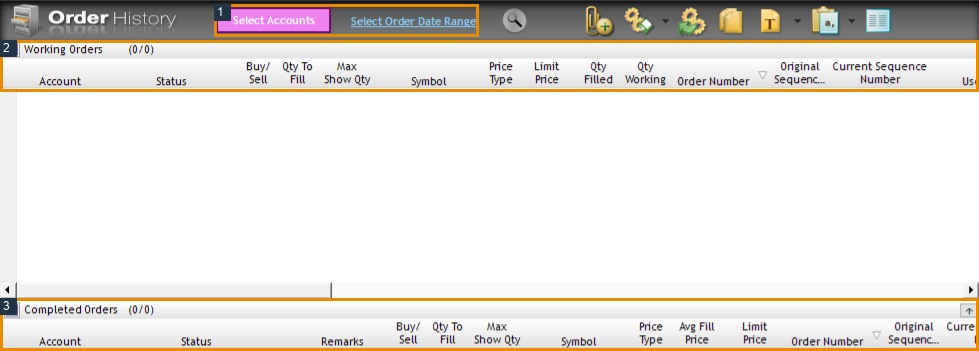
Open File → Order History, choose the account and date range, and locate the order. Record its original request, changes, fills and final response. Compare Fill History and the current position. Keep the originating platform or automation log so you can identify which component requested cancellation.
Compare possible causes with evidence
| Candidate cause | Evidence needed |
|---|---|
| DAY order reached session end | Time-in-force and the product's session transition |
| OCO companion filled | Linked order response and cancellation acknowledgement |
| Provider risk action | Provider confirmation and trigger timestamp |
| Application/user cancellation | Originator/application log and request time |
| Exchange session disconnect control | Provider's session-level cancellation record |
| Product halt or exceptional event | Dated exchange notice and exact response |
These are diagnostic candidates, not a claim that each event always cancels every order. CME documents Cancel on Disconnect for registered exchange iLink sessions, with GTC/GTD exclusions and other limitations. A lost desktop internet connection is not proof that this mechanism fired.
Decide whether any replacement is needed
First determine the original order's cumulative filled quantity. For an entry, a partial fill may already have created a position. For an exit, another linked order may have closed it. A new full-size order can duplicate or reverse exposure if those events are ignored.
If the cause is unclear, ask the provider for the cancellation origin and reason, not simply whether the account is connected. Attach a redacted timeline with timezone, contract and order type. Do not repeatedly resubmit while the market or account remains restricted.
Interface reference
Common questions
Does cancelled mean nothing filled?
No. An order can fill partially before its remaining quantity is cancelled.
Does disconnecting RTrader cancel all orders?
Do not assume that. Working orders, local OCO logic and exchange-session disconnect controls are separate mechanisms.
Can a GTC order still be cancelled?
Yes. GTC is a duration instruction, not immunity from a user, broker, exchange or other applicable cancellation.
What if the platform and broker disagree?
Preserve both timestamps and request the provider’s order and fill records. Reconcile the position before another instruction.