
For a message referring to an unavailable FCM or asking you to contact the FCM/IB, preserve the exact wording and verify the provider-issued System and trading credentials. Then ask the account provider to check provisioning, permissions or service availability. Similar-looking messages do not have one verified universal cause.
Educational software guidance. Trading involves risk. Read the financial and information disclaimers.
What FCM and IB mean here
An FCM is a Futures Commission Merchant; an IB is an Introducing Broker. Rithmic supplies trading infrastructure and is not the broker. In an evaluation, contact the firm that issued your trading login rather than assuming you have a personal funded brokerage account at the clearing firm.
Check the connection without guessing servers
- Copy the full error text and note which platform/service reported it.
- Compare the selected System and Gateway with your provider's setup instructions.
- Confirm you used the trading username, not the website login.
- Check the provider dashboard for the account stage and current status.
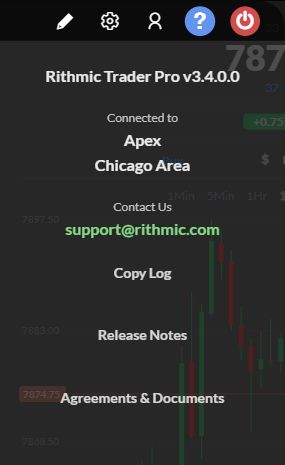
- Inspect required agreements and service indicators in the supported RTrader interface.
- Check dated provider/Rithmic advisories before repeating a failed connection.
There is no universal rule that every evaluation uses Rithmic Paper Trading or every funded account uses Rithmic 01. The captured Apex session uses its named System. Use the value issued for your own account.
Distinguish wording from a diagnosis
Quantower documents “Market Data Connection Failed. Please contact the FCM/IB”. It lists several possible connection causes. That message does not by itself prove a clearing-firm outage or a failed evaluation. “FCM not available” in a user report must be matched to the actual platform response before assigning a cause.
Escalate with the useful evidence
Send the issuer the platform/version, System/Gateway, error time and timezone, affected service and whether the supported RTrader login works. Provide the account identifier privately if needed. Ask whether the login is provisioned for the selected System and service. Do not send the password or reset an account just to test the message.
A connection message also cannot establish whether funds are safe, lost or available. Financial/account questions require the provider's records, separately from technical troubleshooting.
Interface reference
Common questions
Should I choose a different FCM in the app?
Use only the relationship and System supplied by the account provider. Trial-and-error selection can obscure the real mismatch.
Does this prove a Rithmic-wide outage?
No. One account or service failure is insufficient; compare current official advisories and provider findings.
Can the website work while trading login fails?
Yes. The website and trading service can use different credentials and account states.
Is waiting a fixed fifteen minutes a guaranteed fix?
No. Follow a confirmed activation or maintenance notice, otherwise send the exact failure to the issuer.