
Use the separate Rithmic credentials issued for your Apex Rithmic account. Apex’s current setup guide specifies the Apex System and Chicago Area gateway. Do not substitute Rithmic Paper Trading or Rithmic 01 based only on evaluation or PA terminology.
Educational software guidance. Trading involves risk. Read the financial and information disclaimers.
Confirm the account technology
Check the actual account assignment in your Apex dashboard or issued details. Rithmic and Tradovate are different connection routes. Use the current Apex Rithmic setup article and its installer link if a provider-specific build is required. Do not uninstall an already functioning platform merely to reproduce a tutorial.
Connect through the assigned route
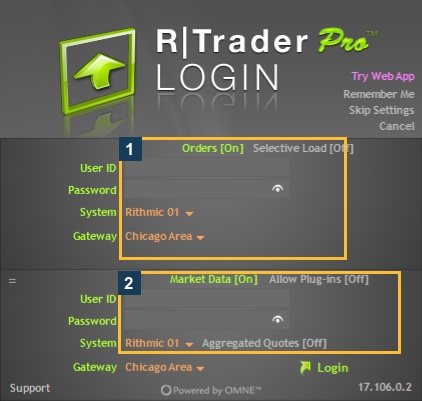
- Open RTrader Pro and enter the issued trading User ID/password privately, not the Apex website login.
- Set System: Apex and Gateway: Chicago Area for the documented route.
- Follow Apex's Market Data setting for the intended connection arrangement. Its order-monitoring route uses Market Data off; do not overwrite this with another firm's all-on recipe.
- Complete any required agreements only after reading them and accurately answering subscriber-classification questions.
- Open File → Trader Dashboard and match the intended account. Check agreement/data status separately if quotes are needed.
The authenticated VPS session used for the native captures is Apex / Chicago Area, desktop 17.106.0.2. It showed two account rows. No fresh login, agreement acceptance or order was performed merely for this guide.
Add a front end only when eligible
For NinjaTrader, use the eligible-existing-user guide and check its Evaluation (Rithmic) entitlement. For Quantower or ATAS, follow their documented direct/plugin settings. Native copier visibility and activation are separate: this login reports copying is not enabled.
If login or account checks fail
Compare the full credentials/System with the issued record, inspect the current account status and preserve the error timestamp. Use Apex's login help and official help-center contact route. A liquidation-only state does not establish a next-day reset; the current Rithmic FAQ describes manual clearing for post-liquidation restrictions.
Screenshot references


Common questions
Are my website and trading credentials the same?
Do not assume so. Use the separately issued Rithmic credentials.
Should a PA use Rithmic 01 automatically?
No. Follow the actual Apex account assignment.
Is every retail user non-professional?
No. Apply the exchange classification criteria accurately.
Does connecting permit any automation?
No. Connection support and the applicable account agreement are separate.