
First decide whether the desktop app runs on the VPS with TWS or on a separate computer. Use localhost only for the same-machine case. A remote connection needs a planned network route and a verified source address.
Educational software guidance. Trading involves risk. Read the financial and information disclaimers.
Step by step
- 1 Write down which machine runs TWS and which runs the API client.
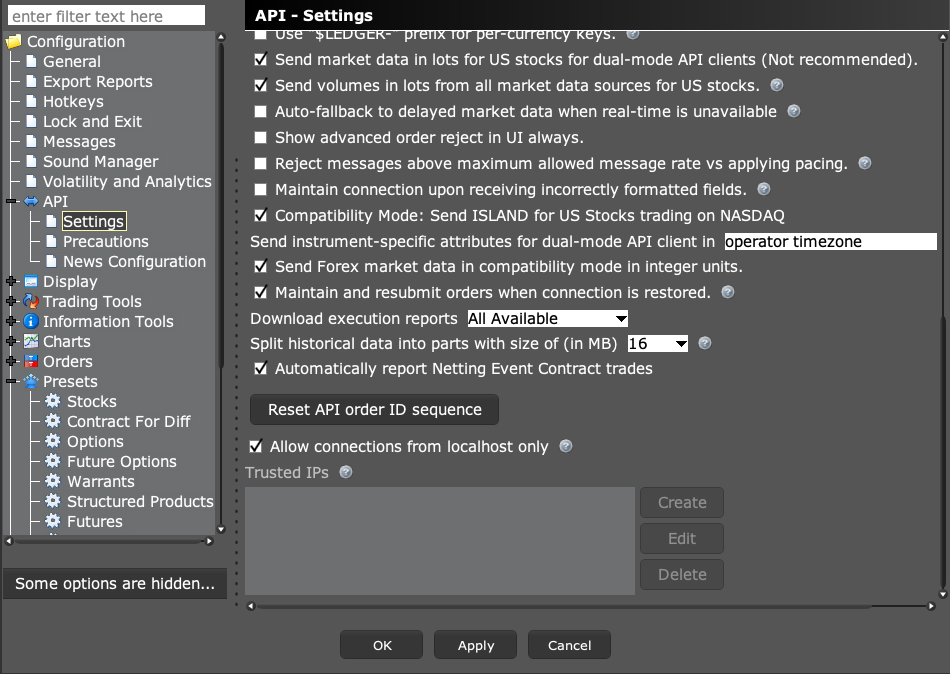
- 2 Read the TWS socket port under API → Settings.
- 3 For two apps on the VPS, configure the client for the local host and matching port.
- 4 For separate machines, use an administrator-approved private route and narrowly scoped access. Review localhost-only and Trusted IPs for that route.
- 5 Verify the account and reconnect behavior during a planned test window.
A practical example
Draw the route before you set it up: chart alert to PickMyTrade, then the desktop client to TWS. Put the desktop client and TWS on the machines where they really run. If both sit on the VPS, use their local link there. Do not paste the VPS socket port into TradingView’s webhook box. A web address for an alert and a local broker port do different jobs.
Screen reference
Mistake to avoid
Common questions
What does localhost mean from my laptop?
Your laptop, not the remote VPS.
Do I put my IBKR password in the webhook?
No. Broker login and webhook routing are separate.