
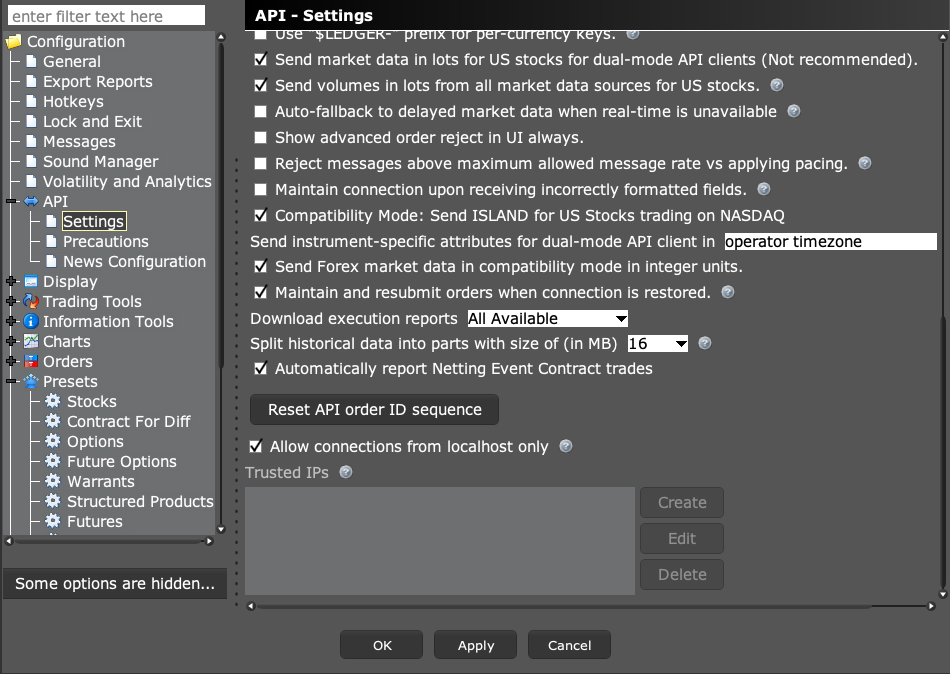
Localhost means the computer running the app. Trusted IPs tell TWS which remote source addresses it may accept. A PickMyTrade desktop app on the same computer as TWS normally uses the local path, without exposing TWS to the internet.
Educational software guidance. Trading involves risk. Read the financial and information disclaimers.
Step by step
- 1 Confirm where TWS and the connecting desktop app actually run. A browser dashboard is not the same as the desktop client.
- 2 Open Global Configuration → API → Settings and scroll to the connection controls.
- 3 For a same-machine setup, keep the localhost-only restriction where supported.
- 4 For an intended remote setup, confirm the exact source address with your administrator before adding it to Trusted IPs. Use a private network or secure tunnel.
- 5 Reconnect and check the expected account and connection status.
A practical example
Suppose TWS and the desktop app are both on one VPS. From that app, localhost points to the same VPS, which is what you want. Now suppose the app is on your home laptop while TWS is on the VPS. Localhost points to the laptop instead. Before changing any trust rules, draw two boxes on paper and put each app in the box for the machine that runs it.
Screen reference
Mistake to avoid
Common questions
Is 127.0.0.1 my VPS?
Only from an app running on that same VPS. On your laptop it points back to your laptop.
Can I paste a subnet into Trusted IPs?
IBKR documents individual IP entries, not subnet notation.