
Copying replicates activity from a configured leader to destinations. Alert automation turns a selected signal into instructions for a receiving service. They can produce similar-looking trades but have different triggers, dependencies and failure records. Combining them can duplicate exposure.
Educational software guidance. Trading involves risk. Read the financial and information disclaimers.
Compare the event paths
| Question | Copier workflow | Alert workflow |
|---|---|---|
| What triggers an action? | The copier's documented leader event | A selected indicator/strategy alert event |
| What chooses accounts? | The configured source/destination relationship | The receiving service's generated account configuration |
| What needs reconciliation? | Leader and every follower order/position | Alert delivery, receiver response and broker order/fill |
| What can fail independently? | Relationship, sizing, destination permission/execution | Alert conditions, webhook transport, schema, account/risk/execution |
Do not assume every leader action is copied
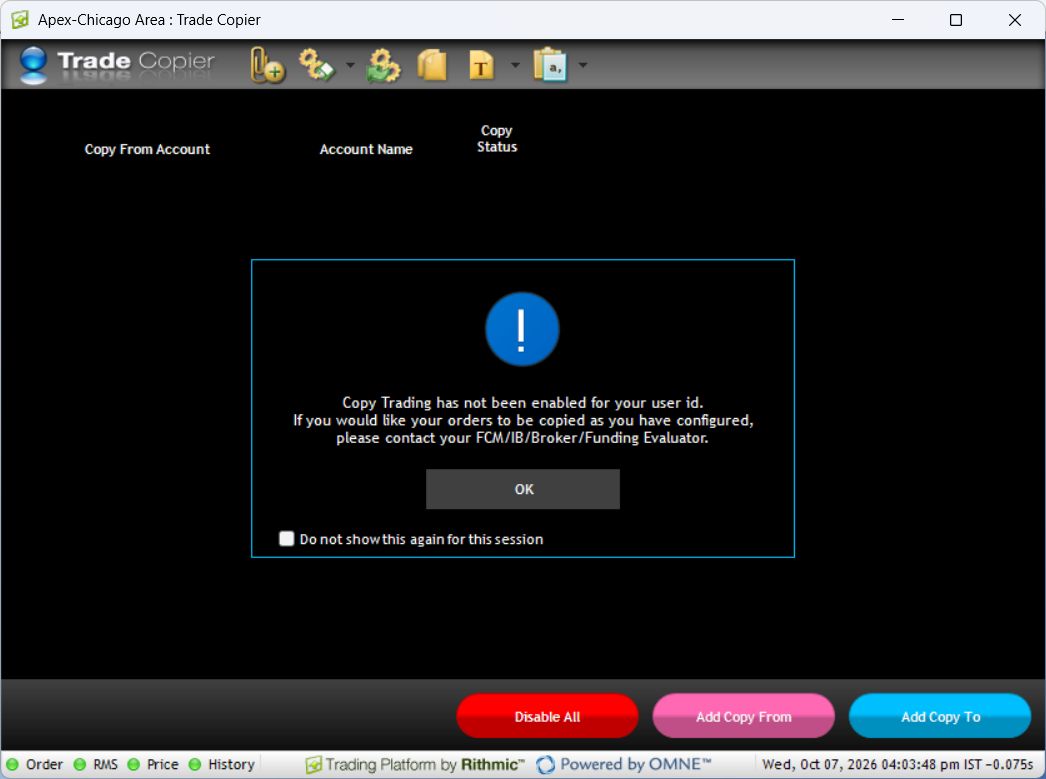
Confirm whether the tool reacts to order submissions, fills, position changes or a narrower event set. A manual-order example does not establish treatment of API-origin orders, partial fills, modifications or recovered sessions. DayTraders' native copier guide provides a setup and shutdown sequence; it does not establish every source-event case on this VPS.
Configure the alert route independently
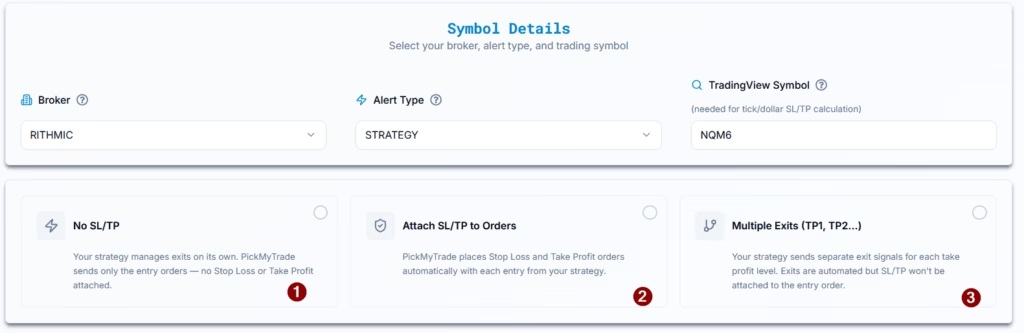
PickMyTrade's Rithmic strategy guide distinguishes strategy-controlled exits and attached exit arrangements. Use the generator for the selected mode. A TradingView backtest fill is an emulator event, not a Rithmic execution report.
Avoid overlapping paths
If an alert routes directly to several accounts and a native copier also mirrors one of those accounts, the same signal can create more than one order. Draw the actual source-to-destination mapping and give each destination a deliberate execution path. Disabling new signals does not automatically cancel existing orders or close exposure.
Screenshot references
Common questions
Is plugin mode a copier?
No. It shares a supported connection with compatible clients.
Is every TradingView alert a strategy fill?
No. Indicator conditions, alert() events and strategy order-fill events differ.
Can I stack copiers to improve reliability?
That can duplicate or conflict with actions. Follow the tool’s supported architecture.
Do matching signals guarantee matching fills?
No. Each destination has its own acceptance and execution outcome.