Automazione Forex, Crypto e CFD

Da TradingView a TradeLocker Piattaforma di automazione

Automatizza i tuoi avvisi TradingView verso TradeLocker in meno di 5 minuti. Perfetto per coppie forex, trading di criptovalute e mercati CFD globali.

Yes, you can connect TradingView to TradeLocker. PickMyTrade links the two using webhook alerts, so a TradingView signal automatically places the matching order in your TradeLocker account, with no coding, no plugin, and no computer left running. Most traders are live in about five minutes, and the same signal can go to one TradeLocker account or copy to many at once.

Prova gratuita di 5 giorni
Nessuna carta richiesta
Operazioni illimitate
Esecuzione istantanea

Scelto da trader in tutto il mondo

4.8★
Valutazione utenti
99.9%
Uptime
<5min
Tempo di configurazione
Soluzione completa

Automazione da TradingView a TradeLocker

Integrazione senza intoppi per trader di crypto, forex e CFD

Cos'è l'automazione da TradingView a TradeLocker?

PickMyTrade abilita un' automazione degli avvisi TradingView senza intoppi direttamente verso TradeLocker. La nostra soluzione no-code consente ai trader di eseguire strategie di trading automatizzate utilizzando il potente sistema di grafici e avvisi di TradingView per crypto, forex e CFD.

Che tu stia negoziando Bitcoin, Ethereum, coppie forex o indici tramite broker che utilizzano la piattaforma TradeLocker, PickMyTrade colma il divario tra la generazione del segnale e l'esecuzione dell'ordine senza alcuna codifica richiesta.

Perché scegliere il trading automatizzato?

Il trading automatizzato elimina il processo decisionale emotivo e garantisce un'esecuzione coerente della tua strategia di trading. Con l' integrazione webhook di TradingView di PickMyTrade, ogni avviso attiva il piazzamento istantaneo dell'ordine:

Esecuzione fulminea - millisecondi dall'avviso all'ordine
Automazione 24/7 - fai trading sui mercati crypto e forex 24 ore su 24
Gestione avanzata del rischio - stop loss e take profit automatici
Supporto multi-account - gestisci più account TradeLocker simultaneamente
Zero codifica - configurazione semplice con copia e incolla

Piattaforme e strumenti di trading supportati

Integrazione completa dell'ecosistema per il trading su TradeLocker

Generazione di segnali

  • Avvisi TradingView
  • Strategie TradingView
  • Indicatori Pine Script
  • Webhook personalizzati

Piattaforma di esecuzione

  • Piattaforma TradeLocker
  • Account demo
  • Account di trading live
  • Trading multi-account

Strumenti di trading

  • CFD su crypto (BTC/USD, ETH/USD, XRP/USD, ecc.)
  • Coppie forex
  • CFD e indici
  • Materie prime
Video tutorial

Impara attraverso le guide video

Guarda i tutorial passo-passo per padroneggiare l'automazione da TradingView a TradeLocker

Configurazione di Tradelocker

Playlist

Video tutorial di configurazione del trading automatizzato su TradeLocker
Configurazione di Tradelocker
Generazione dell'avviso da strategia TradingView per TradeLocker
Generazione dell'avviso per una strategia TradingView
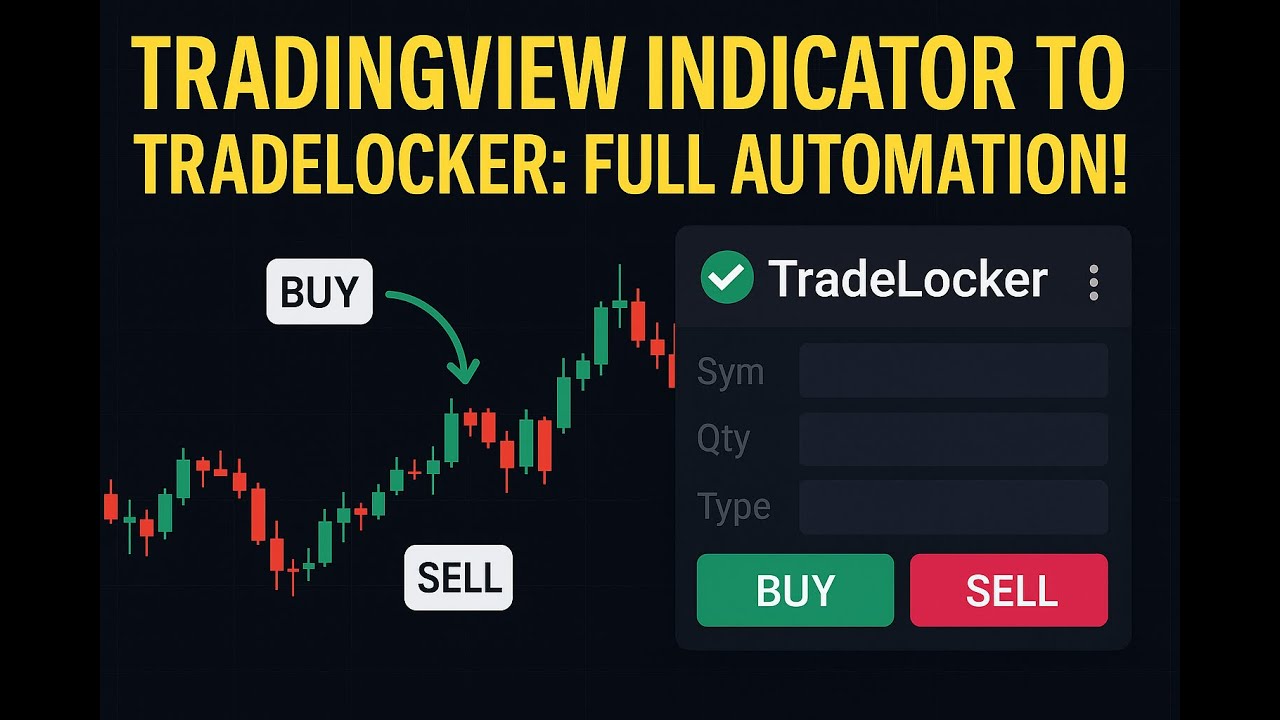
Generazione dell'avviso da indicatore TradingView per TradeLocker
Generazione dell'avviso per un indicatore TradingView
Configura la tua automazione

Collega TradingView a TradeLocker in 3 passaggi

Imposta il trading automatizzato in pochi minuti. Nessuna conoscenza di codifica richiesta - basta copiare, incollare e negoziare.

1

Collega TradeLocker con PickMyTrade — Guida rapida alla configurazione

Automatizza i tuoi avvisi TradingView in TradeLocker utilizzando PickMyTrade con un semplice processo di connessione.

  • Passaggio 1: Accedi al tuo account demo o live TradeLocker utilizzando i dettagli del server del tuo broker.
  • Passaggio 2: Apri PickMyTrade, vai su TradeLocker Connection e aggiungi le tue credenziali TradeLocker.
  • Passaggio 3: Clicca su Generate Alert per creare link di automazione compatibili con TradingView per TradeLocker.

Dopo esserti connesso, puoi impostare avvisi per qualsiasi indicatore o strategia TradingView, configurare stop loss e take profit e definire un dimensionamento delle operazioni basato sul rischio.

2

Copia i dettagli dell'avviso in TradingView

  • Genera il codice di avviso in PickMyTrade
  • Incolla nel messaggio di avviso di TradingView
  • Aggiungi il tuo URL webhook
3

Lascia che l'automazione prenda il controllo

  • Quando il tuo avviso TradingView si attiva, PickMyTrade invia istantaneamente l'ordine a TradeLocker
  • L'esecuzione dell'operazione avviene senza che tu muova un dito

How TradingView to TradeLocker automation works with PickMyTrade

PickMyTrade sits between TradingView and TradeLocker and does the translating for you. There are four links in the chain:

Step What happens
1. TradingView alertYour strategy, indicator, or manual chart alert fires.
2. WebhookTradingView sends a small JSON message to your PickMyTrade webhook URL.
3. PickMyTradeReads the symbol, side, size, stop-loss and take-profit, and processes the order in under 200ms on our side.
4. TradeLocker executionPickMyTrade places the order on your connected TradeLocker account, even while your computer is switched off.
TradingView alert → Webhook (JSON) → PickMyTrade (under 200ms, our side) → TradeLocker order

Because the whole path runs in the cloud, you do not need a VPS or a desktop bot. Your total fill time depends on your broker's execution, network latency, and how quickly TradingView sends the alert, but the PickMyTrade step is consistently fast.

Further reading: Automating a TradingView indicator to TradeLocker

How to connect TradeLocker to TradingView step by step

The full setup takes about five minutes and there is nothing to code. Here are the four steps.

Step 1: Create your PickMyTrade account and get your webhook URL

Sign up for PickMyTrade and start your 5-day free trial (no credit card needed). Inside the dashboard, generate your alert and PickMyTrade gives you a unique webhook URL. This URL is the address TradingView will send your signals to, so keep it handy for step 3.

Step 2: Add your TradeLocker credentials (email, password, server/environment, demo vs live)

Open the TradeLocker connection screen in PickMyTrade and enter the login you use for TradeLocker: your email, your password, and your server or broker environment. Choose whether the account is demo or live. Because TradeLocker is offered through many different brokers, the server value tells PickMyTrade which broker environment your account lives on. Save the connection and PickMyTrade links to your TradeLocker account. TradeLocker setup doc.

Step 3: Build the TradingView alert with the PMT JSON message (entry, SL, TP, quantity)

In PickMyTrade, generate the alert message for your buy and sell signals. It is a small JSON block that carries the symbol, order side, quantity, and any stop-loss or take-profit you want. In TradingView, create an alert on your strategy or indicator, delete the default alert text, and paste the PickMyTrade message into the message box. Then open the alert's Notifications tab and paste your PickMyTrade webhook URL into the Webhook URL field. Webhook alerts require a paid TradingView plan (Pro, Pro+, or Premium); free TradingView accounts cannot send webhooks.

Step 4: Fire a test alert and confirm the order in TradeLocker

Before you trust it with a live strategy, send one test alert. Put the alert on a fast timeframe or trigger it manually, then check the PickMyTrade alert log to see the signal arrive, and check TradeLocker to confirm the order landed. Once you see the trade appear in TradeLocker, your connection is working and you can enable your real strategy. video tutorial.

Where to find your TradeLocker server name and environment

The server name is the single most common thing people get stuck on, because TradeLocker is white-labelled by many brokers and each one has its own environment. You will find the server value on the same screen where you log in to TradeLocker: it appears as the environment or server field on the TradeLocker web or mobile login, right next to your email and password. If you are unsure, open your broker's TradeLocker login page and note the exact server or environment name shown there, or ask your broker's support which TradeLocker environment your account uses. Enter that value in PickMyTrade exactly as it appears, and pick demo or live to match the account type you logged into.

TradeLocker trade copier: copy one TradingView signal to multiple TradeLocker accounts

PickMyTrade is also a TradeLocker trade copier. One TradingView signal can place the same trade across several TradeLocker accounts at once, so you are not repeating the same order by hand on account after account. Each account can carry its own quantity multiplier, so you might run a smaller account at 0.5x, a standard account at 1x, and a larger one at 2x, all from the same alert. Entry, stop-loss, and take-profit stay consistent across the accounts, while the size scales to each account's multiplier. This is how multi-account and funded traders scale a single strategy without watching every account manually.

Supported order types and features

On the webhook path PickMyTrade supports market and limit orders, with stop-loss and take-profit attached to the entry. You also get symbol mapping (trade a different symbol than the one in your alert), a quantity multiplier and risk-percentage sizing, the ability to reverse or flip a position, and a close-all command to flatten a position across your accounts. These settings live in PickMyTrade, so you configure them once and every alert follows the same rules.

Market & limit orders Stop-loss & take-profit Symbol mapping Quantity multiplier Risk-percentage sizing Reverse / flip position Close-all

Which assets you can trade (forex, crypto CFDs, indices, commodities)

TradeLocker is used mainly for forex and CFD trading, and PickMyTrade works with whatever your TradeLocker broker offers. That typically means forex pairs, crypto CFDs, indices, and commodities, depending on the instruments your specific broker lists. Because you are trading through your own broker's TradeLocker environment, your available symbols, spreads, and trading hours are set by that broker, and PickMyTrade simply routes the orders your TradingView alerts create.

Using PickMyTrade with prop firms on TradeLocker (verify each firm's rules first)

Some proprietary trading firms run their evaluations and funded accounts on TradeLocker, and PickMyTrade can connect to a TradeLocker account whether it is personal, demo, or funded. Copy trading and automation rules vary by prop firm and change over time, so always confirm your firm's current policy before you automate. Firms differ on whether they allow webhook automation, how many accounts you may copy across, and how identical fills can be. PickMyTrade copies your own TradingView alerts across your own accounts, which keeps you in control, but the responsibility for staying inside each firm's rules is yours. Check your firm's current automation and copy-trading policy first. supported prop firms.

Pricing and free trial

PickMyTrade is $50 per month or $500 per year, and every plan starts with a 5-day free trial that needs no credit card. One subscription covers your TradeLocker automation and the trade copier, and there is 24/7 live support if you get stuck. You can test the full setup during the trial and only pay once you are happy it works for your strategy. pricing page.

Troubleshooting common connection and order-rejection issues

Most connection problems come down to a handful of causes. If your account will not connect, check that your email and password are exactly right and that the server or environment matches the one on your TradeLocker login, and confirm you picked demo or live to match. If an order is rejected, the usual reasons are: the symbol in your alert does not match a symbol your broker lists (use symbol mapping to line them up), the position size is larger than your account or the broker allows, the market is closed for that instrument, or you do not have enough margin. If a trade never appears at all, confirm your TradingView plan is Pro or higher (free plans cannot send webhooks), check that the webhook URL and JSON message are pasted correctly, and look at the PickMyTrade alert log to see exactly what arrived. The alert log is the fastest way to tell whether the problem is the TradingView alert, the PickMyTrade settings, or the broker.

PickMyTrade vs other TradingView-to-TradeLocker tools

A few tools promise to connect TradingView to TradeLocker, and the honest way to compare them is on setup, reliability, and support rather than hype. PickMyTrade runs entirely in the cloud, so there is no VPS to rent and no desktop app to keep open, and it handles both single-account automation and multi-account copying in one subscription. It processes your order in under 200ms on our side, supports symbol mapping, multipliers, and risk-percentage sizing, and connects to many brokers beyond TradeLocker if you expand later. Whichever tool you pick, test it on a demo account first and confirm it fits your prop firm's rules. compare PickMyTrade to other tools — Further reading: PickMyTrade vs Copygram.

Funzionalità di trading avanzate

Perché i trader scelgono PickMyTrade per l'automazione di TradeLocker

Strumenti di trading automatizzato di livello professionale progettati specificamente per l'integrazione da TradingView a TradeLocker. Tutto ciò di cui hai bisogno per l'automazione del trading di crypto, forex e CFD.

Tipi di avviso multipli

Automatizza le operazioni utilizzando avvisi basati su indicatori o avvisi basati su strategie di TradingView. Questa flessibilità garantisce che la tua automazione funzioni senza intoppi con qualsiasi stile di trading, dall'analisi tecnica alle strategie interamente codificate.

Avvisi da indicatori Avvisi da strategie Esecuzione istantanea

Mappatura flessibile dei simboli

Fai trading esattamente sull'asset che desideri, anche se il tuo avviso riguarda un altro. Mappa i simboli liberamente (ad es. avviso su BTC/USD, ETH/USD, XRP/USD, ecc.) o mantieni una mappatura uno-a-uno per la massima precisione.

Mappatura tra simboli diversi Targeting di precisione Configurazioni flessibili

Impostazioni intelligenti della quantità

Controlla la dimensione delle operazioni a modo tuo: imposta una quantità fissa o utilizza un dimensionamento dinamico basato sul rischio che si adatta in base al tuo stop loss e alla percentuale di rischio, garantendo una gestione del rischio costante.

Quantità fissa Percentuale di rischio Regolazione automatica della dimensione Protezione dal rischio

Opzioni avanzate di SL e TP

Scegli tra diversi metodi di calcolo di stop loss e take profit: per punti, percentuale, tick, prezzo esatto o profitto/perdita totale per contratto, dandoti il pieno controllo sulle uscite dalle operazioni.

Punti / Dollari Percentuale Variabili di prezzo Tick Profitto/Perdita per contratto

Supporto multi-account

Collega più account TradeLocker a un unico profilo PickMyTrade e controlla l'esecuzione individualmente con moltiplicatori o dimensionamento basato sul rischio. Perfetto per gestire più portafogli.

Multi-account Moltiplicatore di quantità Allocazione basata sul rischio Configurazione con un clic

Esempio

Esecuzione rapida e accurata

Questo esempio illustra come precisione e velocità trasformano le prospettive di mercato in operazioni concrete. La strategia acquista NQ a 21.891, impostando uno stop loss a 21.841 e un take profit a 21.991, ovvero 100 punti più in alto. Con 10 contratti, i parametri dell'operazione sono ben definiti, limitando la perdita potenziale a $10.000 e il profitto a $20.000.

Non appena l'avviso scatta su TradingView, PickMyTrade piazza immediatamente l'ordine, garantendo che non esista alcun divario tra segnale e ordine di mercato. Questo livello di automazione del sistema fornisce un'aderenza incrollabile a un piano di trading senza la necessità di un trader manuale, anche durante i periodi di elevata volatilità.

Punto di ingresso

COMPRA NQ 21,891.00

Futures E-mini NASDAQ-100

Dimensione della posizione

10 Contratti

moltiplicatore di $20 per punto

Stop Loss

21,841.00

rischio di -50 punti

Take Profit

21,991.00

obiettivo di +100 punti

Analisi del rischio

Rischio massimo

$10,000

50 pt × $20 × 10 contratti

Rischio per contratto: $1.000

Profitto massimo

$20,000

100 pt × $20 × 10 contratti

Rapporto rischio/rendimento: 1:2

13 Questions, Answered

TradeLocker Automation FAQ

Answers written to match our TradingView-to-TradeLocker how-to guide above

Can you connect TradingView to TradeLocker?
Yes. TradingView cannot place orders in TradeLocker on its own, but PickMyTrade connects the two using webhook alerts. When your TradingView alert fires, PickMyTrade receives it and places the matching order in your TradeLocker account automatically, with no coding and no computer left running. Most traders are live in about five minutes.
How do I connect TradeLocker to PickMyTrade / TradingView?
Create a PickMyTrade account, open the TradeLocker connection screen and enter your TradeLocker email, password, and server or broker environment, choosing demo or live. Then generate your alert message and webhook URL in PickMyTrade, create an alert in TradingView, paste the message into the alert box and the webhook URL into the alert's Notifications tab. Fire a test alert to confirm it works.
What credentials and information does TradeLocker require to connect?
PickMyTrade needs the same details you use to log in to TradeLocker: your email, your password, and your server or broker environment name. You also tell PickMyTrade whether the account is a demo or a live account. Because TradeLocker is offered through many brokers, the server value is what points PickMyTrade at the correct broker environment.
Where do I find my TradeLocker server name / broker environment?
Your server or environment name appears on the TradeLocker login screen, next to the email and password fields, on both the web and mobile apps. It is set by the broker that gave you the TradeLocker account. If you are not sure which one to use, open your broker's TradeLocker login page and copy the server value exactly as shown, or ask your broker's support which environment your account uses.
Do I need to know how to code to automate TradingView to TradeLocker?
No. PickMyTrade is a no-code tool. It generates the alert message and webhook URL for you, and all you do is paste them into a TradingView alert. There is nothing to program, no API keys to write, and no plugin to install.
Can I copy one TradingView signal to multiple TradeLocker accounts?
Yes. PickMyTrade works as a TradeLocker trade copier, so a single TradingView alert can place the same trade across several TradeLocker accounts at once. Each account can have its own quantity multiplier, so you can scale size up or down per account while keeping the same entry, stop-loss, and take-profit.
Can I test on a TradeLocker demo account before going live?
Yes. When you add your TradeLocker credentials you choose demo or live, so you can connect a demo account and run your whole setup on paper first. Testing on demo is the safest way to confirm your alerts, symbol mapping, and sizing behave the way you expect before you risk real money.
What order types, stop loss and take profit options are supported?
On the webhook path PickMyTrade supports market and limit orders and lets you attach a stop-loss and a take-profit to the entry. You can also reverse or flip a position and send a close-all command. You set these rules once in PickMyTrade and every alert follows them.
Can I trade a different symbol than the one in my alert (symbol mapping)?
Yes. PickMyTrade includes symbol mapping, so the symbol in your TradingView alert can be different from the symbol executed in TradeLocker. This is useful when your chart symbol and your broker's instrument name do not match exactly, and it lets you point one alert at the correct TradeLocker instrument.
Why did my trade fail to place / get rejected, and how do I fix it?
The most common causes are a symbol that does not match a symbol your broker lists, a position size larger than your account or broker allows, a closed market, or not enough margin. Connection issues are usually a wrong password or a server or environment value that does not match your TradeLocker login. Open the PickMyTrade alert log to see exactly what arrived and what the broker returned; that tells you whether the fix is in the TradingView alert, the PickMyTrade settings, or your broker account.
Which assets and brokers on TradeLocker are supported?
PickMyTrade works with whatever instruments your TradeLocker broker offers, which usually means forex pairs, crypto CFDs, indices, and commodities. Because TradeLocker is white-labelled by many brokers, your exact symbols, spreads, and hours come from your specific broker, and PickMyTrade routes the orders your alerts create to that account.
Does this work with prop firms that use TradeLocker, and what are the rules?
PickMyTrade can connect to a TradeLocker account whether it is personal, demo, or funded, and some prop firms do run on TradeLocker. Copy trading and automation rules vary by prop firm and change over time, so always confirm your firm's current policy before you automate. PickMyTrade copies your own alerts across your own accounts, but staying inside each firm's rules is your responsibility.
How much does it cost and is there a free trial?
PickMyTrade is $50 per month or $500 per year, and every plan starts with a 5-day free trial with no credit card required. One subscription covers both single-account automation and the multi-account trade copier, plus 24/7 live support.
Le tue domande hanno una risposta

Domande frequenti

Tutto ciò che devi sapere sull'automazione da TradingView a TradeLocker

Connessione e configurazione generale

Come collego il mio account TradeLocker a PickMyTrade?
Per collegare il tuo account TradeLocker, accedi prima sia al tuo account TradeLocker che a quello PickMyTrade. Nella dashboard di PickMyTrade, clicca su "TradeLocker Connection", poi su "Add New Connection." Dovrai inserire il tuo nome utente TradeLocker (tipicamente la tua email), la password, l'ambiente (Demo o Live) e il nome del server fornito dal tuo broker.
Di quali informazioni ho bisogno per collegare TradeLocker a PickMyTrade?
Hai bisogno di quattro informazioni chiave:
1: Il tuo nome utente TradeLocker (email).
2: La tua password TradeLocker.
3: Il tuo tipo di account (Demo o Live).
4: Il nome del server fornito dal tuo broker o dalla tua prop firm.
Non conosco il nome del mio server TradeLocker. Dove posso trovarlo?
Il nome del tuo server è disponibile nella schermata di login di TradeLocker. Se hai ancora dubbi, dovresti contattare il tuo broker o la tua prop firm per assistenza.
Perché la mia connessione TradeLocker fallisce?
Una connessione può fallire a causa di dettagli di login errati o di un ambiente non corrispondente. Ricontrolla che nome utente, password, nome del server e ambiente (Demo/Live) siano inseriti correttamente in PickMyTrade e corrispondano esattamente ai dettagli del tuo account TradeLocker.

Automatizzare le operazioni su TradeLocker con TradingView

Come configuro il simbolo di trading per le mie operazioni automatizzate?
Puoi specificare il simbolo che vuoi negoziare direttamente in PickMyTrade. Questo è obbligatorio per alcuni tipi di stop loss come 'Tick' o 'Profitto/Perdita totale.' Se lasci vuoto il campo del simbolo, PickMyTrade utilizzerà per impostazione predefinita il simbolo del tuo grafico TradingView.
Posso generare un avviso TradingView da un simbolo ed eseguire l'operazione su un altro?
Sì. Puoi impostare il tuo avviso TradingView utilizzando un simbolo (ad es. BTCUSD) e poi specificare un simbolo diverso (ad es. ETHUSD) nel campo del simbolo di PickMyTrade per l'esecuzione.

Gestione delle uscite e impostazioni dell'account

Come gestisco Stop Loss e Take Profit con PickMyTrade?
Se la tua strategia TradingView include le proprie regole di uscita (ad es. take profit multipli), dovresti lasciare che sia la strategia a gestirle. Se la tua strategia non gestisce le uscite, devi configurare manualmente le tue impostazioni preferite di Stop Loss e Take Profit direttamente all'interno della piattaforma PickMyTrade.
Come posso fare trading da più account TradeLocker?
Puoi assegnare più account TradeLocker a un'unica configurazione di avviso PickMyTrade. Basta aggiungere ogni account nella sezione "Add Account", specificando il nome della connessione, il nome dell'account e la tua opzione di dimensionamento delle operazioni preferita (Moltiplicatore di quantità o Percentuale di rischio) per ciascuno.
Qual è la differenza tra Moltiplicatore di quantità e Percentuale di rischio?
Moltiplicatore di quantità: Questa opzione moltiplica la dimensione dell'operazione generata dalla tua strategia. Ad esempio, un moltiplicatore di '2' raddoppierà il numero di contratti o unità negoziati.
Percentuale di rischio: Questa opzione calcola automaticamente la dimensione dell'operazione in modo che ogni operazione rischi una percentuale specificata del capitale del tuo account (ad es. 2%).

Risoluzione dei problemi e configurazione avanzata

Come imposto l'avviso finale in TradingView?
Dopo aver configurato tutto in PickMyTrade, clicca su "Generate Alert" e poi su "Copy Webhook URL." In TradingView, crea un nuovo avviso, incolla il codice di avviso di PickMyTrade nella 'casella del messaggio' e incolla l'URL webhook nel campo 'Webhook URL'. Infine, clicca su "Create Alert."
Ricevo un errore quando provo a collegare il mio account TradeLocker. Cosa devo fare?
Innanzitutto, ricontrolla di aver inserito tutte le tue credenziali di login: nome utente, password, ambiente (Demo/Live) e server esattamente come appaiono nel tuo account TradeLocker. Informazioni non corrispondenti sono la causa più comune di fallimenti nella connessione. Se il problema persiste, contatta il tuo broker per confermare i dettagli del tuo account.
La mia strategia ha uscite multiple (ad es. TP1, TP2). PickMyTrade può gestirle?
Sì, PickMyTrade supporta strategie con uscite multiple. Tuttavia, in questo caso, non dovresti configurare impostazioni aggiuntive di Stop Loss o Take Profit nella dashboard di PickMyTrade, poiché sarà la strategia stessa a gestire queste uscite.
Ho impostato il mio avviso in TradingView, ma non viene piazzata alcuna operazione. Quale potrebbe essere il problema?
Ci sono alcune cose da controllare:
URL webhook: Assicurati di aver copiato correttamente l'URL webhook da PickMyTrade e di averlo incollato nel campo dell'URL webhook in TradingView.
Codice di avviso: Assicurati di aver copiato il codice di avviso da PickMyTrade e di averlo incollato nella casella del 'messaggio' del tuo avviso TradingView.
Connessione: Verifica che la tua connessione TradeLocker in PickMyTrade sia attiva e che l'account assegnato sia corretto.
Strategia: Verifica che la tua strategia TradingView stia effettivamente generando segnali di acquisto e vendita.
Token: Se stai inviando operazioni a un account PickMyTrade diverso, controlla che il token sia corretto e che l'account di destinazione abbia la connessione TradeLocker configurata.

Capacità della piattaforma e classi di asset

Quali classi di asset posso negoziare con l'automazione da TradingView a TradeLocker?

PickMyTrade offre una potente automazione da TradingView a TradeLocker progettata specificamente per trader di forex, criptovalute e CFD.

Puoi eseguire operazioni automaticamente su:

  • Principali coppie forex: EUR/USD, GBP/USD, USD/JPY e altre
  • Criptovalute popolari: BTC, ETH e altcoin
  • Mercati CFD globali: Inclusi indici, materie prime e metalli
Ho bisogno di esperienza di codifica per automatizzare le strategie TradingView con TradeLocker?

No! La nostra piattaforma si integra senza intoppi con la piattaforma di trading multi-asset di TradeLocker, consentendoti di automatizzare le tue strategie TradingView senza scrivere una sola riga di codice.

Che tu stia negoziando forex spot, CFD su crypto o strumenti a leva, PickMyTrade garantisce l'esecuzione istantanea dei tuoi avvisi con robuste funzionalità di gestione del rischio, inclusi ordini automatizzati di stop loss e take profit.

Posso testare le mie strategie prima di negoziare con denaro reale?

Sì! PickMyTrade è pienamente compatibile sia con gli account demo per il test delle strategie che con gli account di trading live su tutti i broker TradeLocker del mondo. Ti consigliamo vivamente di testare le tue strategie automatizzate su un account demo prima di passare al live.

Hai altre domande? Leggi le nostre FAQ complete su TradeLocker.

Visualizza tutte le FAQ su TradeLocker

Inizia il tuo percorso di trading automatizzato con TradeLocker

Cosa rende PickMyTrade diverso per TradeLocker?

A differenza di altre piattaforme di automazione del trading, PickMyTrade è costruito appositamente per la connettività da TradingView a TradeLocker. Comprendiamo le esigenze uniche dei trader di forex, crypto e CFD che utilizzano la piattaforma TradeLocker.

  • Nessuna codifica richiesta - generatore visivo di avvisi per TradingView
  • Esecuzione istantanea - latenza inferiore al secondo dall'avviso all'ordine
  • Supporto multi-asset - forex, crypto e CFD su TradeLocker
  • Affidabilità 24/7 - infrastruttura basata su cloud per i mercati globali

Pronto ad automatizzare il tuo trading su TradeLocker?

Unisciti a centinaia di trader di forex e crypto che hanno automatizzato le loro strategie TradingView con TradeLocker tramite PickMyTrade.

Contattaci

Hai qualche domanda?

Siamo qui per aiutarti! Unisciti alla nostra community su Discord o scrivici direttamente via email.