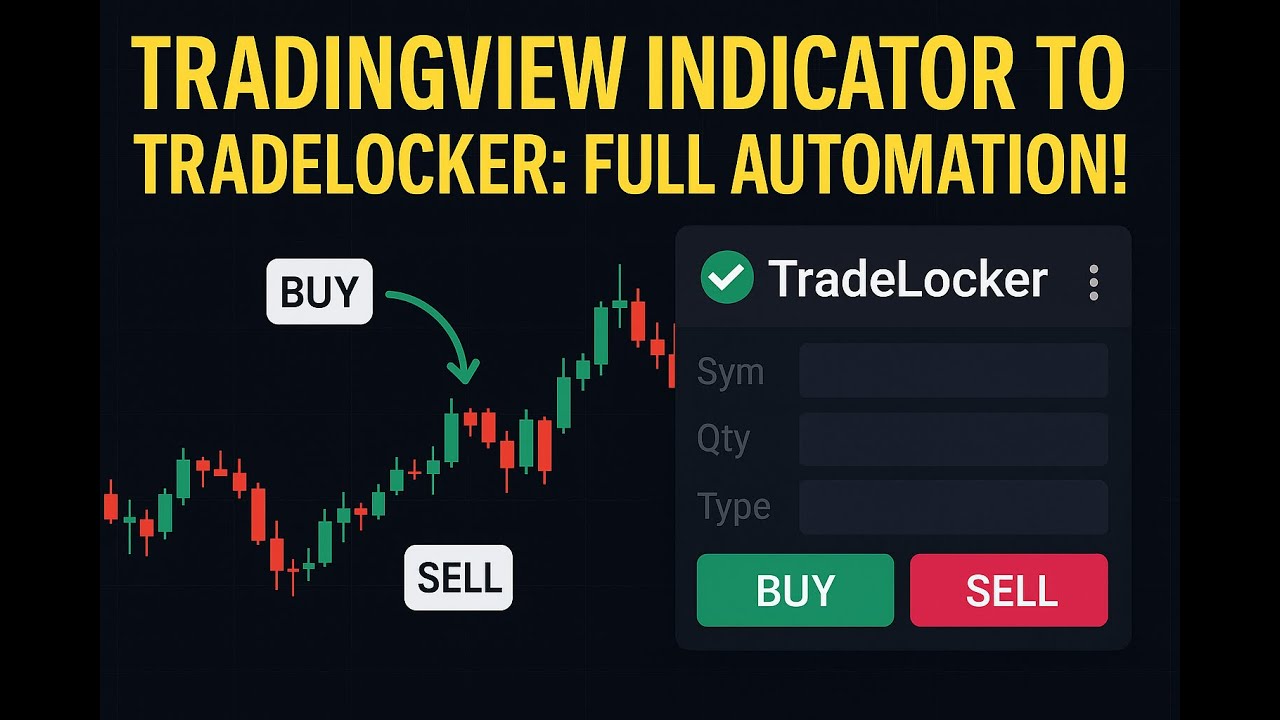
Automatisation Forex, Crypto et CFD

TradingView vers TradeLocker Plateforme d'automatisation

Automatisez vos alertes TradingView vers TradeLocker en moins de 5 minutes. Parfait pour les paires forex, le trading de cryptomonnaies et les marchés CFD mondiaux.

Yes, you can connect TradingView to TradeLocker. PickMyTrade links the two using webhook alerts, so a TradingView signal automatically places the matching order in your TradeLocker account, with no coding, no plugin, and no computer left running. Most traders are live in about five minutes, and the same signal can go to one TradeLocker account or copy to many at once.

Essai gratuit de 5 jours
Sans carte bancaire
Trades illimités
Exécution instantanée

Approuvé par des traders du monde entier

4.8★
Note des utilisateurs
99.9%
Disponibilité
<5min
Temps de configuration
Solution complète

Automatisation TradingView vers TradeLocker

Intégration fluide pour les traders de crypto, forex et CFD

Qu'est-ce que l'automatisation TradingView vers TradeLocker ?

PickMyTrade permet une automatisation fluide des alertes TradingView directement vers TradeLocker. Notre solution sans code permet aux traders d'exécuter des stratégies de trading automatisées à l'aide du puissant système de graphiques et d'alertes de TradingView pour la crypto, le forex et les CFD.

Que vous tradiez le Bitcoin, l'Ethereum, des paires forex ou des indices via des courtiers utilisant la plateforme TradeLocker, PickMyTrade comble le fossé entre la génération de signaux et l'exécution des ordres, sans aucun codage requis.

Pourquoi choisir le trading automatisé ?

Le trading automatisé élimine la prise de décision émotionnelle et garantit une exécution cohérente de votre stratégie de trading. Avec l' intégration webhook TradingView de PickMyTrade, chaque alerte déclenche un placement d'ordre instantané :

Exécution ultra-rapide - quelques millisecondes entre l'alerte et l'ordre
Automatisation 24 h/24 et 7 j/7 - tradez les marchés crypto et forex à toute heure
Gestion avancée du risque - stop loss et take profit automatiques
Prise en charge multi-comptes - gérez plusieurs comptes TradeLocker simultanément
Zéro codage - configuration simple par copier-coller

Plateformes et instruments de trading pris en charge

Intégration complète de l'écosystème pour le trading TradeLocker

Génération de signaux

  • Alertes TradingView
  • Stratégies TradingView
  • Indicateurs Pine Script
  • Webhooks personnalisés

Plateforme d'exécution

  • Plateforme TradeLocker
  • Comptes démo
  • Comptes de trading réels
  • Trading multi-comptes

Instruments de trading

  • CFD Crypto (BTC/USD, ETH/USD, XRP/USD, etc.)
  • Paires forex
  • CFD et indices
  • Matières premières
Tutoriels vidéo

Apprenez grâce à des guides vidéo

Regardez des tutoriels étape par étape pour maîtriser l'automatisation TradingView vers TradeLocker

Configuration de TradeLocker

Playlist

Vidéo tutoriel de configuration du trading automatisé TradeLocker
Configuration de TradeLocker
Génération d'alerte de stratégie TradingView pour TradeLocker
Génération d'alerte pour une stratégie TradingView
Génération d'alerte d'indicateur TradingView pour TradeLocker
Génération d'alerte pour un indicateur TradingView
Configurez votre automatisation

Connectez TradingView à TradeLocker en 3 étapes

Configurez le trading automatisé en quelques minutes. Aucune connaissance en codage requise - copiez, collez et tradez.

1

Connectez TradeLocker à PickMyTrade — Guide de configuration rapide

Automatisez vos alertes TradingView dans TradeLocker à l'aide de PickMyTrade grâce à un processus de connexion simple.

  • Étape 1 : Connectez-vous à votre compte TradeLocker démo ou réel à l'aide des informations de serveur de votre courtier.
  • Étape 2 : Ouvrez PickMyTrade, accédez à Connexion TradeLocker et ajoutez vos identifiants TradeLocker.
  • Étape 3 : Cliquez sur Générer l'alerte pour créer des liens d'automatisation compatibles avec TradingView pour TradeLocker.

Une fois connecté, vous pouvez configurer des alertes pour n'importe quel indicateur ou stratégie TradingView, définir le stop loss et le take profit, et déterminer un dimensionnement des trades basé sur le risque.

2

Copiez les détails de l'alerte dans TradingView

  • Générez le code d'alerte dans PickMyTrade
  • Collez-le dans le message d'alerte TradingView
  • Ajoutez votre URL de webhook
3

Laissez l'automatisation prendre le relais

  • Lorsque votre alerte TradingView se déclenche, PickMyTrade envoie instantanément l'ordre à TradeLocker
  • L'exécution du trade se fait sans que vous ne leviez le petit doigt

How TradingView to TradeLocker automation works with PickMyTrade

PickMyTrade sits between TradingView and TradeLocker and does the translating for you. There are four links in the chain:

Step What happens
1. TradingView alertYour strategy, indicator, or manual chart alert fires.
2. WebhookTradingView sends a small JSON message to your PickMyTrade webhook URL.
3. PickMyTradeReads the symbol, side, size, stop-loss and take-profit, and processes the order in under 200ms on our side.
4. TradeLocker executionPickMyTrade places the order on your connected TradeLocker account, even while your computer is switched off.
TradingView alert → Webhook (JSON) → PickMyTrade (under 200ms, our side) → TradeLocker order

Because the whole path runs in the cloud, you do not need a VPS or a desktop bot. Your total fill time depends on your broker's execution, network latency, and how quickly TradingView sends the alert, but the PickMyTrade step is consistently fast.

Further reading: Automating a TradingView indicator to TradeLocker

How to connect TradeLocker to TradingView step by step

The full setup takes about five minutes and there is nothing to code. Here are the four steps.

Step 1: Create your PickMyTrade account and get your webhook URL

Sign up for PickMyTrade and start your 5-day free trial (no credit card needed). Inside the dashboard, generate your alert and PickMyTrade gives you a unique webhook URL. This URL is the address TradingView will send your signals to, so keep it handy for step 3.

Step 2: Add your TradeLocker credentials (email, password, server/environment, demo vs live)

Open the TradeLocker connection screen in PickMyTrade and enter the login you use for TradeLocker: your email, your password, and your server or broker environment. Choose whether the account is demo or live. Because TradeLocker is offered through many different brokers, the server value tells PickMyTrade which broker environment your account lives on. Save the connection and PickMyTrade links to your TradeLocker account. TradeLocker setup doc.

Step 3: Build the TradingView alert with the PMT JSON message (entry, SL, TP, quantity)

In PickMyTrade, generate the alert message for your buy and sell signals. It is a small JSON block that carries the symbol, order side, quantity, and any stop-loss or take-profit you want. In TradingView, create an alert on your strategy or indicator, delete the default alert text, and paste the PickMyTrade message into the message box. Then open the alert's Notifications tab and paste your PickMyTrade webhook URL into the Webhook URL field. Webhook alerts require a paid TradingView plan (Pro, Pro+, or Premium); free TradingView accounts cannot send webhooks.

Step 4: Fire a test alert and confirm the order in TradeLocker

Before you trust it with a live strategy, send one test alert. Put the alert on a fast timeframe or trigger it manually, then check the PickMyTrade alert log to see the signal arrive, and check TradeLocker to confirm the order landed. Once you see the trade appear in TradeLocker, your connection is working and you can enable your real strategy. video tutorial.

Where to find your TradeLocker server name and environment

The server name is the single most common thing people get stuck on, because TradeLocker is white-labelled by many brokers and each one has its own environment. You will find the server value on the same screen where you log in to TradeLocker: it appears as the environment or server field on the TradeLocker web or mobile login, right next to your email and password. If you are unsure, open your broker's TradeLocker login page and note the exact server or environment name shown there, or ask your broker's support which TradeLocker environment your account uses. Enter that value in PickMyTrade exactly as it appears, and pick demo or live to match the account type you logged into.

TradeLocker trade copier: copy one TradingView signal to multiple TradeLocker accounts

PickMyTrade is also a TradeLocker trade copier. One TradingView signal can place the same trade across several TradeLocker accounts at once, so you are not repeating the same order by hand on account after account. Each account can carry its own quantity multiplier, so you might run a smaller account at 0.5x, a standard account at 1x, and a larger one at 2x, all from the same alert. Entry, stop-loss, and take-profit stay consistent across the accounts, while the size scales to each account's multiplier. This is how multi-account and funded traders scale a single strategy without watching every account manually.

Supported order types and features

On the webhook path PickMyTrade supports market and limit orders, with stop-loss and take-profit attached to the entry. You also get symbol mapping (trade a different symbol than the one in your alert), a quantity multiplier and risk-percentage sizing, the ability to reverse or flip a position, and a close-all command to flatten a position across your accounts. These settings live in PickMyTrade, so you configure them once and every alert follows the same rules.

Market & limit orders Stop-loss & take-profit Symbol mapping Quantity multiplier Risk-percentage sizing Reverse / flip position Close-all

Which assets you can trade (forex, crypto CFDs, indices, commodities)

TradeLocker is used mainly for forex and CFD trading, and PickMyTrade works with whatever your TradeLocker broker offers. That typically means forex pairs, crypto CFDs, indices, and commodities, depending on the instruments your specific broker lists. Because you are trading through your own broker's TradeLocker environment, your available symbols, spreads, and trading hours are set by that broker, and PickMyTrade simply routes the orders your TradingView alerts create.

Using PickMyTrade with prop firms on TradeLocker (verify each firm's rules first)

Some proprietary trading firms run their evaluations and funded accounts on TradeLocker, and PickMyTrade can connect to a TradeLocker account whether it is personal, demo, or funded. Copy trading and automation rules vary by prop firm and change over time, so always confirm your firm's current policy before you automate. Firms differ on whether they allow webhook automation, how many accounts you may copy across, and how identical fills can be. PickMyTrade copies your own TradingView alerts across your own accounts, which keeps you in control, but the responsibility for staying inside each firm's rules is yours. Check your firm's current automation and copy-trading policy first. supported prop firms.

Pricing and free trial

PickMyTrade is $50 per month or $500 per year, and every plan starts with a 5-day free trial that needs no credit card. One subscription covers your TradeLocker automation and the trade copier, and there is 24/7 live support if you get stuck. You can test the full setup during the trial and only pay once you are happy it works for your strategy. pricing page.

Troubleshooting common connection and order-rejection issues

Most connection problems come down to a handful of causes. If your account will not connect, check that your email and password are exactly right and that the server or environment matches the one on your TradeLocker login, and confirm you picked demo or live to match. If an order is rejected, the usual reasons are: the symbol in your alert does not match a symbol your broker lists (use symbol mapping to line them up), the position size is larger than your account or the broker allows, the market is closed for that instrument, or you do not have enough margin. If a trade never appears at all, confirm your TradingView plan is Pro or higher (free plans cannot send webhooks), check that the webhook URL and JSON message are pasted correctly, and look at the PickMyTrade alert log to see exactly what arrived. The alert log is the fastest way to tell whether the problem is the TradingView alert, the PickMyTrade settings, or the broker.

PickMyTrade vs other TradingView-to-TradeLocker tools

A few tools promise to connect TradingView to TradeLocker, and the honest way to compare them is on setup, reliability, and support rather than hype. PickMyTrade runs entirely in the cloud, so there is no VPS to rent and no desktop app to keep open, and it handles both single-account automation and multi-account copying in one subscription. It processes your order in under 200ms on our side, supports symbol mapping, multipliers, and risk-percentage sizing, and connects to many brokers beyond TradeLocker if you expand later. Whichever tool you pick, test it on a demo account first and confirm it fits your prop firm's rules. compare PickMyTrade to other tools — Further reading: PickMyTrade vs Copygram.

Fonctionnalités de trading avancées

Pourquoi les traders choisissent PickMyTrade pour l'automatisation TradeLocker

Des outils de trading automatisé de niveau professionnel conçus spécifiquement pour l'intégration TradingView vers TradeLocker. Tout ce dont vous avez besoin pour l'automatisation du trading crypto, forex et CFD.

Plusieurs types d'alertes

Automatisez vos trades à l'aide d'alertes basées sur des indicateurs ou sur des stratégies TradingView. Cette flexibilité garantit que votre automatisation fonctionne parfaitement avec tout style de trading, de l'analyse technique aux stratégies entièrement codées.

Alertes d'indicateur Alertes de stratégie Exécution instantanée

Mappage flexible des symboles

Tradez exactement l'actif souhaité — même si votre alerte porte sur un autre. Mappez librement les symboles (p. ex. alerte sur BTC/USD, ETH/USD, XRP/USD, etc.) ou conservez un mappage un pour un pour plus de précision.

Mappage croisé des symboles Ciblage de précision Configurations flexibles

Réglages de quantité intelligents

Contrôlez la taille de vos trades à votre manière : définissez une quantité fixe ou utilisez un dimensionnement dynamique basé sur le risque qui s'ajuste selon votre stop loss et votre pourcentage de risque, pour une gestion du risque cohérente.

Quantité fixe Pourcentage de risque Ajustement automatique de la taille Protection contre le risque

Options avancées de SL et TP

Choisissez parmi plusieurs méthodes de calcul du stop loss et du take profit : en points, en pourcentage, en ticks, au prix exact ou en profit/perte total par contrat — pour un contrôle total de vos sorties de trade.

Points / Dollars Pourcentage Variables de prix Ticks Profit/Perte par contrat

Prise en charge de plusieurs comptes

Reliez plusieurs comptes TradeLocker à un seul profil PickMyTrade et contrôlez l'exécution individuellement avec des multiplicateurs ou un dimensionnement basé sur le risque. Idéal pour gérer plusieurs portefeuilles.

Multi-comptes Multiplicateur de quantité Allocation basée sur le risque Configuration en un clic

Exemple

Exécution rapide et précise

Cet exemple illustre comment la précision et la rapidité transforment les opportunités de marché en trades concrets. La stratégie achète NQ à 21 891, en plaçant un stop loss à 21 841 et un take profit à 21 991, soit 100 points plus haut. Avec 10 contrats, les paramètres du trade sont bien définis, plafonnant la perte potentielle à 10 000 $ et le profit à 20 000 $.

Dès que l'alerte se déclenche sur TradingView, PickMyTrade place l'ordre immédiatement, garantissant qu'aucun écart n'existe entre le signal et l'ordre de marché. Ce niveau d'automatisation du système assure un respect inébranlable du plan de trading sans avoir besoin d'un trader manuel, même en période de forte volatilité.

Point d'entrée

ACHAT NQ 21,891.00

Futures E-mini NASDAQ-100

Taille de position

10 contrats

multiplicateur de 20 $ par point

Stop Loss

21,841.00

risque de -50 points

Take Profit

21,991.00

objectif de +100 points

Analyse du risque

Risque maximal

$10,000

50 pts × 20 $ × 10 contrats

Risque par contrat : 1 000 $

Profit maximal

$20,000

100 pts × 20 $ × 10 contrats

Ratio risque/rendement : 1:2

13 Questions, Answered

TradeLocker Automation FAQ

Answers written to match our TradingView-to-TradeLocker how-to guide above

Can you connect TradingView to TradeLocker?
Yes. TradingView cannot place orders in TradeLocker on its own, but PickMyTrade connects the two using webhook alerts. When your TradingView alert fires, PickMyTrade receives it and places the matching order in your TradeLocker account automatically, with no coding and no computer left running. Most traders are live in about five minutes.
How do I connect TradeLocker to PickMyTrade / TradingView?
Create a PickMyTrade account, open the TradeLocker connection screen and enter your TradeLocker email, password, and server or broker environment, choosing demo or live. Then generate your alert message and webhook URL in PickMyTrade, create an alert in TradingView, paste the message into the alert box and the webhook URL into the alert's Notifications tab. Fire a test alert to confirm it works.
What credentials and information does TradeLocker require to connect?
PickMyTrade needs the same details you use to log in to TradeLocker: your email, your password, and your server or broker environment name. You also tell PickMyTrade whether the account is a demo or a live account. Because TradeLocker is offered through many brokers, the server value is what points PickMyTrade at the correct broker environment.
Where do I find my TradeLocker server name / broker environment?
Your server or environment name appears on the TradeLocker login screen, next to the email and password fields, on both the web and mobile apps. It is set by the broker that gave you the TradeLocker account. If you are not sure which one to use, open your broker's TradeLocker login page and copy the server value exactly as shown, or ask your broker's support which environment your account uses.
Do I need to know how to code to automate TradingView to TradeLocker?
No. PickMyTrade is a no-code tool. It generates the alert message and webhook URL for you, and all you do is paste them into a TradingView alert. There is nothing to program, no API keys to write, and no plugin to install.
Can I copy one TradingView signal to multiple TradeLocker accounts?
Yes. PickMyTrade works as a TradeLocker trade copier, so a single TradingView alert can place the same trade across several TradeLocker accounts at once. Each account can have its own quantity multiplier, so you can scale size up or down per account while keeping the same entry, stop-loss, and take-profit.
Can I test on a TradeLocker demo account before going live?
Yes. When you add your TradeLocker credentials you choose demo or live, so you can connect a demo account and run your whole setup on paper first. Testing on demo is the safest way to confirm your alerts, symbol mapping, and sizing behave the way you expect before you risk real money.
What order types, stop loss and take profit options are supported?
On the webhook path PickMyTrade supports market and limit orders and lets you attach a stop-loss and a take-profit to the entry. You can also reverse or flip a position and send a close-all command. You set these rules once in PickMyTrade and every alert follows them.
Can I trade a different symbol than the one in my alert (symbol mapping)?
Yes. PickMyTrade includes symbol mapping, so the symbol in your TradingView alert can be different from the symbol executed in TradeLocker. This is useful when your chart symbol and your broker's instrument name do not match exactly, and it lets you point one alert at the correct TradeLocker instrument.
Why did my trade fail to place / get rejected, and how do I fix it?
The most common causes are a symbol that does not match a symbol your broker lists, a position size larger than your account or broker allows, a closed market, or not enough margin. Connection issues are usually a wrong password or a server or environment value that does not match your TradeLocker login. Open the PickMyTrade alert log to see exactly what arrived and what the broker returned; that tells you whether the fix is in the TradingView alert, the PickMyTrade settings, or your broker account.
Which assets and brokers on TradeLocker are supported?
PickMyTrade works with whatever instruments your TradeLocker broker offers, which usually means forex pairs, crypto CFDs, indices, and commodities. Because TradeLocker is white-labelled by many brokers, your exact symbols, spreads, and hours come from your specific broker, and PickMyTrade routes the orders your alerts create to that account.
Does this work with prop firms that use TradeLocker, and what are the rules?
PickMyTrade can connect to a TradeLocker account whether it is personal, demo, or funded, and some prop firms do run on TradeLocker. Copy trading and automation rules vary by prop firm and change over time, so always confirm your firm's current policy before you automate. PickMyTrade copies your own alerts across your own accounts, but staying inside each firm's rules is your responsibility.
How much does it cost and is there a free trial?
PickMyTrade is $50 per month or $500 per year, and every plan starts with a 5-day free trial with no credit card required. One subscription covers both single-account automation and the multi-account trade copier, plus 24/7 live support.
Vos questions, nos réponses

Foire aux questions

Tout ce que vous devez savoir sur l'automatisation TradingView vers TradeLocker

Connexion et configuration générales

Comment connecter mon compte TradeLocker à PickMyTrade ?
Pour connecter votre compte TradeLocker, connectez-vous d'abord à vos comptes TradeLocker et PickMyTrade. Dans le tableau de bord PickMyTrade, cliquez sur « TradeLocker Connection », puis sur « Add New Connection ». Vous devrez saisir votre nom d'utilisateur TradeLocker (généralement votre e-mail), votre mot de passe, l'environnement (Démo ou Réel) et le nom de serveur fourni par votre courtier.
De quelles informations ai-je besoin pour connecter TradeLocker à PickMyTrade ?
Vous avez besoin de quatre informations clés :
1: Votre nom d'utilisateur TradeLocker (e-mail).
2: Votre mot de passe TradeLocker.
3: Votre type de compte (Démo ou Réel).
4: Le nom de serveur fourni par votre courtier ou votre société de trading propriétaire.
Je ne connais pas le nom de mon serveur TradeLocker. Où puis-je le trouver ?
Votre nom de serveur est disponible sur l'écran de connexion TradeLocker. Si vous avez encore un doute, contactez votre courtier ou votre société de trading propriétaire pour obtenir de l'aide.
Pourquoi ma connexion TradeLocker échoue-t-elle ?
Une connexion peut échouer en raison d'identifiants de connexion incorrects ou d'un environnement inadéquat. Vérifiez que votre nom d'utilisateur, votre mot de passe, votre nom de serveur et votre environnement (Démo/Réel) sont saisis correctement dans PickMyTrade et correspondent exactement aux détails de votre compte TradeLocker.

Automatiser les trades TradeLocker avec TradingView

Comment configurer le symbole de trading pour mes trades automatisés ?
Vous pouvez spécifier le symbole que vous souhaitez trader directement dans PickMyTrade. Cela est obligatoire pour certains types de stop loss comme « Ticks » ou « Profit/Perte total ». Si vous laissez le champ du symbole vide, PickMyTrade utilisera par défaut le symbole de votre graphique TradingView.
Puis-je générer une alerte TradingView à partir d'un symbole et exécuter le trade sur un autre ?
Oui. Vous pouvez configurer votre alerte TradingView avec un symbole (p. ex. BTCUSD), puis spécifier un symbole différent (p. ex. ETHUSD) dans le champ de symbole de PickMyTrade pour l'exécution.

Gérer les sorties et les paramètres du compte

Comment gérer le Stop Loss et le Take Profit avec PickMyTrade ?
Si votre stratégie TradingView comporte ses propres règles de sortie (p. ex. plusieurs take-profits), vous devriez laisser la stratégie les gérer. Si votre stratégie ne gère pas les sorties, vous devez configurer manuellement vos réglages de Stop Loss et de Take Profit préférés directement dans la plateforme PickMyTrade.
Comment trader depuis plusieurs comptes TradeLocker ?
Vous pouvez attribuer plusieurs comptes TradeLocker à une seule configuration d'alerte PickMyTrade. Ajoutez simplement chaque compte dans la section « Add Account », en spécifiant le nom de connexion, le nom du compte et votre option de dimensionnement des trades préférée (Multiplicateur de quantité ou Pourcentage de risque) pour chacun.
Quelle est la différence entre le multiplicateur de quantité et le pourcentage de risque ?
Multiplicateur de quantité : Cette option multiplie la taille de trade générée par votre stratégie. Par exemple, un multiplicateur de « 2 » doublera le nombre de contrats ou d'unités tradés.
Pourcentage de risque : Cette option calcule automatiquement la taille du trade afin que chaque trade risque un pourcentage précis du capital de votre compte (p. ex. 2 %).

Dépannage et configuration avancée

Comment configurer l'alerte finale dans TradingView ?
Après avoir tout configuré dans PickMyTrade, cliquez sur « Generate Alert » puis sur « Copy Webhook URL ». Dans TradingView, créez une nouvelle alerte, collez le code d'alerte de PickMyTrade dans la « zone de message » et collez l'URL de webhook dans le champ « Webhook URL ». Enfin, cliquez sur « Create Alert ».
Je reçois une erreur lorsque j'essaie de connecter mon compte TradeLocker. Que dois-je faire ?
Vérifiez d'abord que vous avez saisi tous vos identifiants de connexion : nom d'utilisateur, mot de passe, environnement (Démo/Réel) et serveur, exactement tels qu'ils apparaissent dans votre compte TradeLocker. Des informations incorrectes sont la cause la plus fréquente des échecs de connexion. Si le problème persiste, contactez votre courtier pour confirmer les détails de votre compte.
Ma stratégie comporte plusieurs sorties (p. ex. TP1, TP2). PickMyTrade peut-il gérer cela ?
Oui, PickMyTrade prend en charge les stratégies à plusieurs sorties. Toutefois, dans ce cas, vous ne devez pas configurer de réglages de Stop Loss ou de Take Profit supplémentaires dans le tableau de bord PickMyTrade, car la stratégie elle-même gérera ces sorties.
J'ai configuré mon alerte dans TradingView, mais aucun trade n'est passé. Quel pourrait être le problème ?
Voici quelques points à vérifier :
URL de webhook : Assurez-vous d'avoir correctement copié l'URL de webhook depuis PickMyTrade et de l'avoir collée dans le champ URL de webhook de TradingView.
Code d'alerte : Assurez-vous d'avoir copié le code d'alerte depuis PickMyTrade et de l'avoir collé dans la « zone de message » de votre alerte TradingView.
Connexion : Confirmez que votre connexion TradeLocker dans PickMyTrade est active et que le compte que vous avez attribué est correct.
Stratégie : Vérifiez que votre stratégie TradingView génère réellement des signaux d'achat et de vente.
Jeton : Si vous envoyez des trades vers un autre compte PickMyTrade, vérifiez que le jeton est correct et que le compte cible dispose de la connexion TradeLocker configurée.

Capacités de la plateforme et classes d'actifs

Quelles classes d'actifs puis-je trader avec l'automatisation TradingView vers TradeLocker ?

PickMyTrade offre une puissante automatisation TradingView vers TradeLocker conçue spécifiquement pour les traders de forex, de cryptomonnaies et de CFD.

Vous pouvez exécuter des trades automatiquement sur :

  • Principales paires forex : EUR/USD, GBP/USD, USD/JPY et plus
  • Cryptomonnaies populaires : BTC, ETH et altcoins
  • Marchés CFD mondiaux : Y compris les indices, matières premières et métaux
Ai-je besoin d'expérience en codage pour automatiser des stratégies TradingView avec TradeLocker ?

Non ! Notre plateforme s'intègre parfaitement à la plateforme de trading multi-actifs de TradeLocker, vous permettant d'automatiser vos stratégies TradingView sans écrire une seule ligne de code.

Que vous tradiez le forex au comptant, des CFD crypto ou des instruments à effet de levier, PickMyTrade garantit une exécution instantanée de vos alertes avec des fonctions robustes de gestion du risque, y compris des ordres automatisés de stop-loss et de take-profit.

Puis-je tester mes stratégies avant de trader de l'argent réel ?

Oui ! PickMyTrade est entièrement compatible avec les comptes démo pour tester les stratégies et les comptes de trading réels chez tous les courtiers TradeLocker dans le monde. Nous vous recommandons vivement de tester vos stratégies automatisées sur un compte démo avant de passer en réel.

D'autres questions ? Consultez notre FAQ complète sur TradeLocker.

Voir toutes les FAQ TradeLocker

Commencez votre parcours de trading automatisé avec TradeLocker

Qu'est-ce qui distingue PickMyTrade pour TradeLocker ?

Contrairement aux autres plateformes d'automatisation de trading, PickMyTrade est spécialement conçu pour la connectivité TradingView vers TradeLocker. Nous comprenons les exigences uniques des traders de forex, crypto et CFD utilisant la plateforme TradeLocker.

  • Aucun codage requis - constructeur d'alertes visuel pour TradingView
  • Exécution instantanée - latence inférieure à la seconde entre l'alerte et l'ordre
  • Prise en charge multi-actifs - forex, crypto et CFD sur TradeLocker
  • Fiabilité 24 h/24 et 7 j/7 - infrastructure cloud pour les marchés mondiaux

Prêt à automatiser votre trading TradeLocker ?

Rejoignez des centaines de traders de forex et de crypto qui ont automatisé leurs stratégies TradingView avec TradeLocker via PickMyTrade.

Nous contacter

Vous avez des questions ?

Nous sommes là pour vous aider ! Rejoignez notre communauté sur Discord ou écrivez-nous directement.