Forex-- & CFD-Automatisierung

TradingView zu TradeLocker Automatisierungsplattform

Automatisieren Sie Ihre TradingView-Alerts zu TradeLocker in unter 5 Minuten. Perfekt für Forex-Paare und globale CFD-Märkte.

Yes, you can connect TradingView to TradeLocker. PickMyTrade links the two using webhook alerts, so a TradingView signal automatically places the matching order in your TradeLocker account, with no coding, no plugin, and no computer left running. Most traders are live in about five minutes, and the same signal can go to one TradeLocker account or copy to many at once.

5 Tage kostenlos testen
Keine Karte erforderlich
Unbegrenzte Trades
Sofortige Ausführung

Weltweit von Tradern geschätzt

4,8★
Nutzerbewertung
99,9 %
Verfügbarkeit
<5 Min.
Einrichtungszeit
Komplettlösung

TradingView zu TradeLocker Automatisierung

Nahtlose Integration für Forex- und CFD-Trader

Was ist die TradingView-zu-TradeLocker-Automatisierung?

PickMyTrade ermöglicht eine nahtlose TradingView-Alert-Automatisierung direkt zu TradeLocker. Unsere No-Code-Lösung ermöglicht es Tradern, automatisierte Handelsstrategien mithilfe des leistungsstarken Charting- und Alert-Systems von TradingView für Forex und CFDs auszuführen.

Egal, ob Sie Forex-Paare oder Indizes über Broker handeln, die die TradeLocker-Plattform nutzen – PickMyTrade schließt die Lücke zwischen Signalerzeugung und Orderausführung, ganz ohne Programmierung.

Warum automatisiertes Trading wählen?

Automatisiertes Trading eliminiert emotionale Entscheidungen und sorgt für eine konsistente Ausführung Ihrer Handelsstrategie. Mit der TradingView-Webhook-Integrationvon PickMyTrade löst jeder Alert eine sofortige Orderplatzierung aus:

Blitzschnelle Ausführung - Millisekunden vom Alert bis zur Order
Automatisierung rund um die Uhr - handeln Sie Forex-Märkte rund um die Uhr
Fortschrittliches Risikomanagement - automatischer Stop-Loss und Take-Profit
Multi-Account-Unterstützung - verwalten Sie mehrere TradeLocker-Konten gleichzeitig
Keine Programmierung - einfache Einrichtung mit Kopieren und Einfügen

Unterstützte Handelsplattformen & Instrumente

Vollständige Ökosystem-Integration für das TradeLocker-Trading

Signalerzeugung

  • TradingView-Alerts
  • TradingView-Strategien
  • Pine-Script-Indikatoren
  • Benutzerdefinierte Webhooks

Ausführungsplattform

  • TradeLocker-Plattform
  • Demo-Konten
  • Live-Trading-Konten
  • Multi-Account-Trading

Handelsinstrumente

  • Forex-Paare
  • CFDs & Indizes
  • Rohstoffe
Video-Tutorials

Lernen Sie mit Video-Anleitungen

Sehen Sie sich Schritt-für-Schritt-Tutorials an, um die TradingView-zu-TradeLocker-Automatisierung zu meistern

TradeLocker-Einrichtung

Playlist

Tutorial-Video zur Einrichtung des automatisierten Tradings mit TradeLocker
TradeLocker-Einrichtung
Erstellung eines TradingView-Strategie-Alerts für TradeLocker
Alert für TradingView-Strategie erstellen
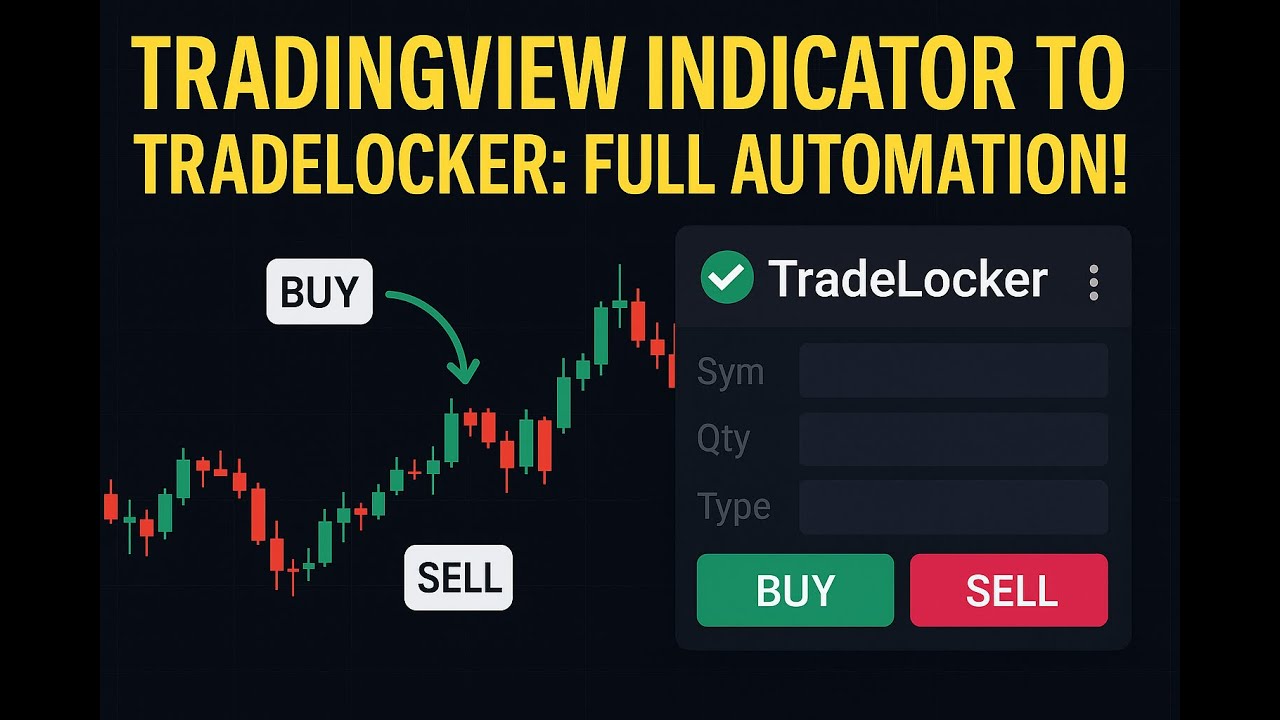
Erstellung eines TradingView-Indikator-Alerts für TradeLocker
Alert für TradingView-Indikator erstellen
Richten Sie Ihre Automatisierung ein

Verbinden Sie TradingView in 3 Schritten mit TradeLocker

Richten Sie automatisiertes Trading in wenigen Minuten ein. Keine Programmierkenntnisse erforderlich – einfach kopieren, einfügen und traden.

1

Verbinden Sie TradeLocker mit PickMyTrade – Schnellstart-Anleitung

Automatisieren Sie Ihre TradingView-Alerts in TradeLocker mit PickMyTrade über einen einfachen Verbindungsprozess.

  • Schritt 1: Melden Sie sich mit den Serverdaten Ihres Brokers bei Ihrem TradeLocker-Demo- oder Live-Konto an.
  • Schritt 2: Öffnen Sie PickMyTrade, navigieren Sie zu „TradeLocker Connection“ und fügen Sie Ihre TradeLocker-Zugangsdaten hinzu.
  • Schritt 3: Klicken Sie auf „Generate Alert“, um TradingView-kompatible Automatisierungslinks für TradeLocker zu erstellen.

Nach der Verbindung können Sie Alerts für jeden TradingView-Indikator oder jede Strategie einrichten, Stop-Loss und Take-Profit konfigurieren und eine risikobasierte Positionsgröße festlegen.

2

Alert-Details in TradingView kopieren

  • Generieren Sie den Alert-Code in PickMyTrade
  • Einfügen in die TradingView-Alert-Nachricht
  • Fügen Sie Ihre Webhook-URL hinzu
3

Lassen Sie die Automatisierung übernehmen

  • Wenn Ihr TradingView-Alert ausgelöst wird, sendet PickMyTrade die Order sofort an TradeLocker
  • Die Trade-Ausführung erfolgt, ohne dass Sie einen Finger rühren müssen

How TradingView to TradeLocker automation works with PickMyTrade

PickMyTrade sits between TradingView and TradeLocker and does the translating for you. There are four links in the chain:

Step What happens
1. TradingView alertYour strategy, indicator, or manual chart alert fires.
2. WebhookTradingView sends a small JSON message to your PickMyTrade webhook URL.
3. PickMyTradeReads the symbol, side, size, stop-loss and take-profit, and processes the order in under 200ms on our side.
4. TradeLocker executionPickMyTrade places the order on your connected TradeLocker account, even while your computer is switched off.
TradingView alert → Webhook (JSON) → PickMyTrade (under 200ms, our side) → TradeLocker order

Because the whole path runs in the cloud, you do not need a VPS or a desktop bot. Your total fill time depends on your broker's execution, network latency, and how quickly TradingView sends the alert, but the PickMyTrade step is consistently fast.

Further reading: Automating a TradingView indicator to TradeLocker

How to connect TradeLocker to TradingView step by step

The full setup takes about five minutes and there is nothing to code. Here are the four steps.

Step 1: Create your PickMyTrade account and get your webhook URL

Sign up for PickMyTrade and start your 5-day free trial (no credit card needed). Inside the dashboard, generate your alert and PickMyTrade gives you a unique webhook URL. This URL is the address TradingView will send your signals to, so keep it handy for step 3.

Step 2: Add your TradeLocker credentials (email, password, server/environment, demo vs live)

Open the TradeLocker connection screen in PickMyTrade and enter the login you use for TradeLocker: your email, your password, and your server or broker environment. Choose whether the account is demo or live. Because TradeLocker is offered through many different brokers, the server value tells PickMyTrade which broker environment your account lives on. Save the connection and PickMyTrade links to your TradeLocker account. TradeLocker setup doc.

Step 3: Build the TradingView alert with the PMT JSON message (entry, SL, TP, quantity)

In PickMyTrade, generate the alert message for your buy and sell signals. It is a small JSON block that carries the symbol, order side, quantity, and any stop-loss or take-profit you want. In TradingView, create an alert on your strategy or indicator, delete the default alert text, and paste the PickMyTrade message into the message box. Then open the alert's Notifications tab and paste your PickMyTrade webhook URL into the Webhook URL field. Webhook alerts require a paid TradingView plan (Pro, Pro+, or Premium); free TradingView accounts cannot send webhooks.

Step 4: Fire a test alert and confirm the order in TradeLocker

Before you trust it with a live strategy, send one test alert. Put the alert on a fast timeframe or trigger it manually, then check the PickMyTrade alert log to see the signal arrive, and check TradeLocker to confirm the order landed. Once you see the trade appear in TradeLocker, your connection is working and you can enable your real strategy. video tutorial.

Where to find your TradeLocker server name and environment

The server name is the single most common thing people get stuck on, because TradeLocker is white-labelled by many brokers and each one has its own environment. You will find the server value on the same screen where you log in to TradeLocker: it appears as the environment or server field on the TradeLocker web or mobile login, right next to your email and password. If you are unsure, open your broker's TradeLocker login page and note the exact server or environment name shown there, or ask your broker's support which TradeLocker environment your account uses. Enter that value in PickMyTrade exactly as it appears, and pick demo or live to match the account type you logged into.

TradeLocker trade copier: copy one TradingView signal to multiple TradeLocker accounts

PickMyTrade is also a TradeLocker trade copier. One TradingView signal can place the same trade across several TradeLocker accounts at once, so you are not repeating the same order by hand on account after account. Each account can carry its own quantity multiplier, so you might run a smaller account at 0.5x, a standard account at 1x, and a larger one at 2x, all from the same alert. Entry, stop-loss, and take-profit stay consistent across the accounts, while the size scales to each account's multiplier. This is how multi-account and funded traders scale a single strategy without watching every account manually.

Supported order types and features

On the webhook path PickMyTrade supports market and limit orders, with stop-loss and take-profit attached to the entry. You also get symbol mapping (trade a different symbol than the one in your alert), a quantity multiplier and risk-percentage sizing, the ability to reverse or flip a position, and a close-all command to flatten a position across your accounts. These settings live in PickMyTrade, so you configure them once and every alert follows the same rules.

Market & limit orders Stop-loss & take-profit Symbol mapping Quantity multiplier Risk-percentage sizing Reverse / flip position Close-all

Which assets you can trade (forex, CFDs, indices, commodities)

TradeLocker is used mainly for forex and CFD trading, and PickMyTrade works with whatever your TradeLocker broker offers. That typically means forex pairs, CFDs, indices, and commodities, depending on the instruments your specific broker lists. Because you are trading through your own broker's TradeLocker environment, your available symbols, spreads, and trading hours are set by that broker, and PickMyTrade simply routes the orders your TradingView alerts create.

Using PickMyTrade with prop firms on TradeLocker (verify each firm's rules first)

Some proprietary trading firms run their evaluations and funded accounts on TradeLocker, and PickMyTrade can connect to a TradeLocker account whether it is personal, demo, or funded. Copy trading and automation rules vary by prop firm and change over time, so always confirm your firm's current policy before you automate. Firms differ on whether they allow webhook automation, how many accounts you may copy across, and how identical fills can be. PickMyTrade copies your own TradingView alerts across your own accounts, which keeps you in control, but the responsibility for staying inside each firm's rules is yours. Check your firm's current automation and copy-trading policy first. supported prop firms.

Pricing and free trial

PickMyTrade is $50 per month or $500 per year, and every plan starts with a 5-day free trial that needs no credit card. One subscription covers your TradeLocker automation and the trade copier, and there is 24/7 live support if you get stuck. You can test the full setup during the trial and only pay once you are happy it works for your strategy. pricing page.

Troubleshooting common connection and order-rejection issues

Most connection problems come down to a handful of causes. If your account will not connect, check that your email and password are exactly right and that the server or environment matches the one on your TradeLocker login, and confirm you picked demo or live to match. If an order is rejected, the usual reasons are: the symbol in your alert does not match a symbol your broker lists (use symbol mapping to line them up), the position size is larger than your account or the broker allows, the market is closed for that instrument, or you do not have enough margin. If a trade never appears at all, confirm your TradingView plan is Pro or higher (free plans cannot send webhooks), check that the webhook URL and JSON message are pasted correctly, and look at the PickMyTrade alert log to see exactly what arrived. The alert log is the fastest way to tell whether the problem is the TradingView alert, the PickMyTrade settings, or the broker.

PickMyTrade vs other TradingView-to-TradeLocker tools

A few tools promise to connect TradingView to TradeLocker, and the honest way to compare them is on setup, reliability, and support rather than hype. PickMyTrade runs entirely in the cloud, so there is no VPS to rent and no desktop app to keep open, and it handles both single-account automation and multi-account copying in one subscription. It processes your order in under 200ms on our side, supports symbol mapping, multipliers, and risk-percentage sizing, and connects to many brokers beyond TradeLocker if you expand later. Whichever tool you pick, test it on a demo account first and confirm it fits your prop firm's rules. compare PickMyTrade to other tools — Further reading: PickMyTrade vs Copygram.

Fortschrittliche Trading-Funktionen

Warum Trader PickMyTrade für die TradeLocker-Automatisierung wählen

Professionelle automatisierte Trading-Tools speziell entwickelt für die TradingView-zu-TradeLocker-Integration. Alles, was Sie für die Automatisierung von Forex- und CFD-Trading benötigen.

Mehrere Alert-Typen

Automatisieren Sie Trades entweder über indikatorbasierte oder strategiebasierte Alerts von TradingView. Diese Flexibilität sorgt dafür, dass Ihre Automatisierung nahtlos mit jedem Trading-Stil funktioniert – von der technischen Analyse bis hin zu vollständig codierten Strategien.

Indikator-Alerts Strategie-Alerts Sofortige Ausführung

Flexibles Symbol-Mapping

Handeln Sie genau das Asset, das Sie möchten – selbst wenn Ihr Alert auf einem anderen basiert. Mappen Sie Symbole frei (z. B. Alert auf EUR/USD, GBP/USD, XAU/USD usw.) oder bleiben Sie für Präzision beim Eins-zu-eins-Mapping.

Symbolübergreifendes Mapping Präzise Zielsetzung Flexible Konfigurationen

Intelligente Mengeneinstellungen

Steuern Sie die Trade-Größe nach Ihren Vorstellungen: Legen Sie eine feste Menge fest oder nutzen Sie eine dynamische, risikobasierte Positionsgröße, die sich an Ihrem Stop-Loss und Risikoprozentsatz orientiert und so ein konsistentes Risikomanagement gewährleistet.

Feste Menge Risikoprozentsatz Automatische Größenanpassung Risikoschutz

Erweiterte SL- & TP-Optionen

Wählen Sie aus mehreren Berechnungsmethoden für Stop-Loss und Take-Profit: nach Punkten, Prozent, Ticks, exaktem Preis oder Gesamtgewinn/-verlust pro Kontrakt – für die volle Kontrolle über Ihre Trade-Ausstiege.

Punkte / Dollar Prozent Preisvariablen Ticks Gewinn/Verlust pro Kontrakt

Multi-Account-Unterstützung

Verknüpfen Sie mehrere TradeLocker-Konten mit einem PickMyTrade-Profil und steuern Sie die Ausführung individuell mit Multiplikatoren oder risikobasierter Positionsgröße. Perfekt für die Verwaltung mehrerer Portfolios.

Multi-Account Mengenmultiplikator Risikobasierte Allokation Einrichtung mit einem Klick

Beispiel

Schnelle & präzise Ausführung

Dieses Beispiel veranschaulicht, wie Präzision und Geschwindigkeit Marktchancen in umsetzbare Trades verwandeln. Die Strategie kauft NQ bei 21.891, setzt einen Stop-Loss bei 21.841 und einen Take-Profit bei 21.991, also 100 Punkte darüber. Mit 10 Kontrakten sind die Trade-Parameter klar definiert und begrenzen den potenziellen Verlust auf 10.000 $ und den Gewinn auf 20.000 $.

Sobald der Alert auf TradingView ausgelöst wird, PickMyTrade platziert die Order sofort und stellt sicher, dass keine Lücke zwischen Signal und Marktorder entsteht. Dieses Maß an Systemautomatisierung gewährleistet eine unerschütterliche Einhaltung des Handelsplans ohne manuellen Trader, selbst in Phasen hoher Volatilität.

Einstiegspunkt

BUY NQ 21,891.00

NASDAQ-100 E-mini Futures

Positionsgröße

10 Kontrakte

20 $ pro Punkt Multiplikator

Stop-Loss

21,841.00

-50 Punkte Risiko

Take-Profit

21,991.00

+100 Punkte Ziel

Risikoanalyse

Maximales Risiko

$10,000

50 Pkt. × 20 $ × 10 Kontrakte

Risiko pro Kontrakt: 1.000 $

Maximaler Gewinn

$20,000

100 Pkt. × 20 $ × 10 Kontrakte

Risiko/Ertrags-Verhältnis: 1:2

13 Questions, Answered

TradeLocker Automation FAQ

Answers written to match our TradingView-to-TradeLocker how-to guide above

Can you connect TradingView to TradeLocker?
Yes. TradingView cannot place orders in TradeLocker on its own, but PickMyTrade connects the two using webhook alerts. When your TradingView alert fires, PickMyTrade receives it and places the matching order in your TradeLocker account automatically, with no coding and no computer left running. Most traders are live in about five minutes.
How do I connect TradeLocker to PickMyTrade / TradingView?
Create a PickMyTrade account, open the TradeLocker connection screen and enter your TradeLocker email, password, and server or broker environment, choosing demo or live. Then generate your alert message and webhook URL in PickMyTrade, create an alert in TradingView, paste the message into the alert box and the webhook URL into the alert's Notifications tab. Fire a test alert to confirm it works.
What credentials and information does TradeLocker require to connect?
PickMyTrade needs the same details you use to log in to TradeLocker: your email, your password, and your server or broker environment name. You also tell PickMyTrade whether the account is a demo or a live account. Because TradeLocker is offered through many brokers, the server value is what points PickMyTrade at the correct broker environment.
Where do I find my TradeLocker server name / broker environment?
Your server or environment name appears on the TradeLocker login screen, next to the email and password fields, on both the web and mobile apps. It is set by the broker that gave you the TradeLocker account. If you are not sure which one to use, open your broker's TradeLocker login page and copy the server value exactly as shown, or ask your broker's support which environment your account uses.
Do I need to know how to code to automate TradingView to TradeLocker?
No. PickMyTrade is a no-code tool. It generates the alert message and webhook URL for you, and all you do is paste them into a TradingView alert. There is nothing to program, no API keys to write, and no plugin to install.
Can I copy one TradingView signal to multiple TradeLocker accounts?
Yes. PickMyTrade works as a TradeLocker trade copier, so a single TradingView alert can place the same trade across several TradeLocker accounts at once. Each account can have its own quantity multiplier, so you can scale size up or down per account while keeping the same entry, stop-loss, and take-profit.
Can I test on a TradeLocker demo account before going live?
Yes. When you add your TradeLocker credentials you choose demo or live, so you can connect a demo account and run your whole setup on paper first. Testing on demo is the safest way to confirm your alerts, symbol mapping, and sizing behave the way you expect before you risk real money.
What order types, stop loss and take profit options are supported?
On the webhook path PickMyTrade supports market and limit orders and lets you attach a stop-loss and a take-profit to the entry. You can also reverse or flip a position and send a close-all command. You set these rules once in PickMyTrade and every alert follows them.
Can I trade a different symbol than the one in my alert (symbol mapping)?
Yes. PickMyTrade includes symbol mapping, so the symbol in your TradingView alert can be different from the symbol executed in TradeLocker. This is useful when your chart symbol and your broker's instrument name do not match exactly, and it lets you point one alert at the correct TradeLocker instrument.
Why did my trade fail to place / get rejected, and how do I fix it?
The most common causes are a symbol that does not match a symbol your broker lists, a position size larger than your account or broker allows, a closed market, or not enough margin. Connection issues are usually a wrong password or a server or environment value that does not match your TradeLocker login. Open the PickMyTrade alert log to see exactly what arrived and what the broker returned; that tells you whether the fix is in the TradingView alert, the PickMyTrade settings, or your broker account.
Which assets and brokers on TradeLocker are supported?
PickMyTrade works with whatever instruments your TradeLocker broker offers, which usually means forex pairs, CFDs, indices, and commodities. Because TradeLocker is white-labelled by many brokers, your exact symbols, spreads, and hours come from your specific broker, and PickMyTrade routes the orders your alerts create to that account.
Does this work with prop firms that use TradeLocker, and what are the rules?
PickMyTrade can connect to a TradeLocker account whether it is personal, demo, or funded, and some prop firms do run on TradeLocker. Copy trading and automation rules vary by prop firm and change over time, so always confirm your firm's current policy before you automate. PickMyTrade copies your own alerts across your own accounts, but staying inside each firm's rules is your responsibility.
How much does it cost and is there a free trial?
PickMyTrade is $50 per month or $500 per year, and every plan starts with a 5-day free trial with no credit card required. One subscription covers both single-account automation and the multi-account trade copier, plus 24/7 live support.
Ihre Fragen beantwortet

Häufig gestellte Fragen

Alles, was Sie über die TradingView-zu-TradeLocker-Automatisierung wissen müssen

Allgemeine Verbindung und Einrichtung

Wie verbinde ich mein TradeLocker-Konto mit PickMyTrade?
Um Ihr TradeLocker-Konto zu verbinden, melden Sie sich zunächst bei Ihrem TradeLocker- und Ihrem PickMyTrade-Konto an. Klicken Sie im PickMyTrade-Dashboard auf „TradeLocker Connection“ und dann auf „Add New Connection“. Sie müssen Ihren TradeLocker-Benutzernamen (in der Regel Ihre E-Mail-Adresse), Ihr Passwort, die Umgebung (Demo oder Live) und den von Ihrem Broker bereitgestellten Servernamen eingeben.
Welche Informationen benötige ich, um TradeLocker mit PickMyTrade zu verbinden?
Sie benötigen vier zentrale Informationen:
1: Ihren TradeLocker-Benutzernamen (E-Mail).
2: Ihr TradeLocker-Passwort.
3: Ihren Kontotyp (Demo oder Live).
4: Den von Ihrem Broker oder Ihrer Prop Firm bereitgestellten Servernamen.
Ich kenne meinen TradeLocker-Servernamen nicht. Wo finde ich ihn?
Ihr Servername ist auf dem TradeLocker-Anmeldebildschirm verfügbar. Falls Sie unsicher sind, sollten Sie sich an Ihren Broker oder Ihre Prop Firm wenden.
Warum schlägt meine TradeLocker-Verbindung fehl?
Eine Verbindung kann aufgrund falscher Anmeldedaten oder einer nicht übereinstimmenden Umgebung fehlschlagen. Überprüfen Sie, ob Ihr Benutzername, Passwort, Servername und Ihre Umgebung (Demo/Live) in PickMyTrade korrekt eingegeben wurden und exakt mit Ihren TradeLocker-Kontodaten übereinstimmen.

Automatisierung von TradeLocker-Trades mit TradingView

Wie konfiguriere ich das Handelssymbol für meine automatisierten Trades?
Sie können das gewünschte Handelssymbol direkt in PickMyTrade angeben. Dies ist für bestimmte Stop-Loss-Typen wie „Ticks“ oder „Total Profit/Loss“ zwingend erforderlich. Wenn Sie das Symbolfeld leer lassen, verwendet PickMyTrade standardmäßig das Symbol aus Ihrem TradingView-Chart.
Kann ich einen TradingView-Alert für ein Symbol generieren und den Trade auf einem anderen ausführen?
Ja. Sie können Ihren TradingView-Alert mit einem Symbol (z. B. BTCUSD) einrichten und dann im PickMyTrade-Symbolfeld ein anderes Symbol (z. B. ETHUSD) für die Ausführung angeben.

Verwaltung von Ausstiegen und Kontoeinstellungen

Wie gehe ich mit Stop-Loss und Take-Profit in PickMyTrade um?
Wenn Ihre TradingView-Strategie eigene Ausstiegsregeln enthält (z. B. mehrere Take-Profits), sollten Sie die Strategie diese verwalten lassen. Wenn Ihre Strategie keine Ausstiege handhabt, müssen Sie Ihre bevorzugten Stop-Loss- und Take-Profit-Einstellungen manuell direkt in der PickMyTrade-Plattform konfigurieren.
Wie kann ich von mehreren TradeLocker-Konten aus traden?
Sie können einer einzelnen PickMyTrade-Alert-Konfiguration mehrere TradeLocker-Konten zuweisen. Fügen Sie einfach jedes Konto im Abschnitt „Add Account“ hinzu und geben Sie für jedes den Verbindungsnamen, den Kontonamen und Ihre bevorzugte Trade-Größen-Option (Mengenmultiplikator oder Risikoprozentsatz) an.
Was ist der Unterschied zwischen Mengenmultiplikator und Risikoprozentsatz?
Mengenmultiplikator: Diese Option multipliziert die von Ihrer Strategie generierte Trade-Größe. Ein Multiplikator von „2“ verdoppelt beispielsweise die Anzahl der gehandelten Kontrakte oder Einheiten.
Risikoprozentsatz: Diese Option berechnet die Trade-Größe automatisch so, dass jeder Trade einen festgelegten Prozentsatz Ihres Kontokapitals riskiert (z. B. 2 %).

Fehlerbehebung und erweiterte Einrichtung

Wie richte ich den finalen Alert in TradingView ein?
Nachdem Sie alles in PickMyTrade konfiguriert haben, klicken Sie auf „Generate Alert“ und anschließend auf „Copy Webhook URL“. Erstellen Sie in TradingView einen neuen Alert, fügen Sie den Alert-Code aus PickMyTrade in das Feld „message box“ ein und fügen Sie die Webhook-URL in das Feld „Webhook URL“ ein. Klicken Sie abschließend auf „Create Alert“.
Beim Verbinden meines TradeLocker-Kontos erhalte ich eine Fehlermeldung. Was soll ich tun?
Überprüfen Sie zunächst, ob Sie alle Anmeldedaten – Benutzername, Passwort, Umgebung (Demo/Live) und Server – exakt so eingegeben haben, wie sie in Ihrem TradeLocker-Konto erscheinen. Nicht übereinstimmende Informationen sind die häufigste Ursache für Verbindungsfehler. Falls das Problem weiterhin besteht, wenden Sie sich an Ihren Broker, um Ihre Kontodaten zu bestätigen.
Meine Strategie hat mehrere Ausstiege (z. B. TP1, TP2). Kann PickMyTrade damit umgehen?
Ja, PickMyTrade unterstützt Strategien mit mehreren Ausstiegen. In diesem Fall sollten Sie jedoch keine zusätzlichen Stop-Loss- oder Take-Profit-Einstellungen im PickMyTrade-Dashboard konfigurieren, da die Strategie selbst diese Ausstiege verwaltet.
Ich habe meinen Alert in TradingView eingerichtet, aber es werden keine Trades platziert. Woran könnte das liegen?
Es gibt einige Dinge zu überprüfen:
Webhook-URL: Stellen Sie sicher, dass Sie die Webhook-URL korrekt aus PickMyTrade kopiert und in das Webhook-URL-Feld in TradingView eingefügt haben.
Alert-Code: Vergewissern Sie sich, dass Sie den Alert-Code aus PickMyTrade kopiert und in das Feld „message“ Ihres TradingView-Alerts eingefügt haben.
Verbindung: Bestätigen Sie, dass Ihre TradeLocker-Verbindung in PickMyTrade aktiv ist und das zugewiesene Konto korrekt ist.
Strategie: Überprüfen Sie, ob Ihre TradingView-Strategie tatsächlich Kauf- und Verkaufssignale generiert.
Token: Wenn Sie Trades an ein anderes PickMyTrade-Konto senden, prüfen Sie, ob das Token korrekt ist und das Zielkonto die TradeLocker-Verbindung eingerichtet hat.

Plattformfunktionen & Anlageklassen

Welche Anlageklassen kann ich mit der TradingView-zu-TradeLocker-Automatisierung handeln?

PickMyTrade liefert eine leistungsstarke TradingView-zu-TradeLocker-Automatisierung speziell entwickelt für Forex- und CFD-Trader.

Sie können Trades automatisch ausführen auf:

  • Wichtige Forex-Paare: EUR/USD, GBP/USD, USD/JPY und mehr
  • Globale CFD-Märkte: einschließlich Indizes, Rohstoffe und Edelmetalle
Benötige ich Programmiererfahrung, um TradingView-Strategien mit TradeLocker zu automatisieren?

Nein! Unsere Plattform lässt sich nahtlos in die Multi-Asset-Handelsplattform von TradeLocker integrieren und ermöglicht es Ihnen, Ihre TradingView-Strategien zu automatisieren, ohne eine einzige Zeile Code zu schreiben.

Egal, ob Sie Spot-Forex, CFDs oder gehebelte Instrumente handeln – PickMyTrade gewährleistet die sofortige Ausführung Ihrer Alerts mit robusten Risikomanagement-Funktionen, einschließlich automatisierter Stop-Loss- und Take-Profit-Orders.

Kann ich meine Strategien testen, bevor ich mit echtem Geld handle?

Ja! PickMyTrade ist vollständig kompatibel mit sowohl Demo-Konten für Strategietests als auch Live-Trading-Konten bei allen TradeLocker-Brokern weltweit. Wir empfehlen dringend, Ihre automatisierten Strategien auf einem Demo-Konto zu testen, bevor Sie live gehen.

Haben Sie weitere Fragen? Lesen Sie unsere vollständige TradeLocker-FAQ.

Alle TradeLocker-FAQs anzeigen

Starten Sie Ihre Reise ins automatisierte Trading mit TradeLocker

Was macht PickMyTrade für TradeLocker anders?

Anders als andere Trading-Automatisierungsplattformen wurde PickMyTrade speziell für die Konnektivität von TradingView zu TradeLocker entwickelt. Wir verstehen die besonderen Anforderungen von Forex- und CFD-Tradern, die die TradeLocker-Plattform nutzen.

  • Keine Programmierung erforderlich - visueller Alert-Builder für TradingView
  • Sofortige Ausführung - Latenz unter einer Sekunde vom Alert bis zur Order
  • Multi-Asset-Unterstützung - Forex und CFDs auf TradeLocker
  • Zuverlässigkeit rund um die Uhr - cloudbasierte Infrastruktur für globale Märkte

Bereit, Ihr TradeLocker-Trading zu automatisieren?

Schließen Sie sich Hunderten von Forex-Tradern an, die ihre TradingView-Strategien über PickMyTrade mit TradeLocker automatisiert haben.

Kontakt

Haben Sie Fragen?

Wir helfen Ihnen gerne! Treten Sie unserer Community auf Discord bei oder schreiben Sie uns direkt eine E-Mail.